WordPress Site
Full WordPress management from the desktop. Manage content, media, files, plugins, themes, and users.
Users
User management with categories, CRM fields, inline editing, and clipboard support
The Users view lets you manage WordPress users from a table with role and category filtering, CRM fields, inline editing, and copy-paste support with spreadsheets.
Features
- Table view with sortable, filterable columns (ID, Login, Display Name, Email, Roles)
- Sidebar filtering by role and custom categories
- CRM fields for contact info like phone, birth date, city, state, postal code, and country
- Inline editing with field-specific editors (text, date picker, dropdown)
- User detail panel with profile info, categories, and additional fields
- Copy and paste user data to and from spreadsheets
Table
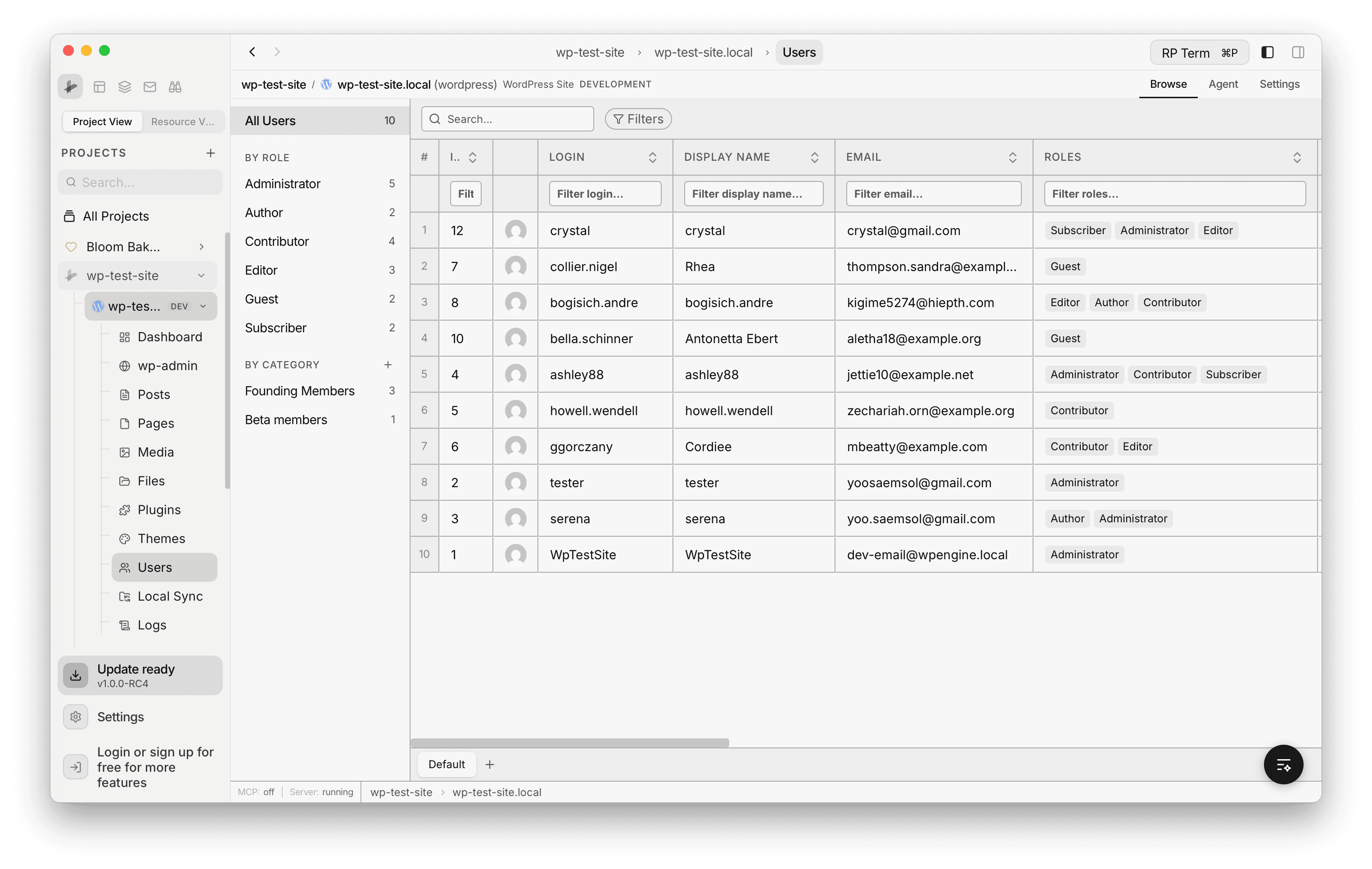
The main table displays users with columns for ID, Login, Display Name, Email, and Roles. Each column has per-column filters and is sortable. The left sidebar shows user counts grouped by role (Administrator, Author, Contributor, Editor, Guest, Subscriber) and by custom categories.
Categories
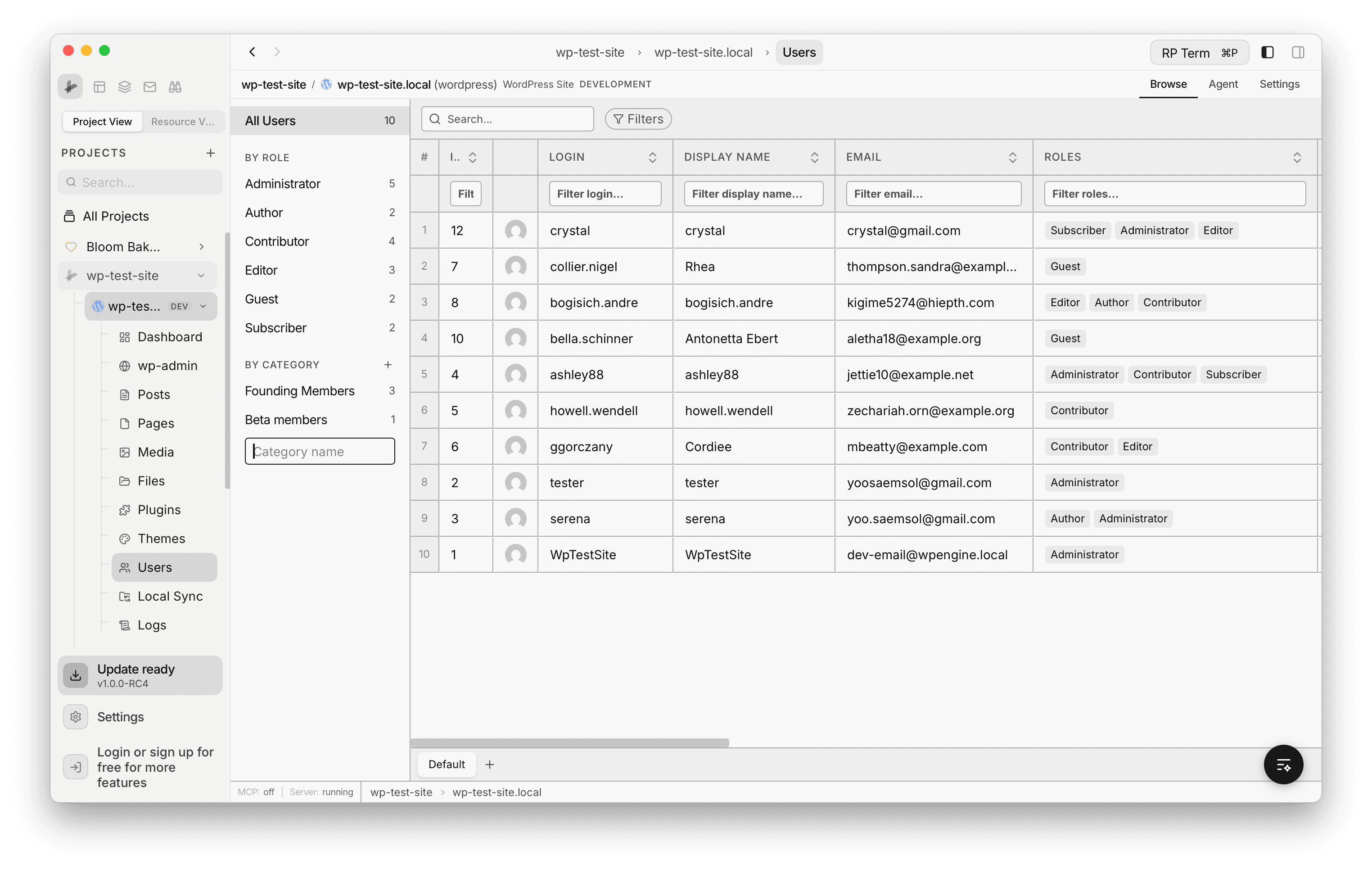
Organize users into custom categories beyond WordPress roles. The By Category section in the sidebar lists your categories with user counts. Click the + button to create a new category. Categories are useful for grouping users by membership level, team, or any custom grouping.
Inline Editing
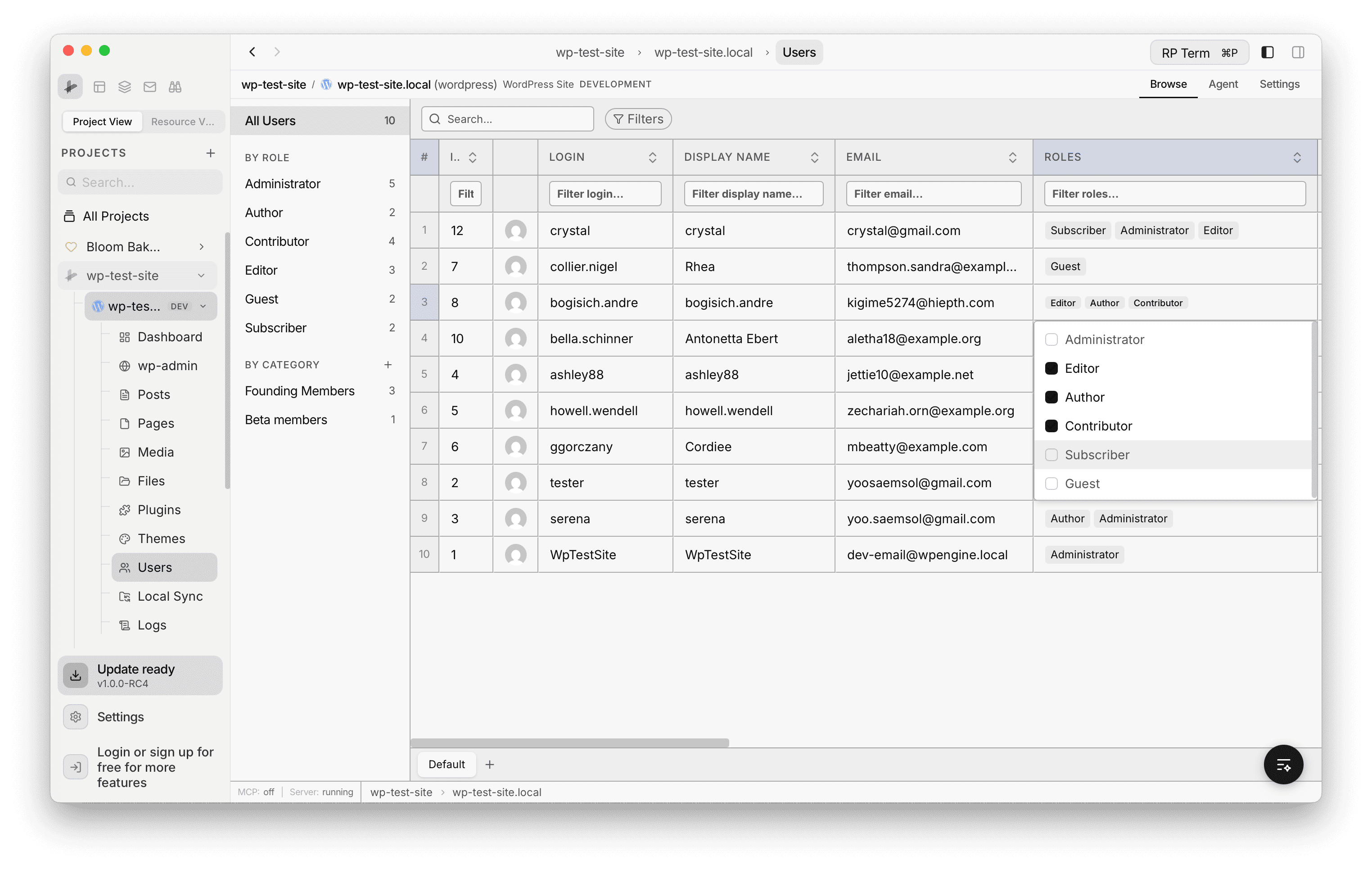
Click any editable cell to modify it directly in the table. The Roles column opens a checkbox dropdown letting you assign multiple roles to a user at once. Other fields open appropriate editors based on their type.
CRM Fields
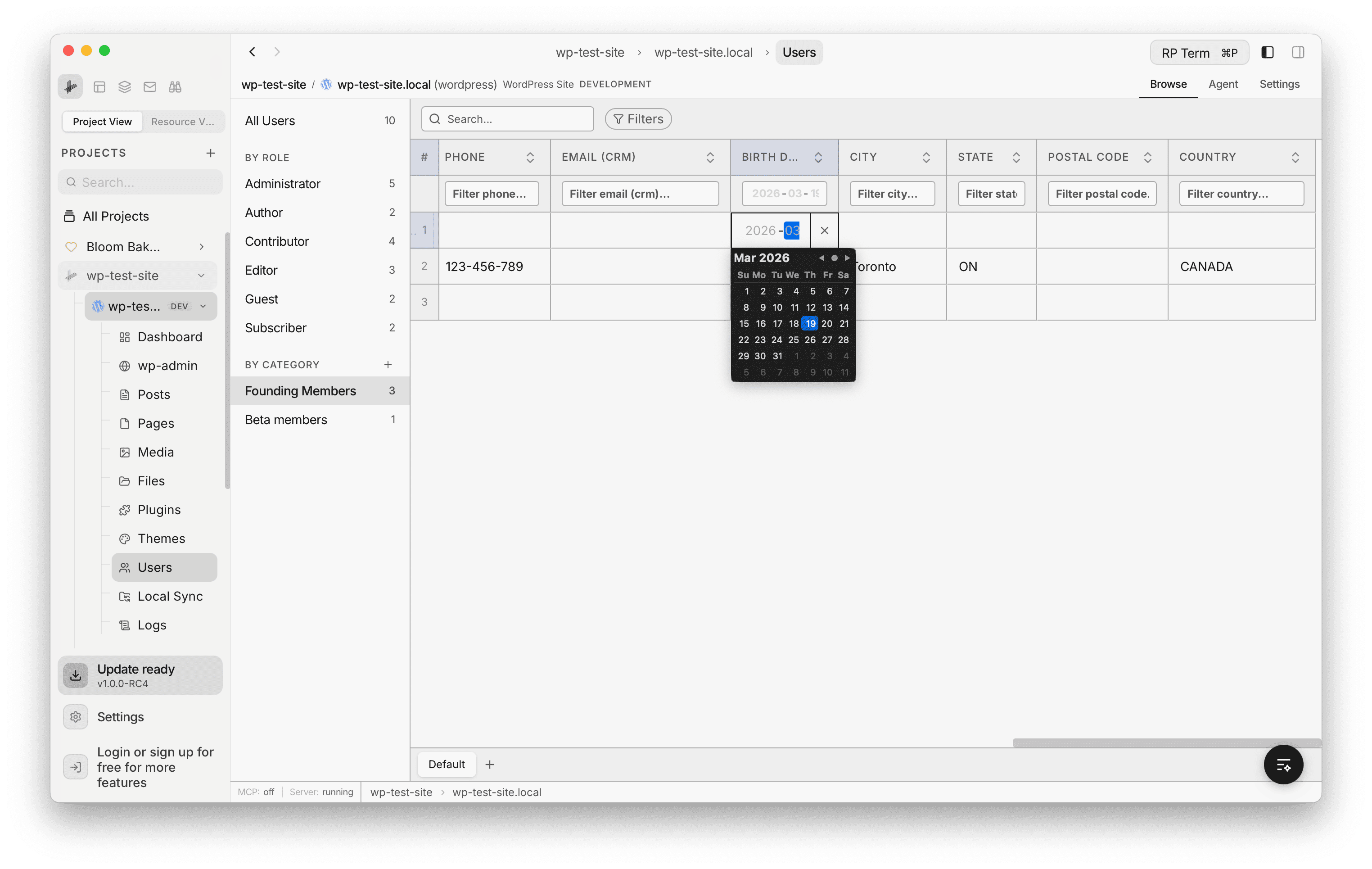
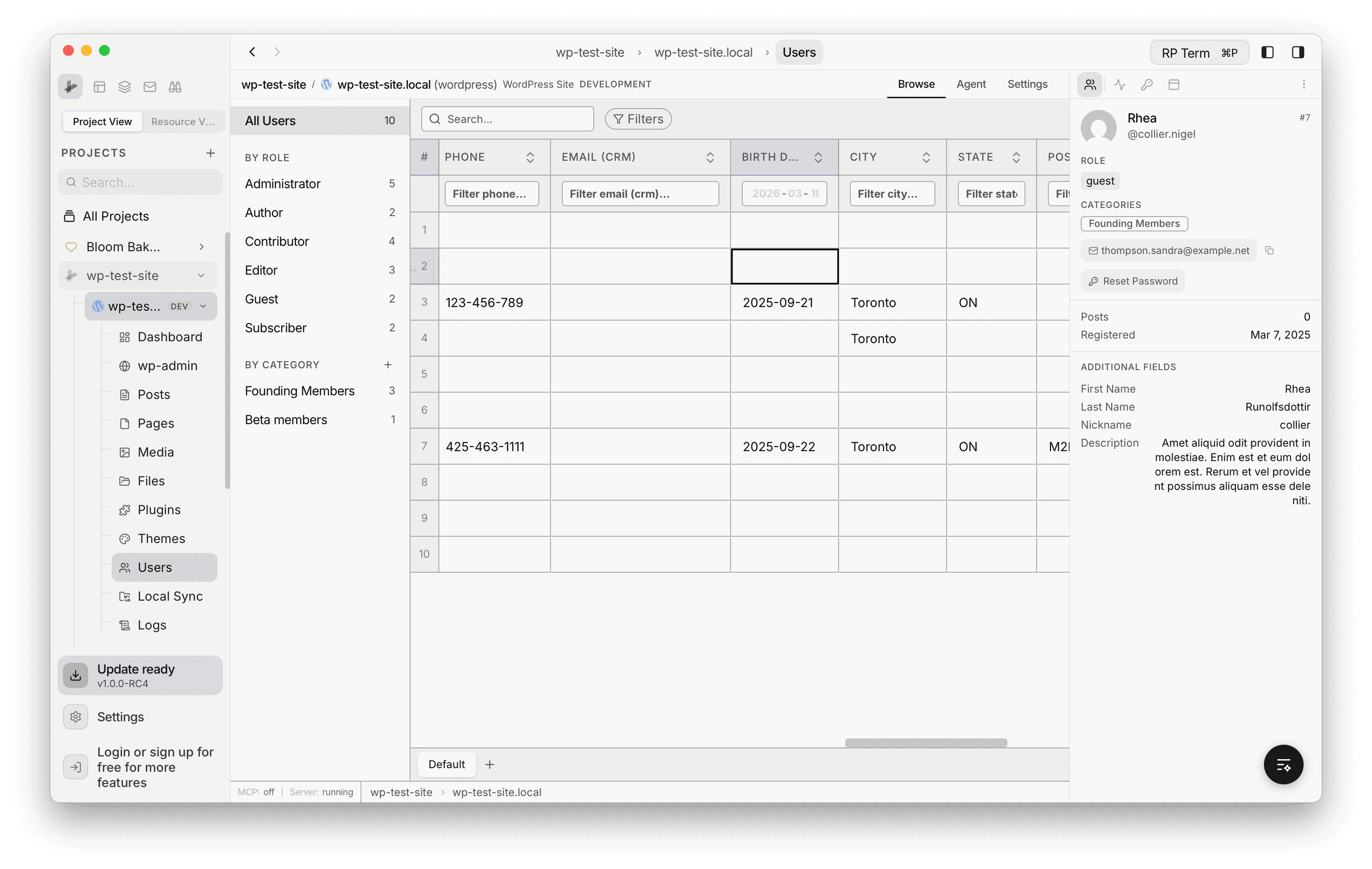
The table supports CRM-style fields for managing contact information. Columns like Phone, Email (CRM), Birth Date, City, State, Postal Code, and Country can be added to the table. Date fields open a calendar picker for easy editing.
User Detail Panel
Click a row to open the user detail panel on the right. The panel shows:
- Avatar, display name, and username
- Role
- Categories
- Email (with copy button)
- Reset Password link
- Post count and registration date
- Additional fields (First Name, Last Name, Nickname, Description)
Clipboard and Spreadsheet Integration
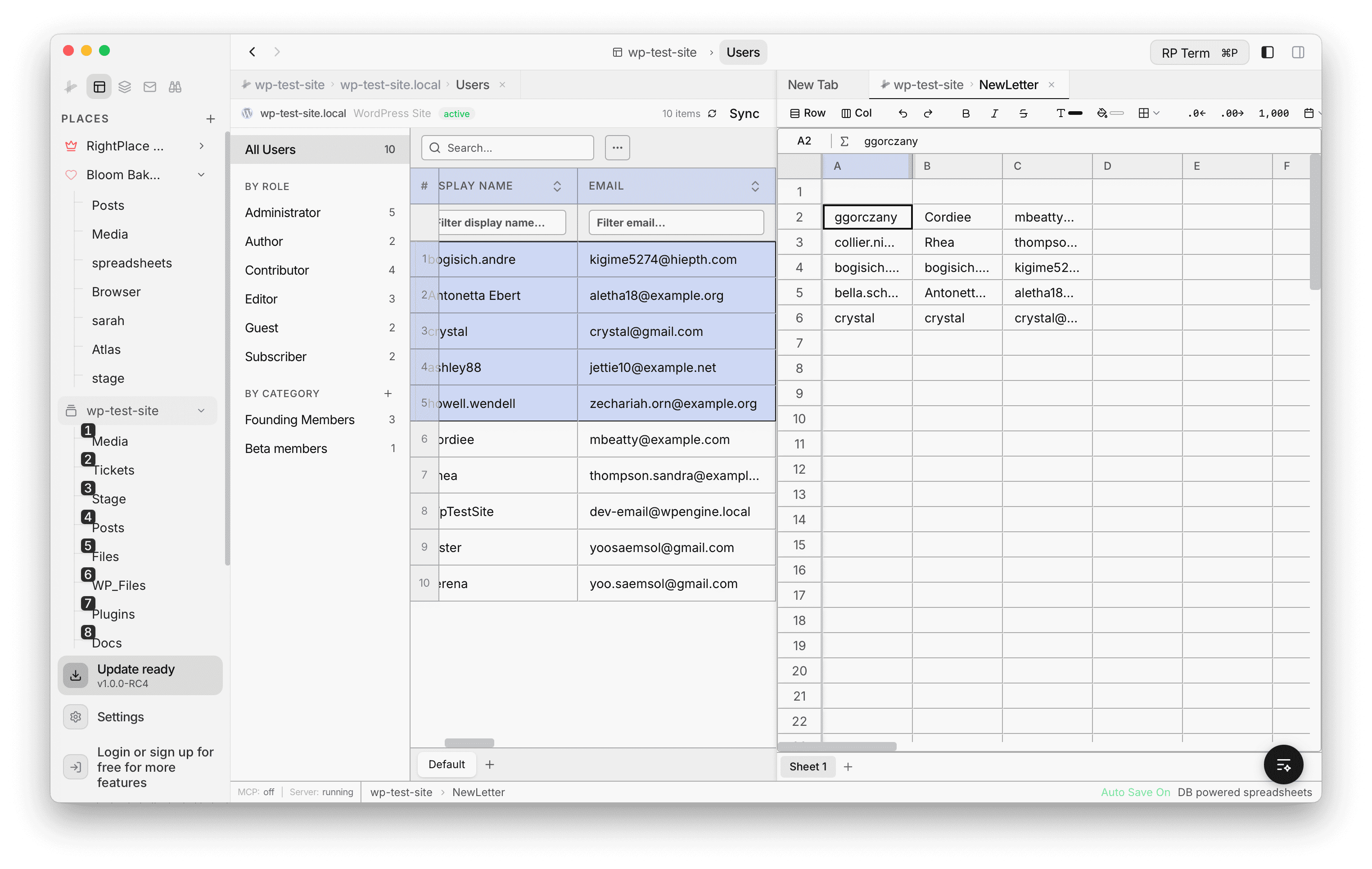
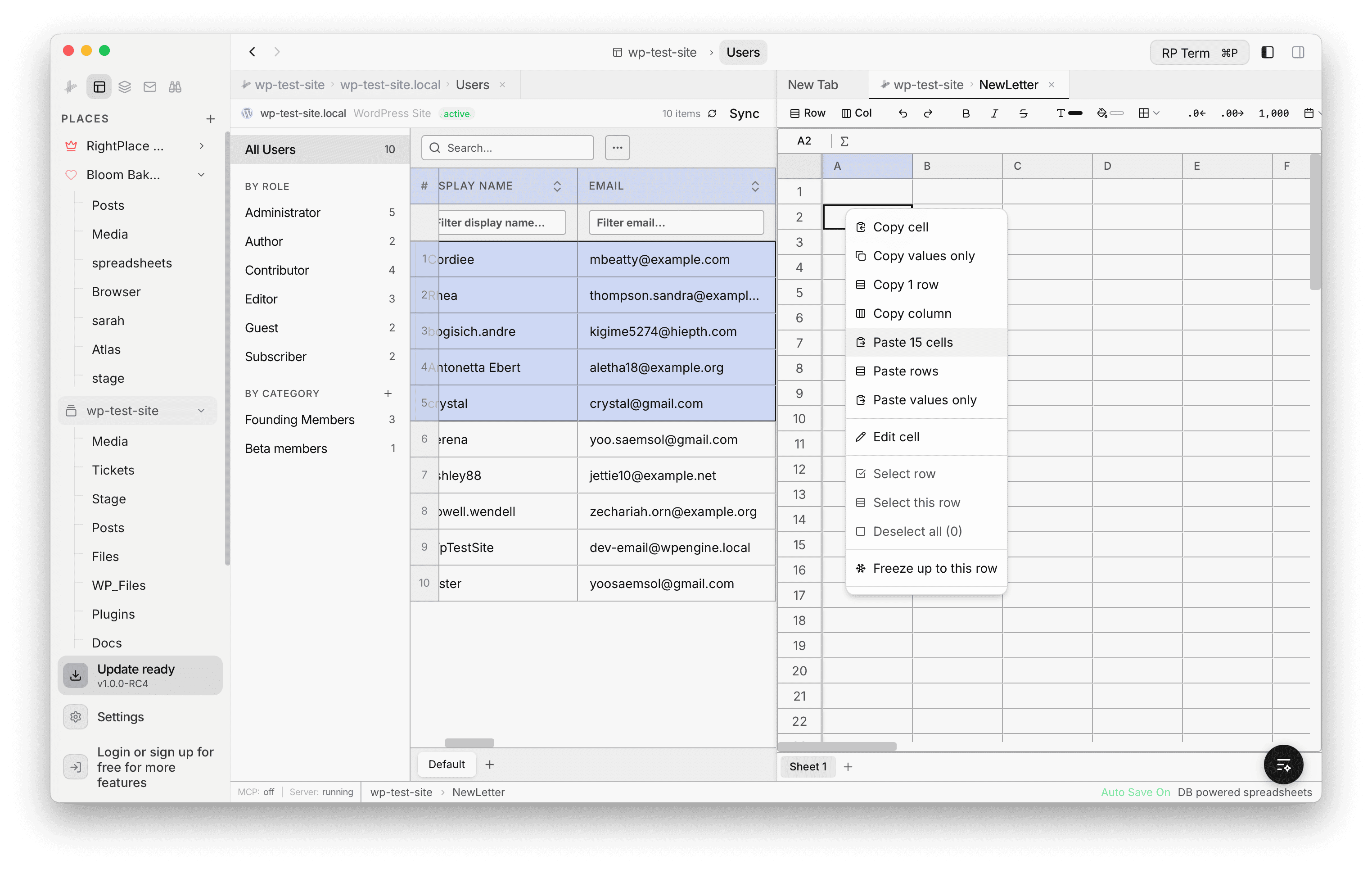
Open a Users table alongside a spreadsheet to copy and paste user data between them. Select cells in the user table and paste them into a spreadsheet, or copy data from a spreadsheet back into the user table. The right-click context menu provides options for Copy cell, Copy values only, Copy row, Copy column, Paste cells, Paste rows, and Paste values only.
Widget
Appears when a Users table tab is active. Shows the selected user’s profile and provides quick actions.
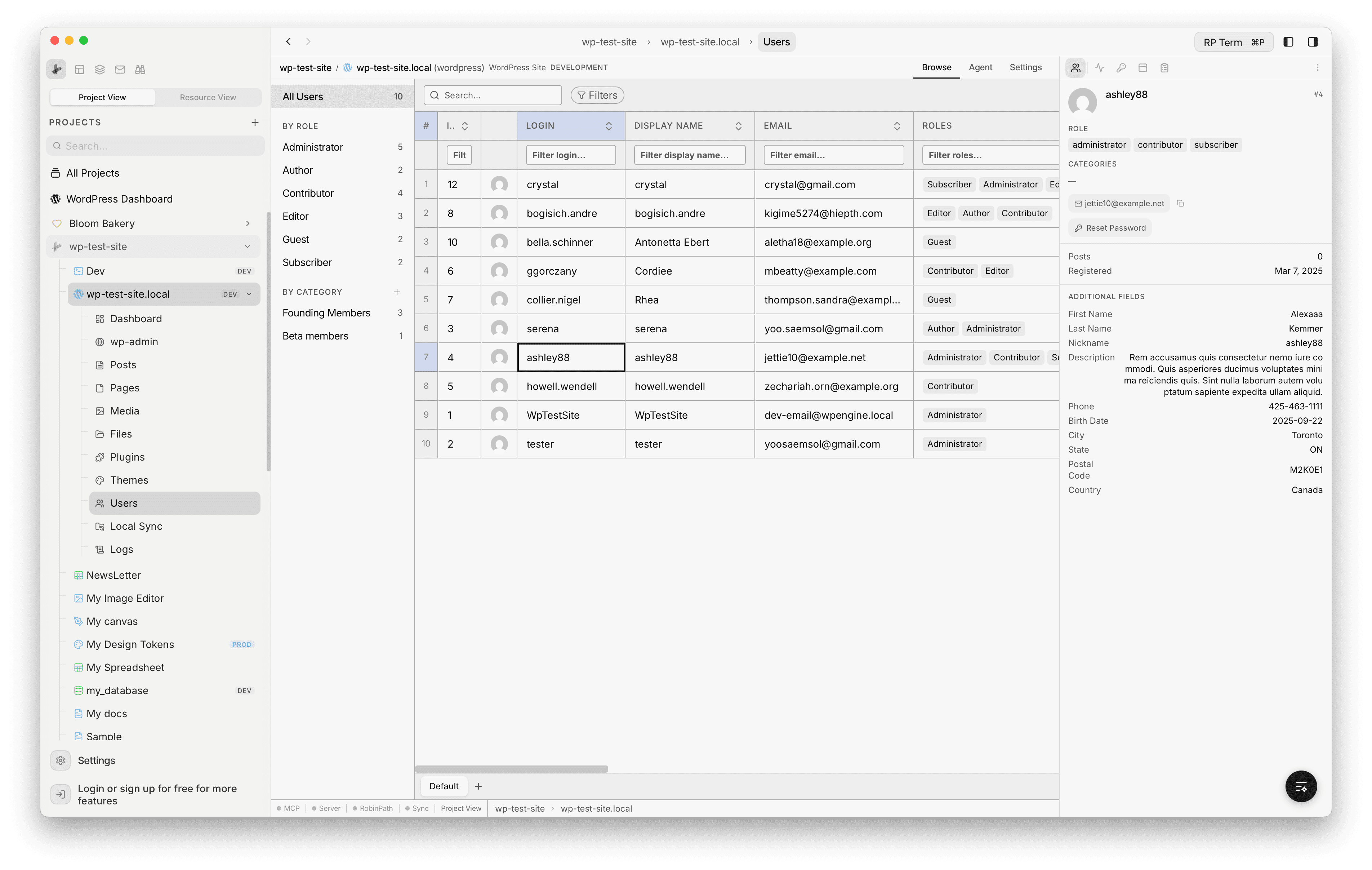
How it works: click any cell in the Users table to load that user’s details.
Detail fields:
- Avatar image
- User login and display name
- Email address with copy button
- Roles/capabilities
- Associated categories
- Post count
- Registration date
- Custom user meta fields
Actions:
- Copy email: copies the user’s email to the clipboard
- Send password reset: sends a password reset email to the user (with confirmation dialog)