WordPress Site
Full WordPress management from the desktop. Manage content, media, files, plugins, themes, and users.
Files
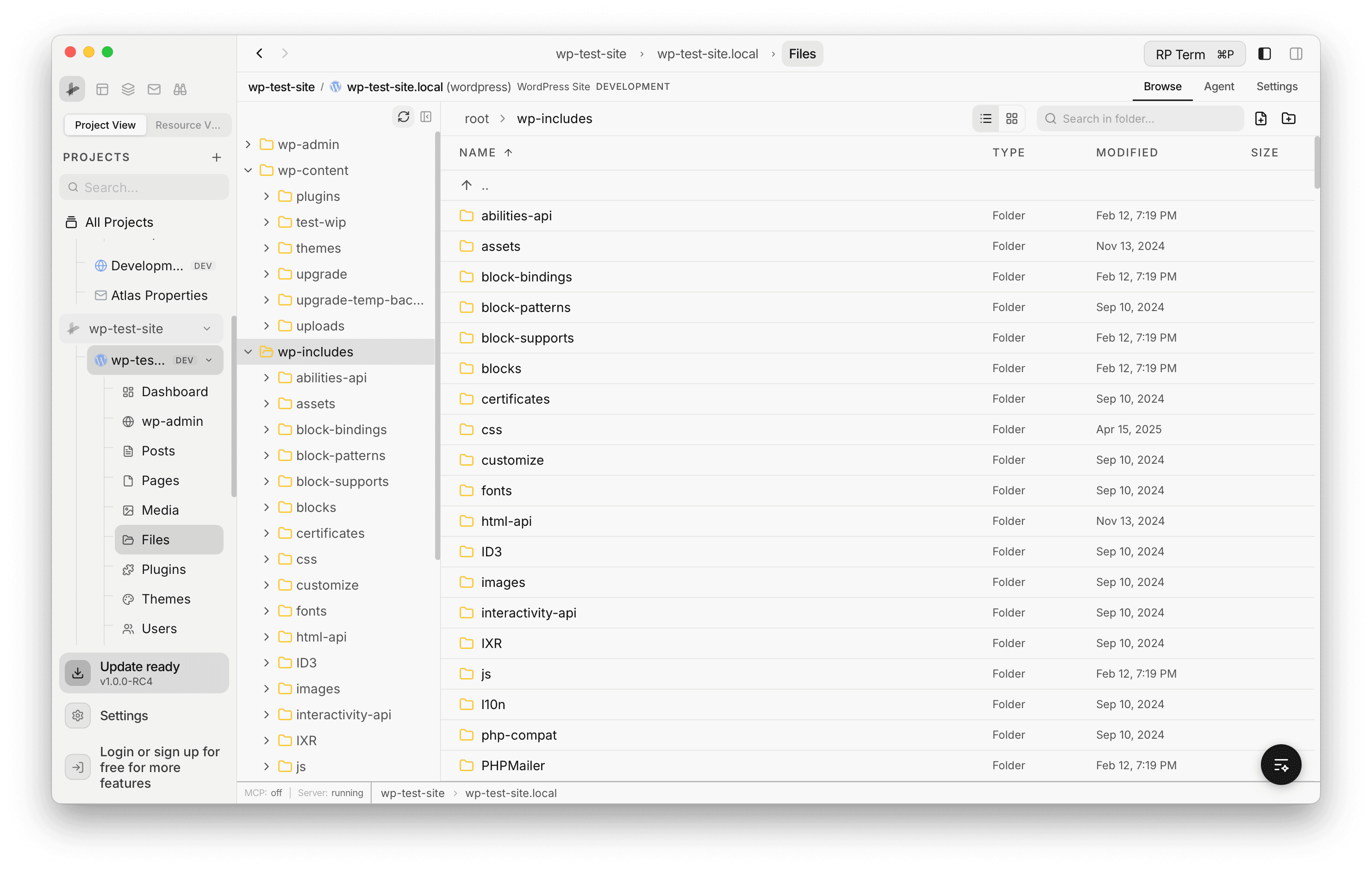
WordPress filesystem browser with folder tree, multi-pane, and code editor
The Files view lets you browse the full WordPress filesystem directly. Navigate through wp-admin, wp-content, wp-includes, and all other directories without needing SFTP or SSH.
Features
- Folder tree sidebar with expandable directory structure
- List and grid view modes with sortable columns (Name, Type, Modified, Size)
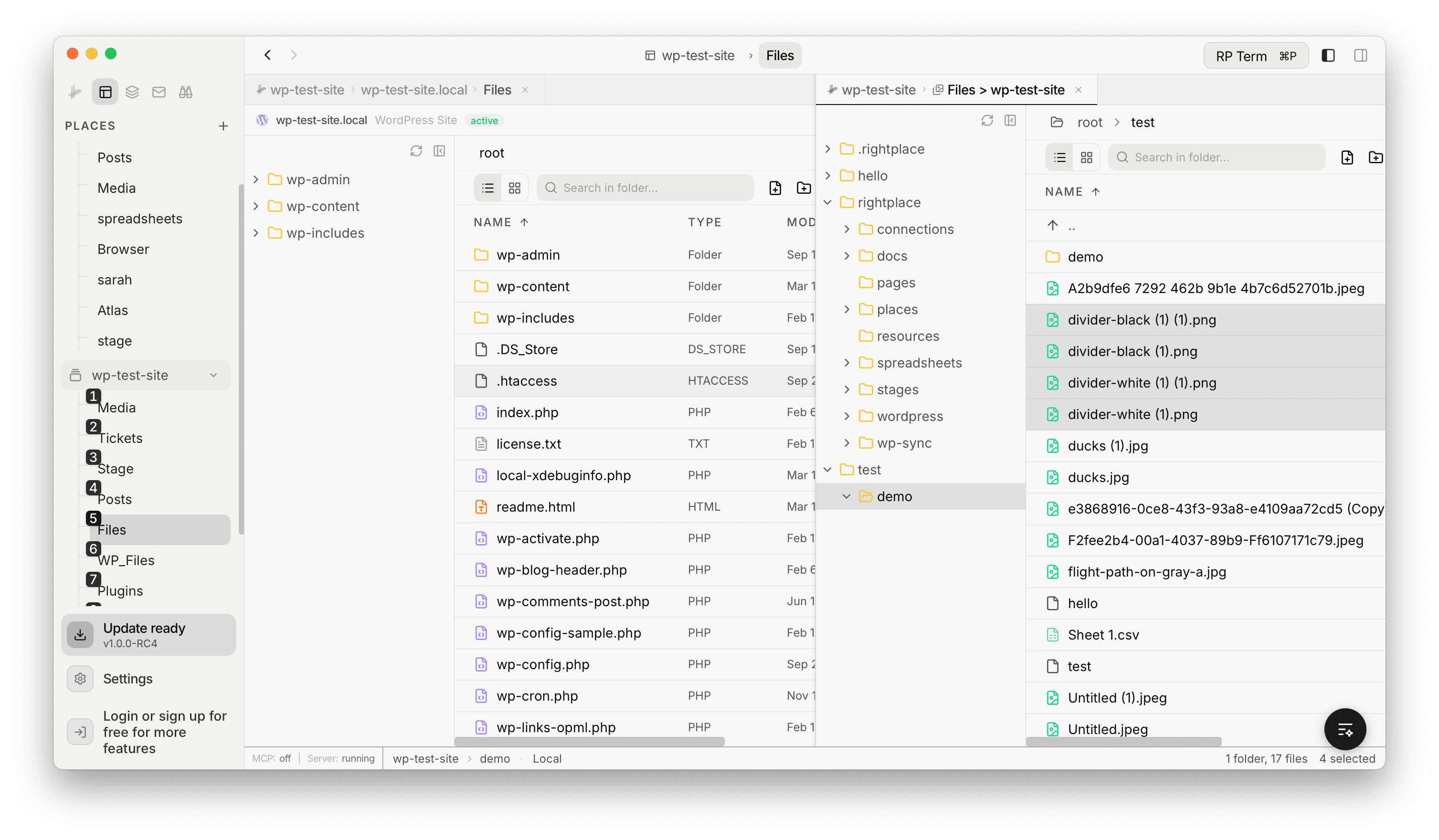
- Multi-pane browsing for side-by-side file management
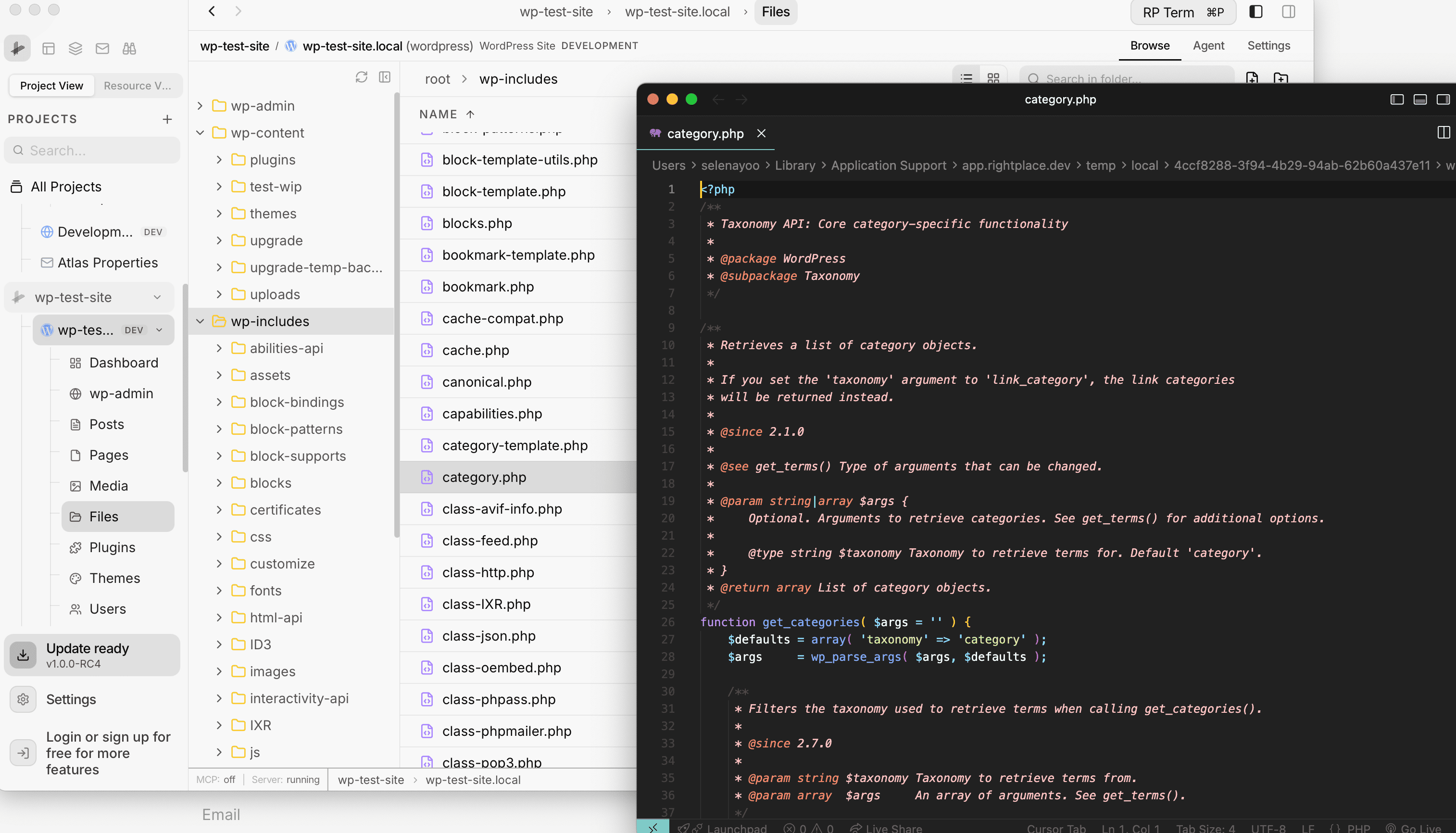
- Open files in the built-in code editor or your preferred external editor
- Breadcrumb navigation and in-folder search
- Download files to your local machine
Multi-Pane Browsing
Open multiple Files panes side by side to browse different directories at the same time. Each pane has its own folder tree, file listing, and breadcrumb path. This is useful for comparing directories, moving files between folders, or keeping reference files visible while working in another location.
Open in Code Editor
Double-click any file to open it in the built-in code editor. The editor provides syntax highlighting, line numbers, and a tabbed interface for working with multiple files. The status bar shows file path, cursor position, encoding, and language mode.
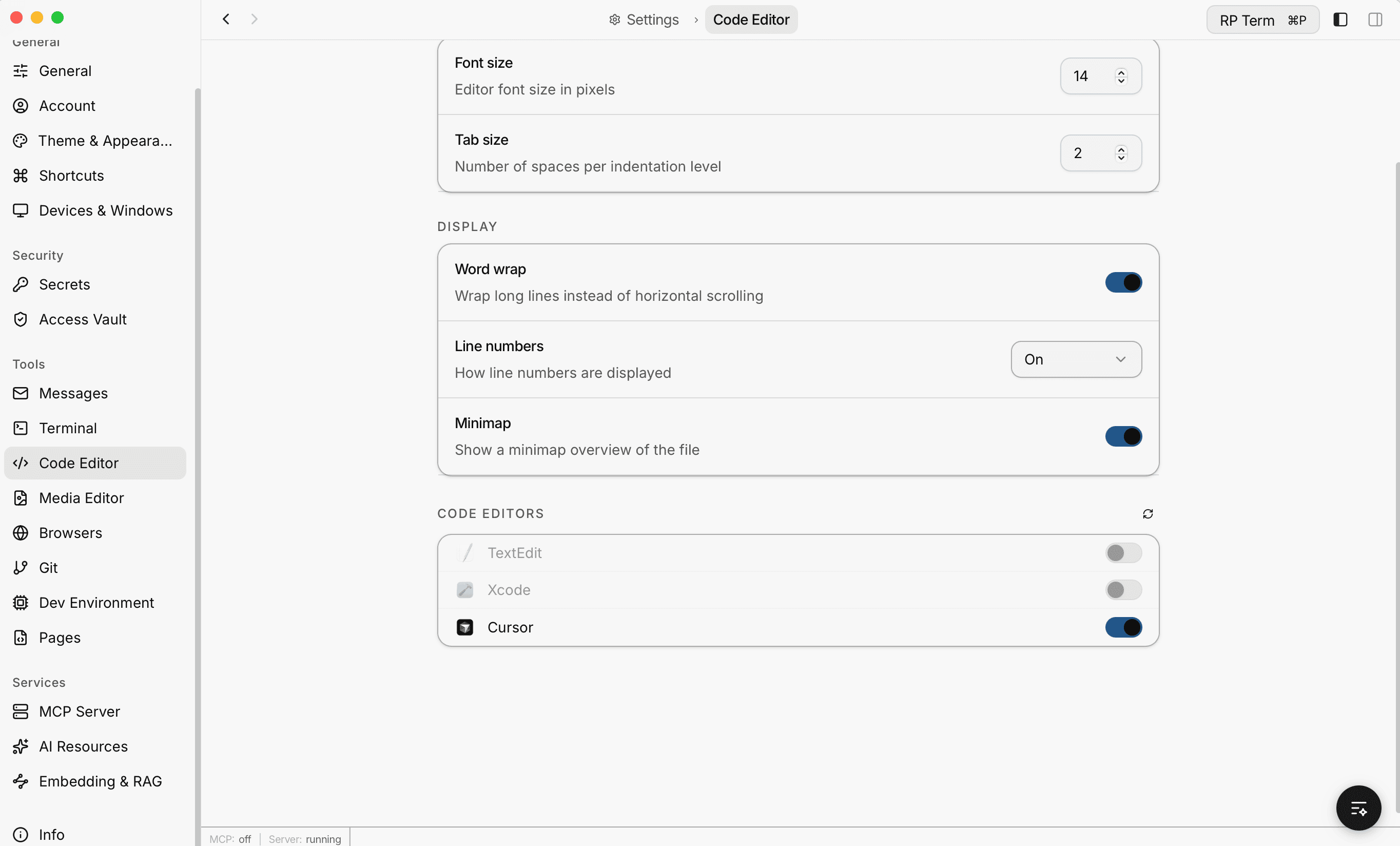
You can also configure an external code editor (such as Cursor, VS Code, or Xcode) in Settings > Code Editor. When set, files will open in your preferred editor instead.
Next steps
- Plugins: Manage plugins
- Themes: Manage themes
- SFTP / FTP: Full SFTP access for advanced file operations