WordPress Site
Full WordPress management from the desktop. Manage content, media, files, plugins, themes, and users.
Posts
Table-based content management with custom fields, views, and import/export
The Posts view provides a full-featured table for managing WordPress posts. Browse, filter, edit inline, add custom field columns, and perform bulk operations - all without leaving the app.
Features
- Inline-editable table with sorting, filtering, search, and saved views
- Custom field columns from ACF, Meta Box, and Post Meta with inline editing
- Import and export posts between sites with field mapping
- Inline browser for editing or viewing posts without leaving the table
- Post detail widget panel, bulk actions, and clipboard support
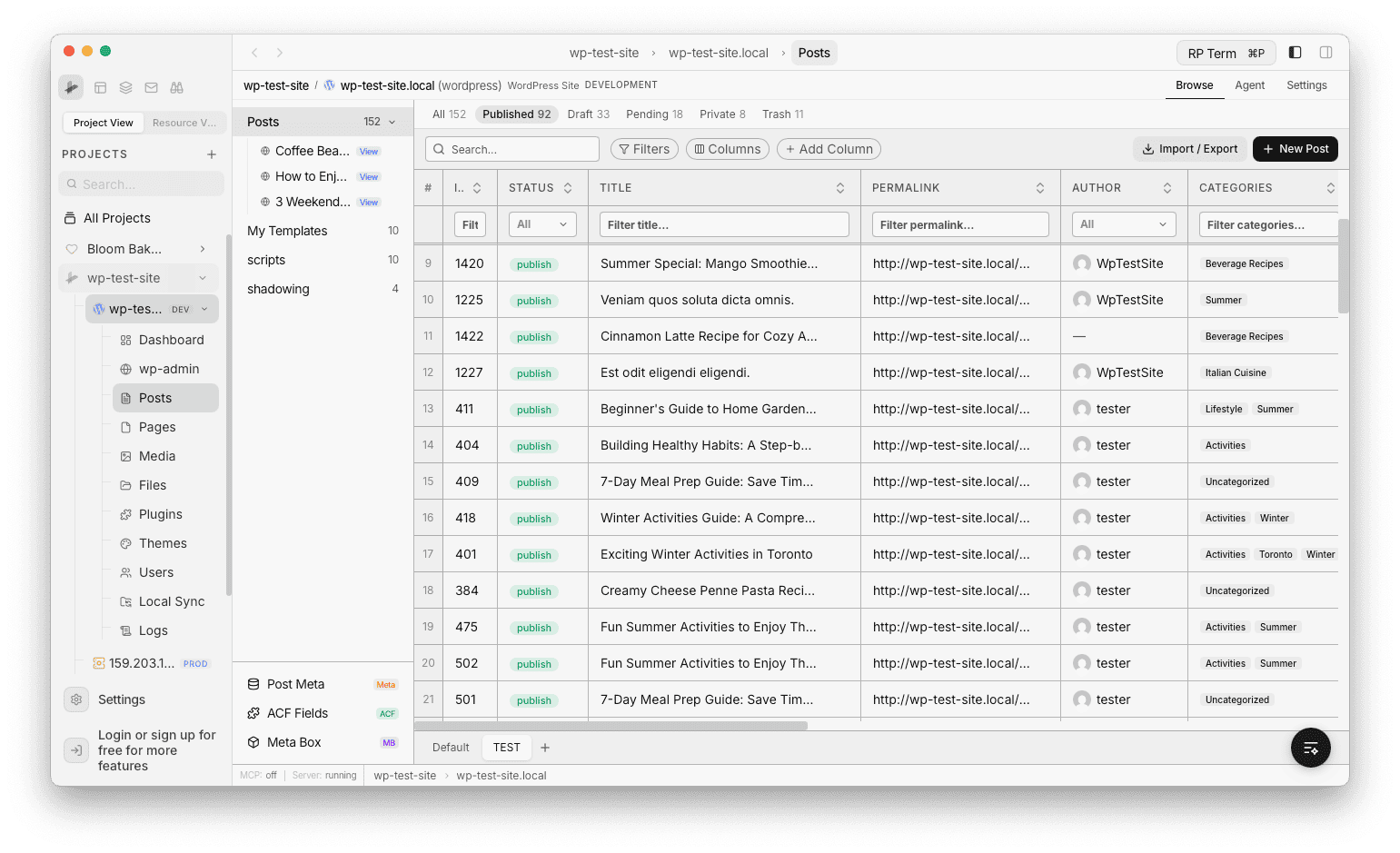
Table
The main content area is a virtualized data table. Default columns include ID, Title, Status, Slug, Author, Categories, Tags, Date, Modified, and Permalink. All columns are sortable and most are editable inline - click any cell to edit directly in the table.
- Title cells show an Edit button on hover to open the post in the inline browser.
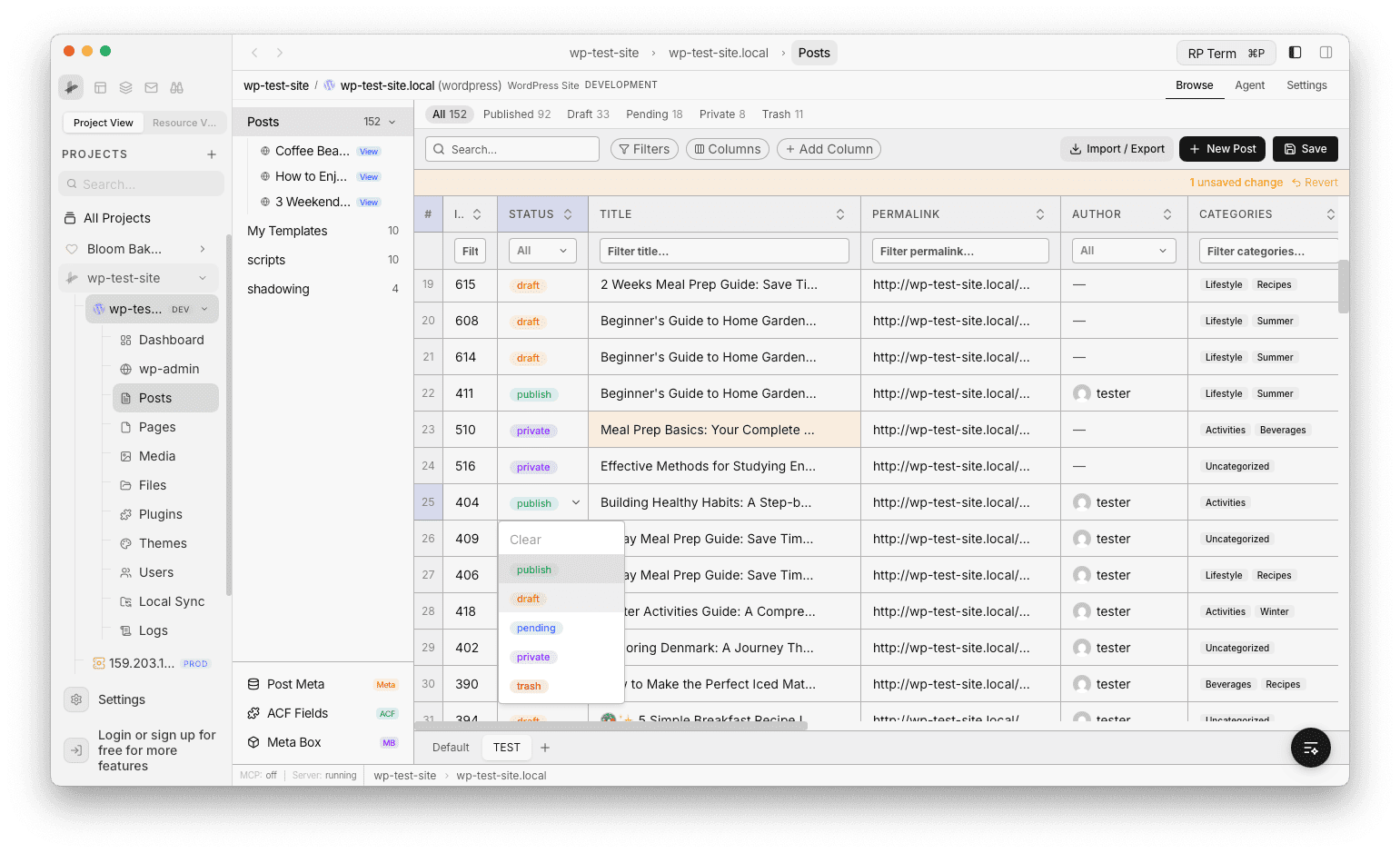
- Status cells display color-coded pills and edit via a dropdown.
- Author cells show user avatars and select from all site users.
- Categories and Tags use searchable dropdown editors.
- Permalink cells show an icon to open the post in the browser.
Custom Field Columns
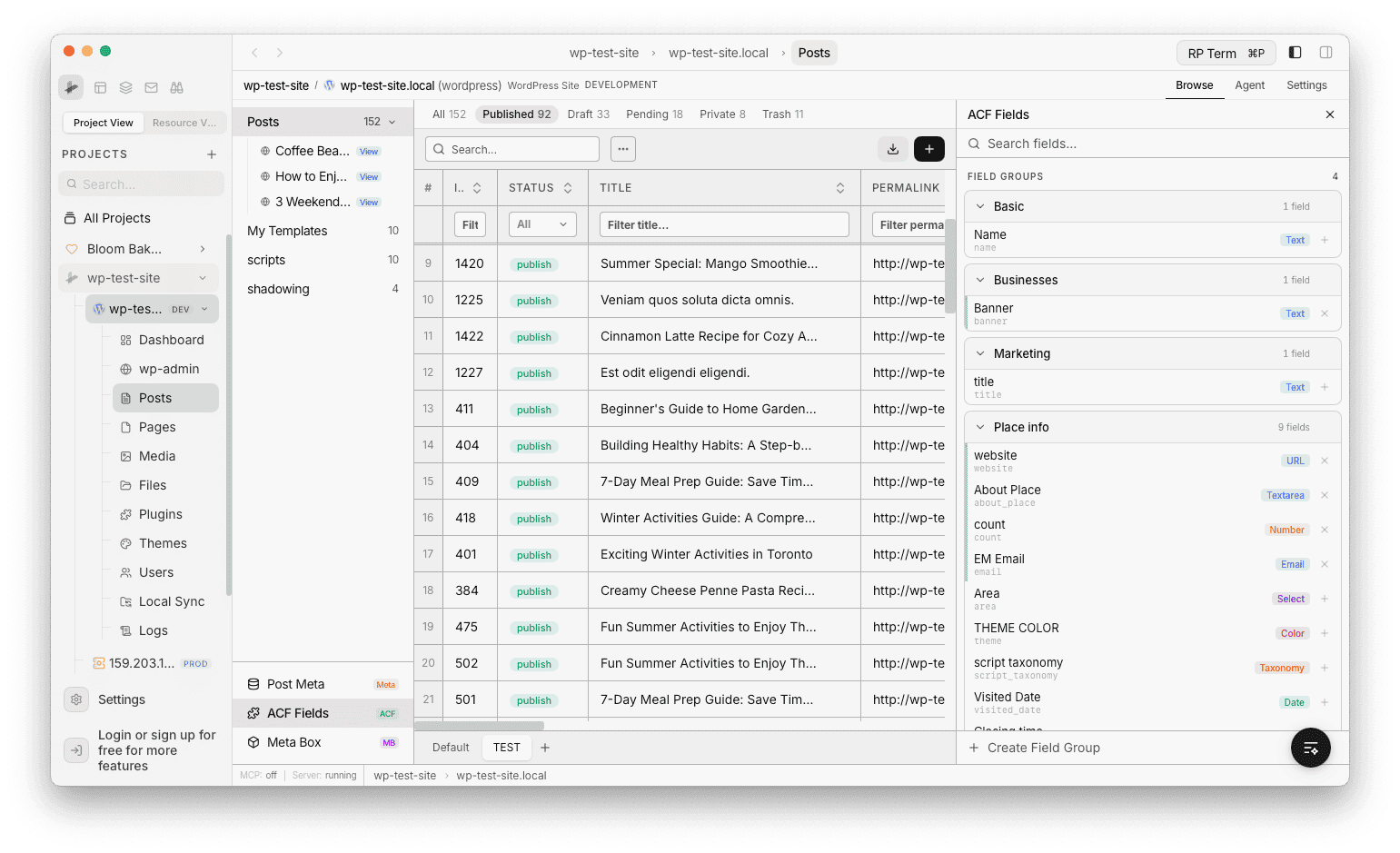
You can add columns for custom fields from three sources, accessible via the buttons at the bottom of the left sidebar. Fields can be browsed, added as table columns, and edited directly in the app without switching to wp-admin:
ACF (Advanced Custom Fields)
- Browse all field groups and fields organized by group
- Each field shows its type (Text, Textarea, Number, Email, URL, Select, Color, Taxonomy, Date, etc.)
- Click + to add any field as a table column
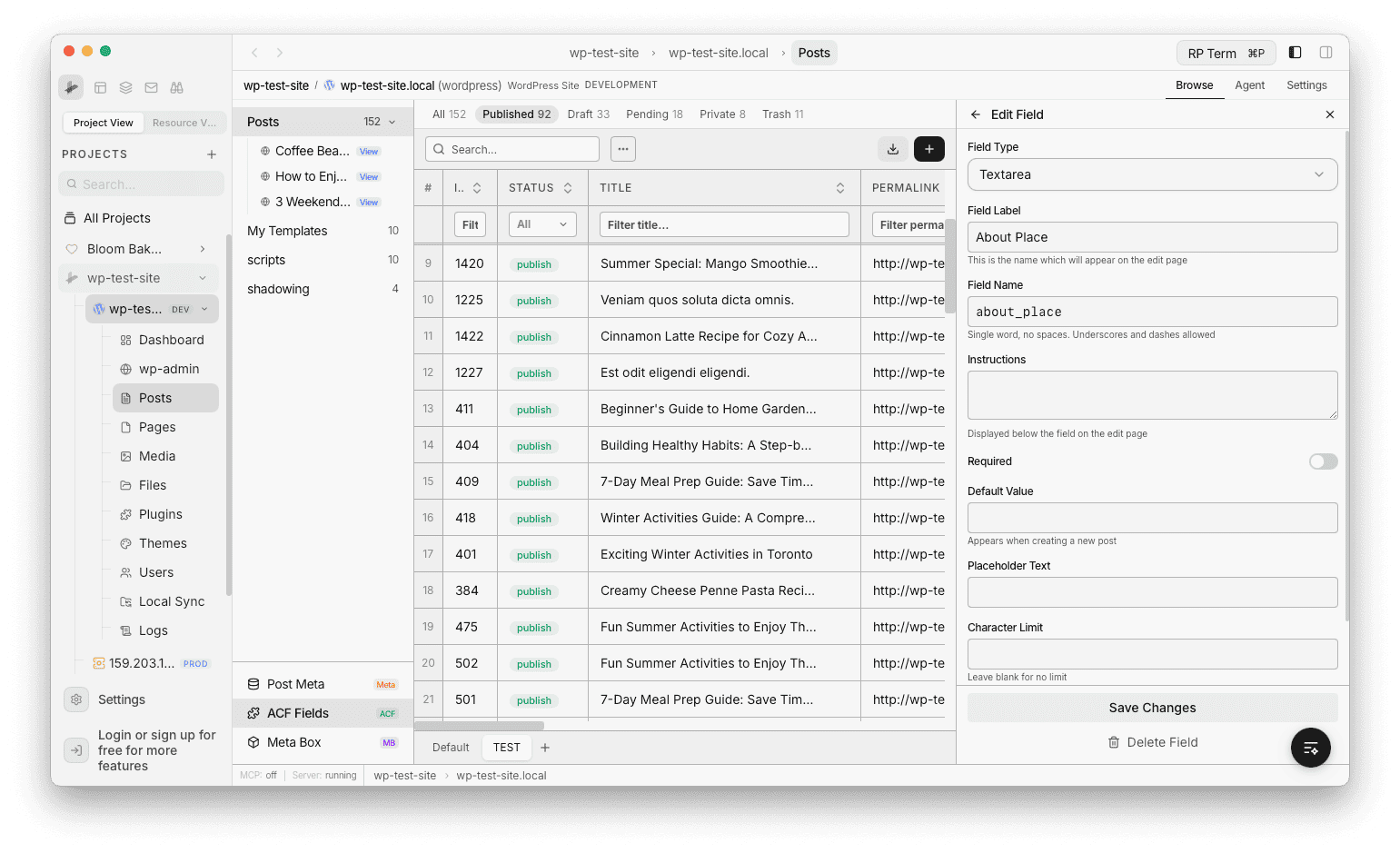
- Edit field settings directly: label, name, instructions, required, default value, placeholder, and character limit
- Shown with a green ACF badge
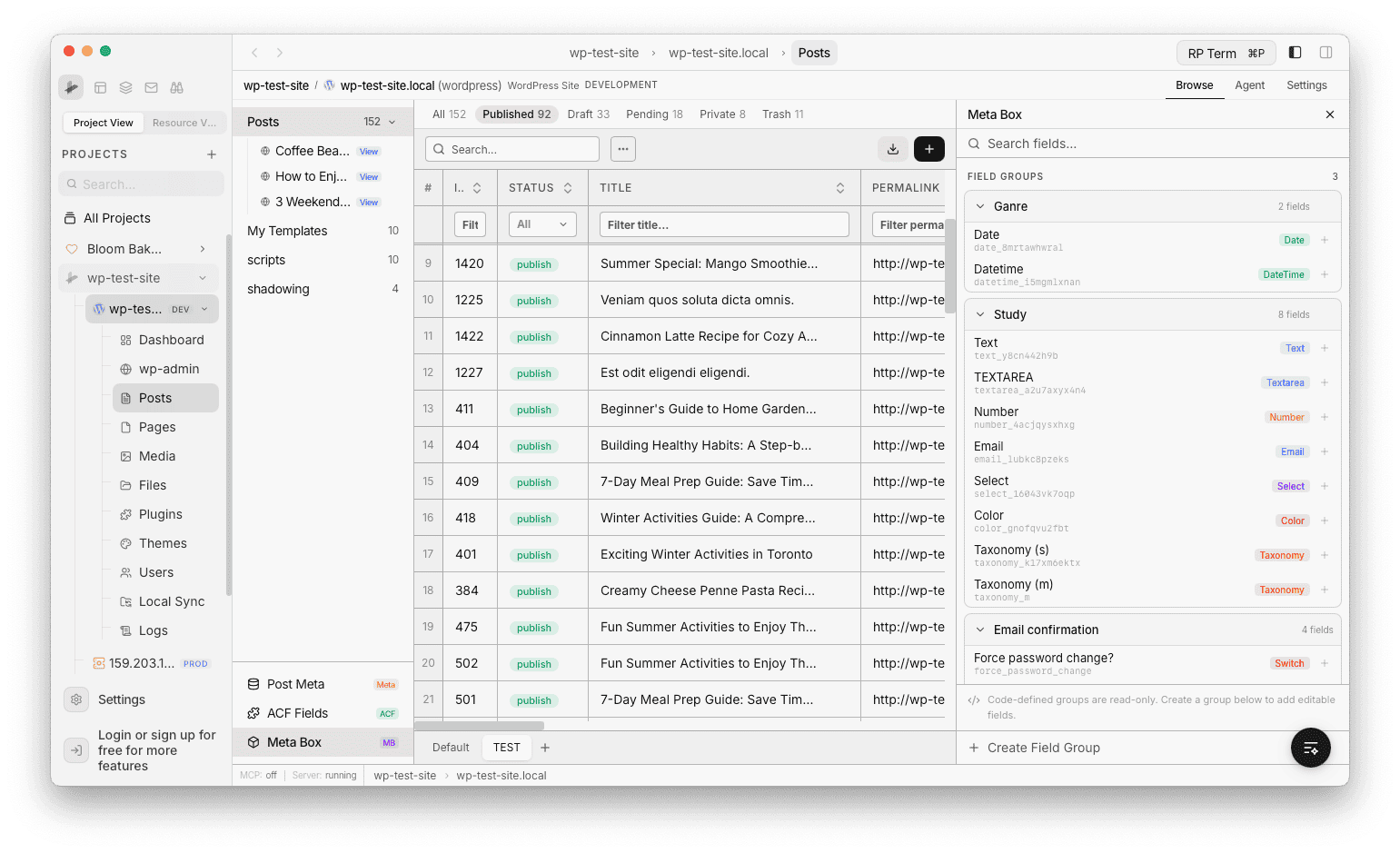
Meta Box
- Browse field groups with typed fields, same as ACF
- Code-defined groups are shown as read-only
- Create your own groups to add editable fields
- Shown with a purple MB badge
Post Meta
- Lists all raw
wp_postmetakeys registered on your site - Useful for custom fields not managed by ACF or Meta Box
- Add any field as a column or create new fields from the panel
- Shown with an amber Meta badge
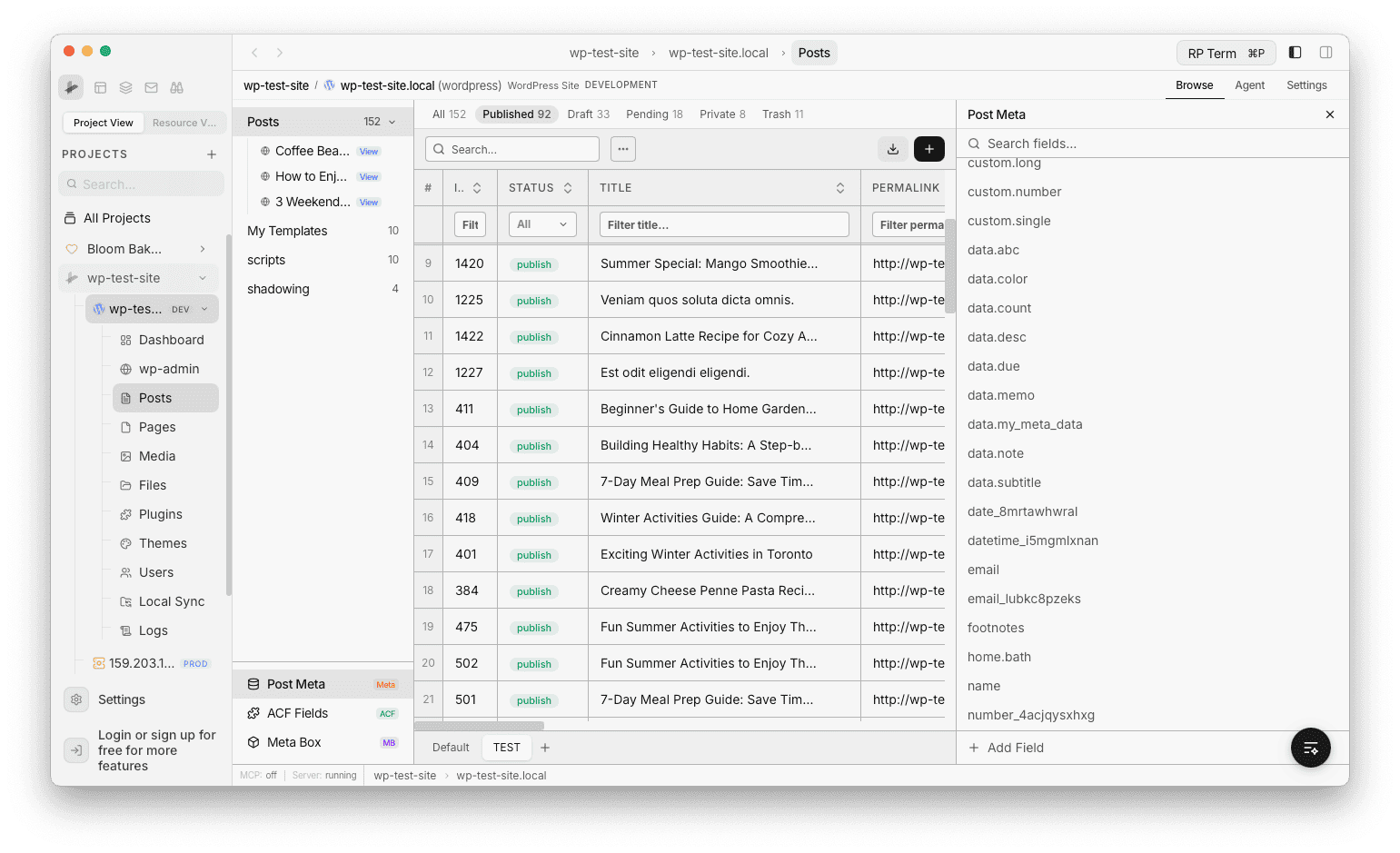
Once added, custom columns support inline editing based on their field type (text, number, date, select, boolean, color, etc.) and show a source badge in the column header.
Custom Taxonomies
Beyond the built-in Categories and Tags, RightPlace supports custom taxonomies registered on your site. Access them from the Taxonomies button in the left sidebar (shown with a green Tax badge).
Managing Taxonomies
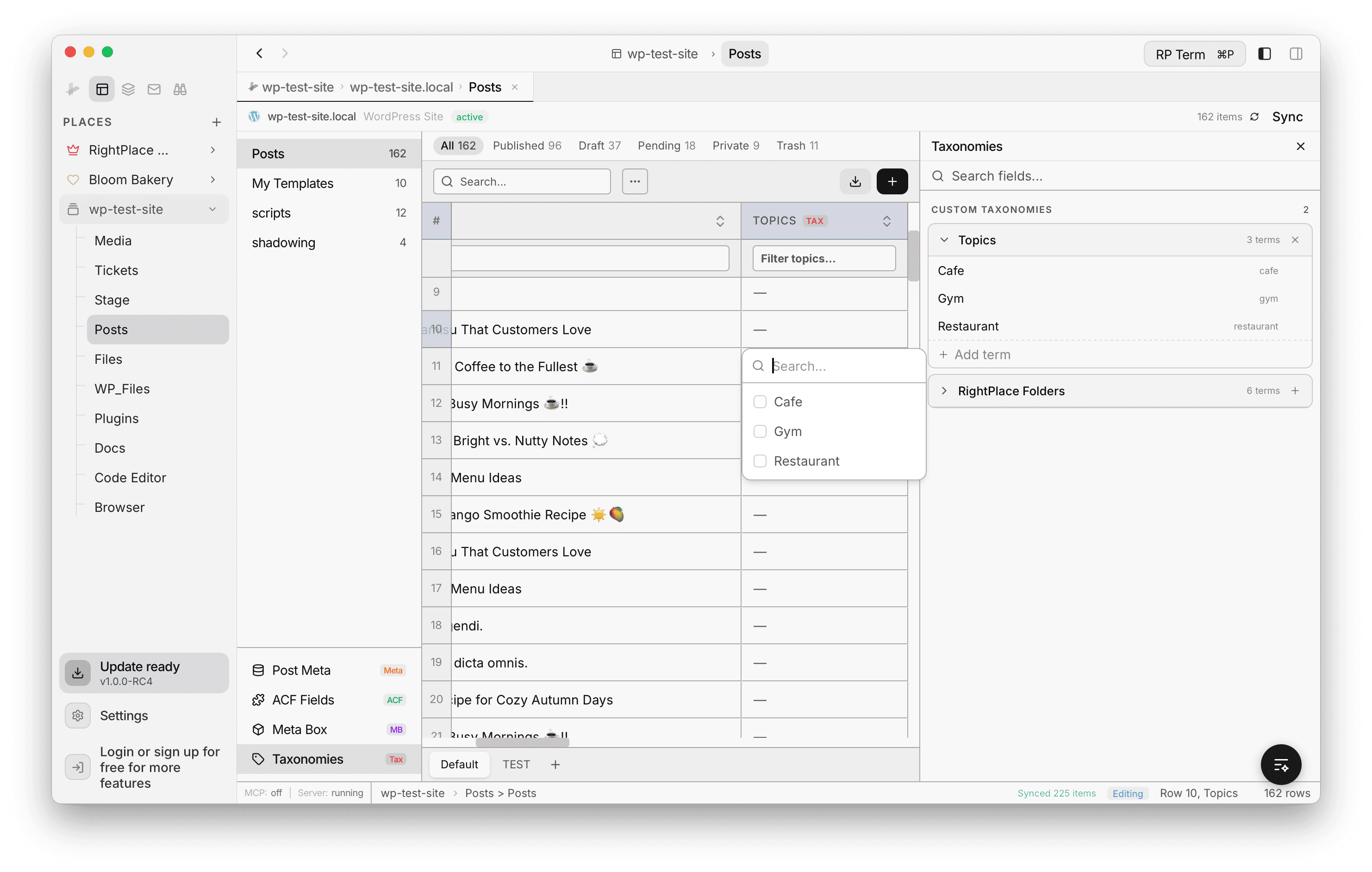
The Taxonomies panel on the right side lists all custom taxonomies with their term counts. For each taxonomy you can:
- Browse terms - expand a taxonomy to see all its terms with names and slugs
- Add terms - click + Add term to create new terms directly in the app
- Remove taxonomies - click the x button to remove a taxonomy from the panel
Taxonomy Columns
Custom taxonomies can be added as table columns. Once added, the column header shows a TAX badge. Clicking a taxonomy cell opens a searchable dropdown with checkboxes, letting you assign or remove terms from any post directly in the table.
Column Manager
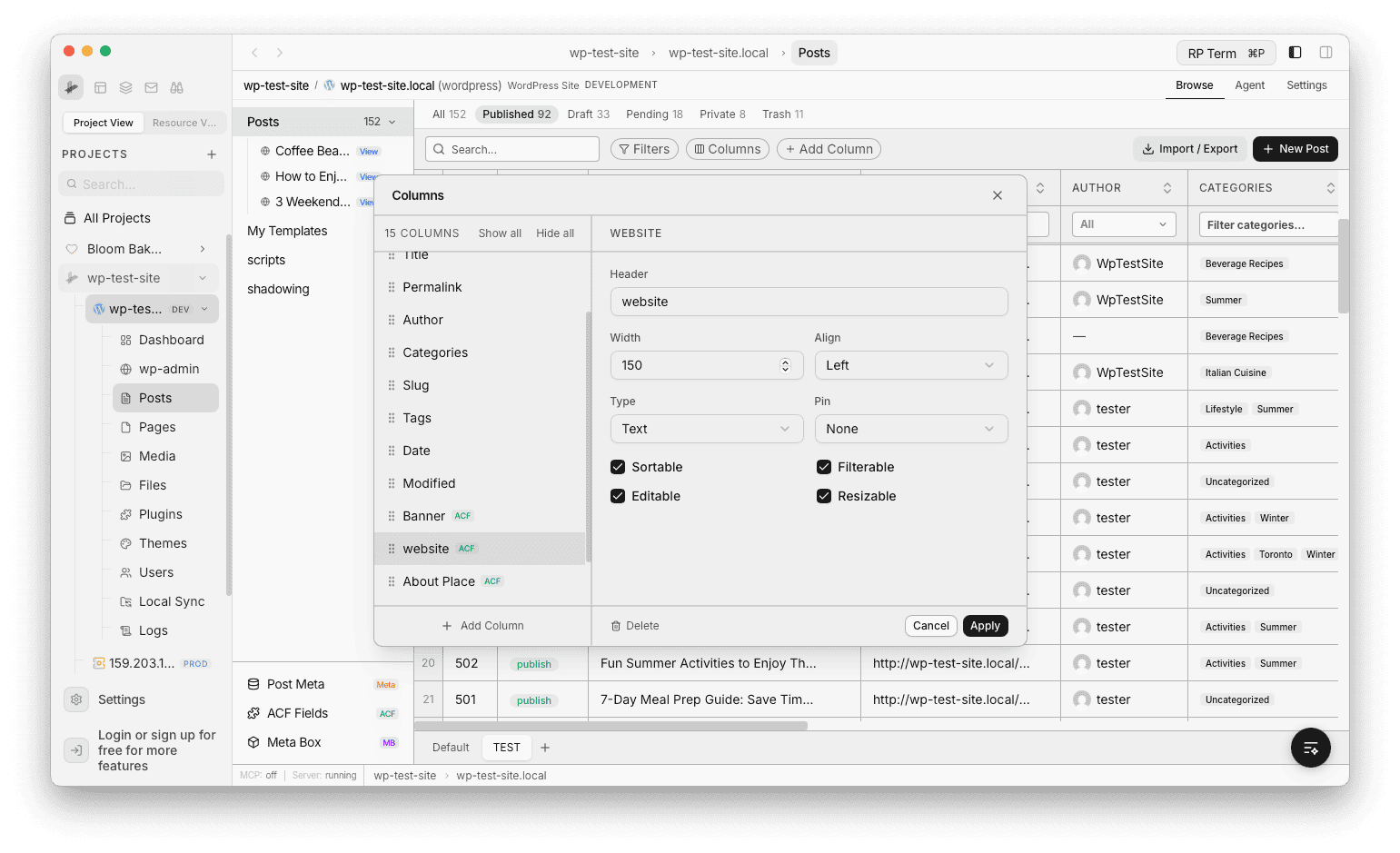
Open the column manager from the Columns button in the toolbar. From here you can:
- Reorder columns by dragging
- Show/Hide columns
- Configure each column - header name, width, alignment, type, pin position, and toggles for sortable, filterable, editable, and resizable
- Add new columns or Delete existing ones
Views
Views let you save and switch between different table configurations. Each view stores:
- Which columns are visible and their order
- Column widths
- Sort state (column and direction)
- Filter criteria
Use the view selector at the bottom of the table to create, edit, rename, or delete views.
Open in Browser
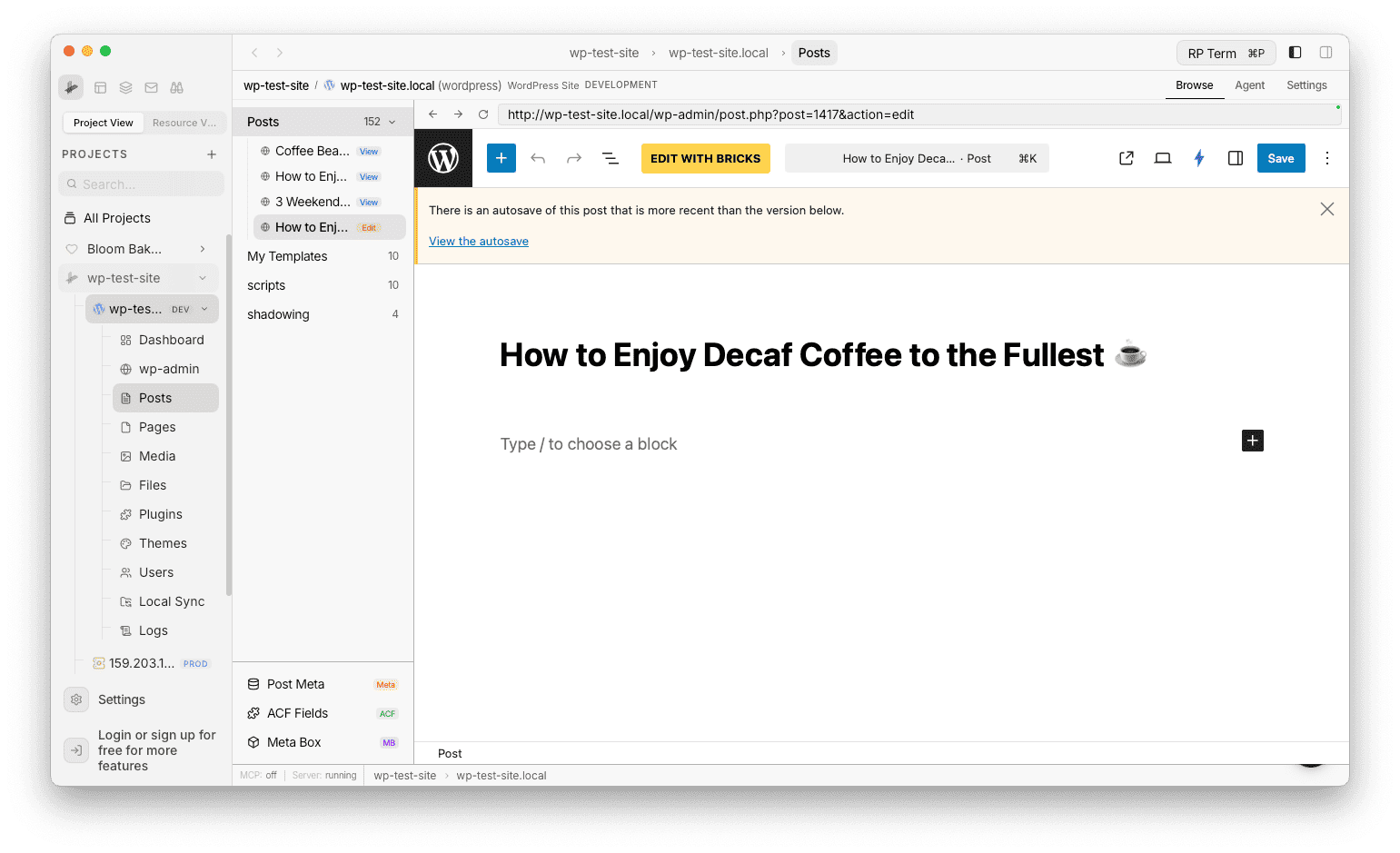
Posts can be opened in an inline embedded browser without leaving the table view:
- Edit - opens the WordPress post editor
- View - opens the public permalink
Browser tabs appear in the left sidebar grouped by post type. Each tab shows the post title and a type badge (Edit or View). You can have multiple browser tabs open at once.
Create Post
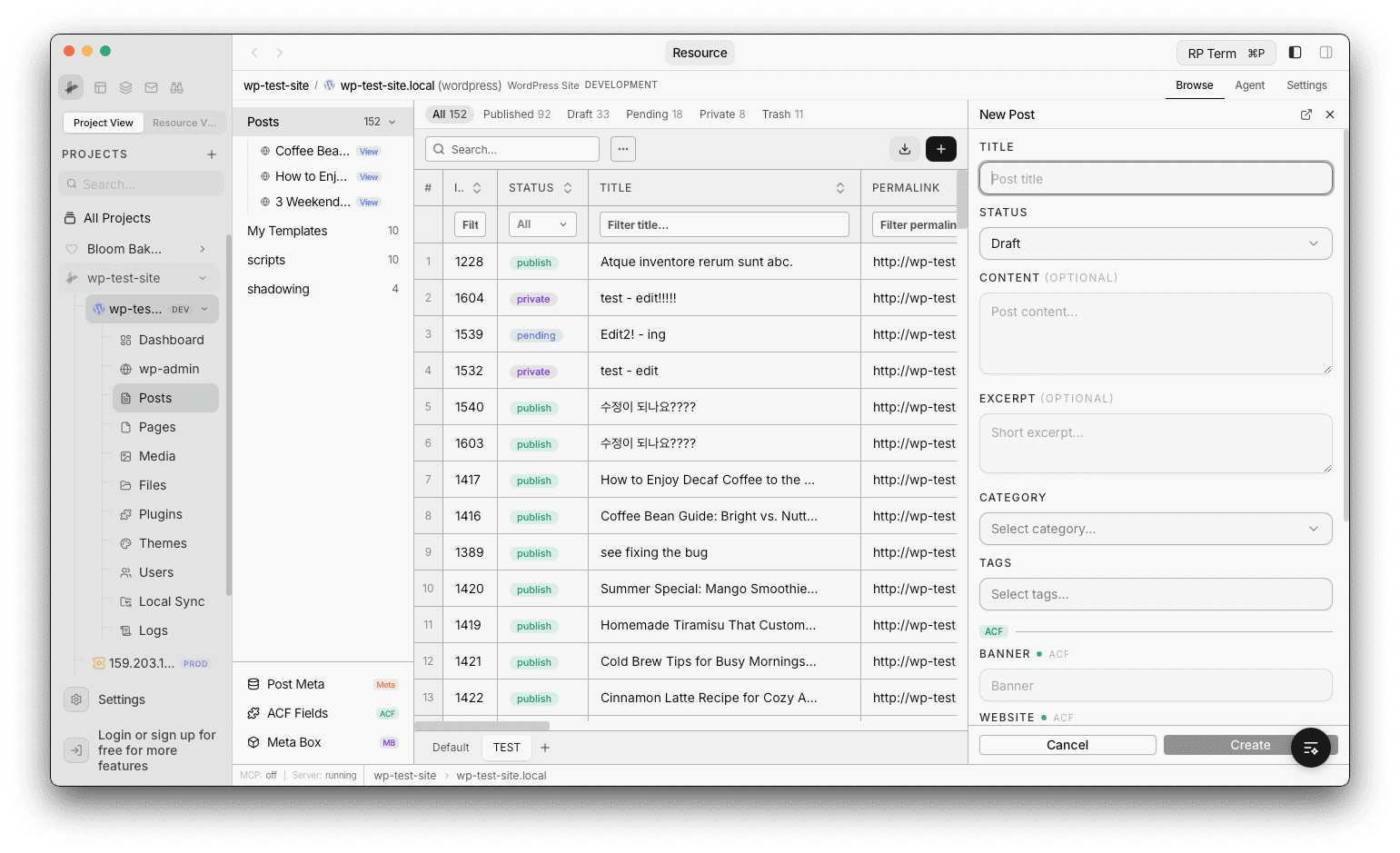
Click New Post in the toolbar to open a side panel with a creation form:
- Standard fields: Title, Status, Content, Excerpt, Category, Tags
- Custom fields: ACF, Meta Box, and Post Meta fields are shown in collapsible groups
- Fields currently visible as table columns are marked with a green dot
The post is created via the WordPress API and the table refreshes automatically.
Import / Export
Export
Export posts to a .rp-export.json file:
- Choose scope - All posts or Selected rows only.
- Toggle whether to include post content.
- Save the file. The export includes post metadata, custom fields (ACF, Meta Box, Post Meta), and media references.
Import
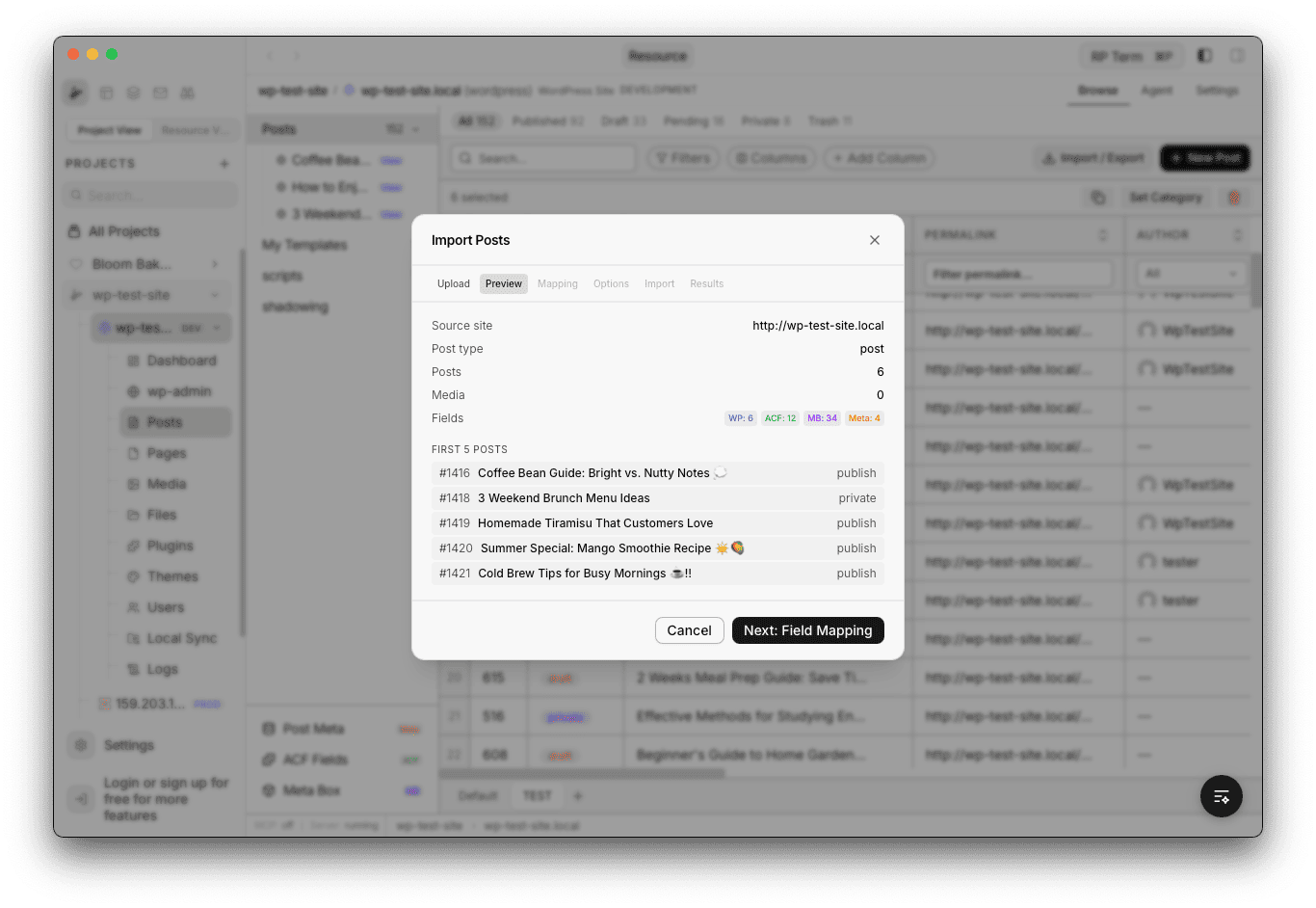
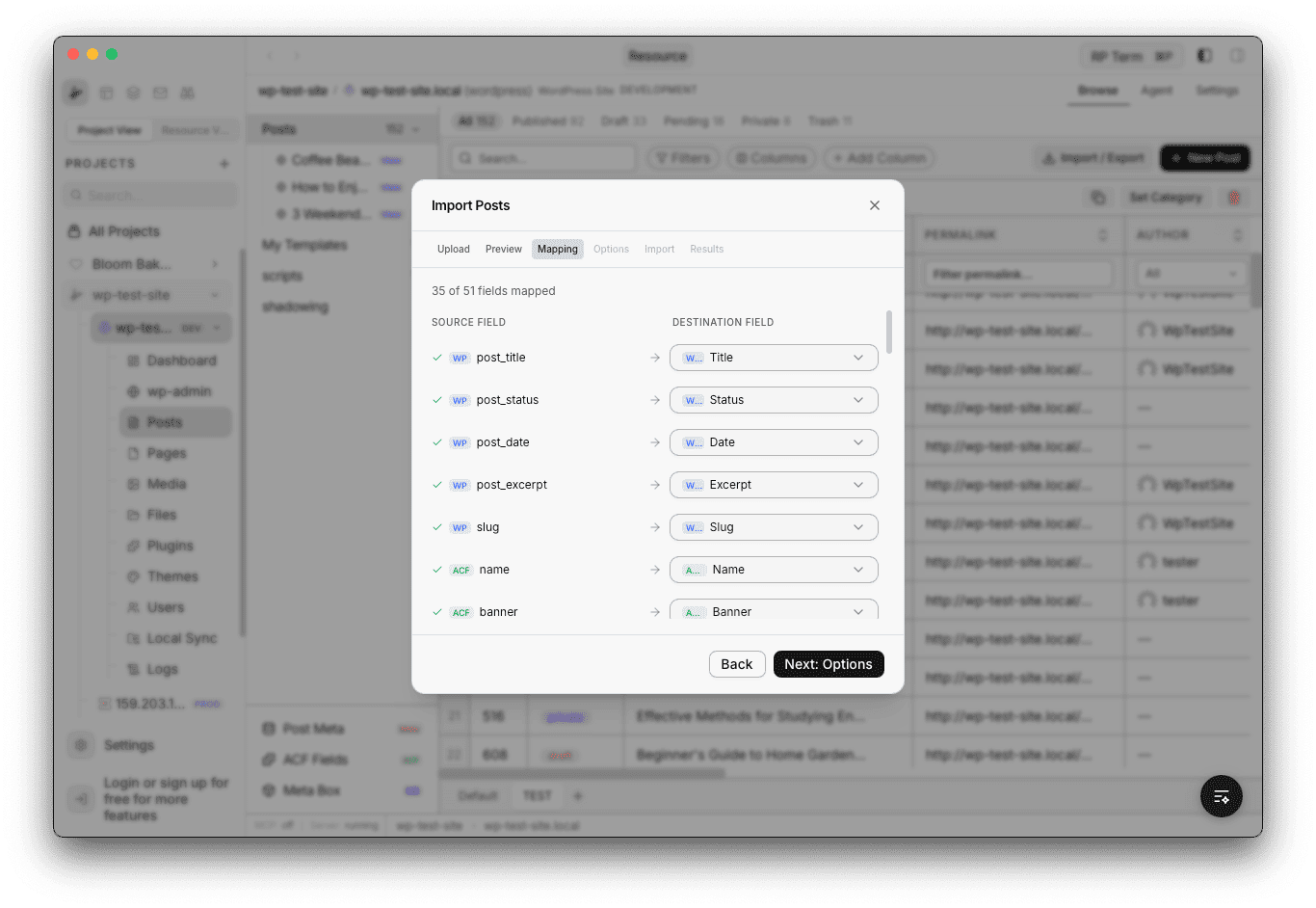
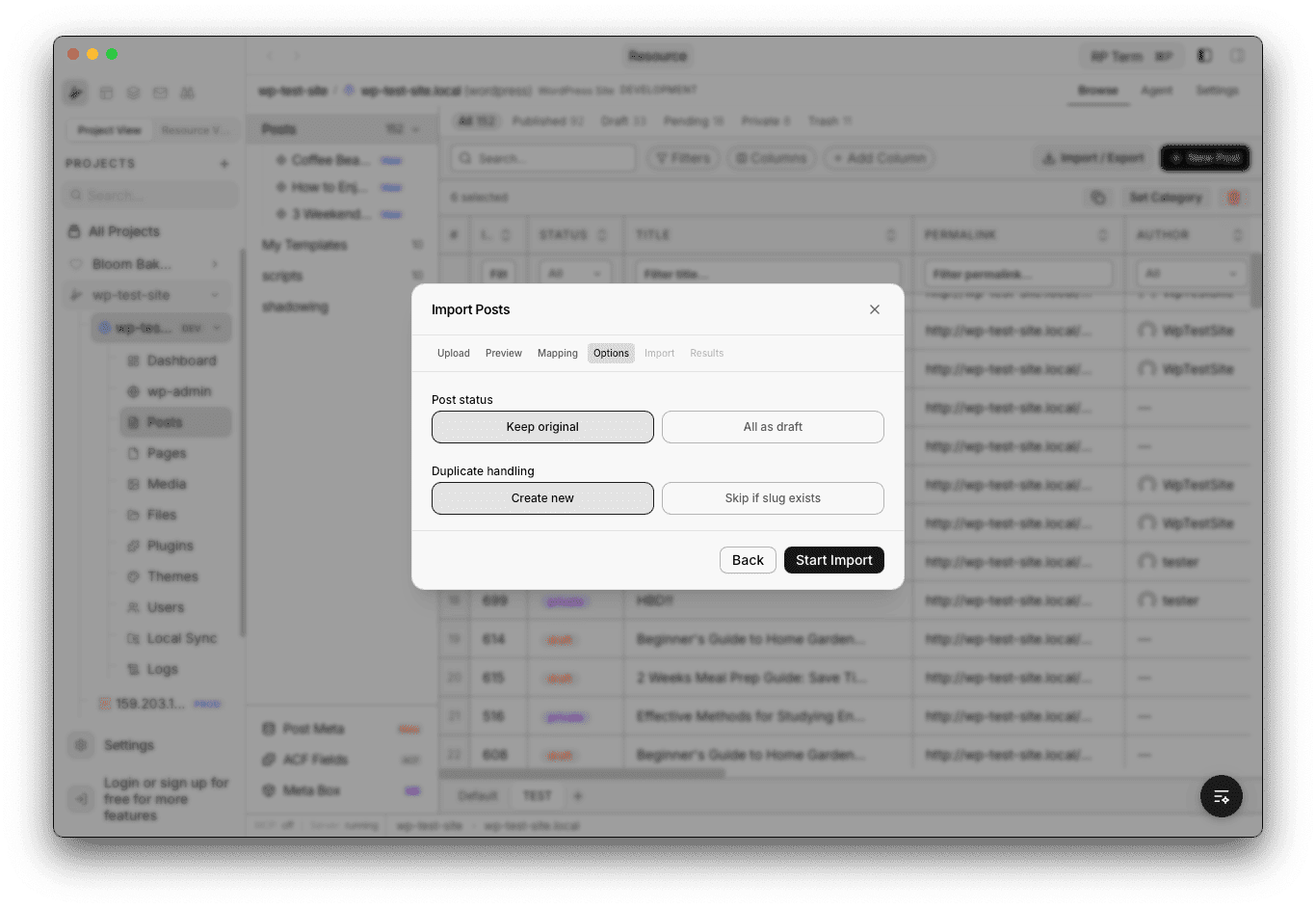
Import posts from a .rp-export.json file through a step-by-step wizard:
- Upload - Select the export file.
- Preview - Review source site, post count, media count, and a sample of posts.
- Field Mapping - Map source fields to destination fields. Fields are auto-matched by name.
- Options - Choose post status (keep original or all as draft), duplicate handling (create new or skip if slug exists), and whether to import media.
- Importing - Progress bars for media and posts.
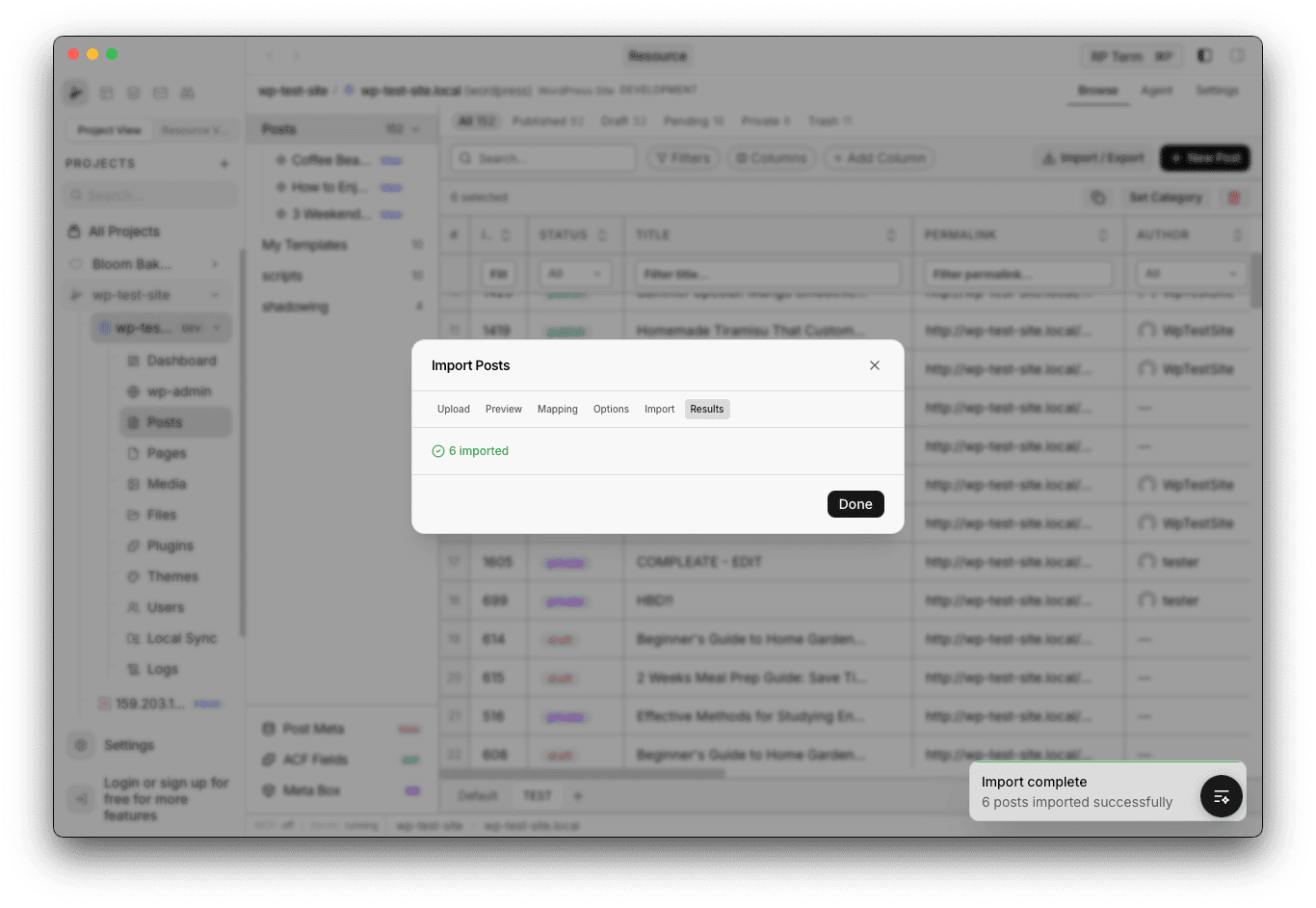
- Results - Summary showing imported, skipped, and failed counts.
You can also paste posts from the clipboard (copied from another site) to skip the upload step.
Post Detail Panel
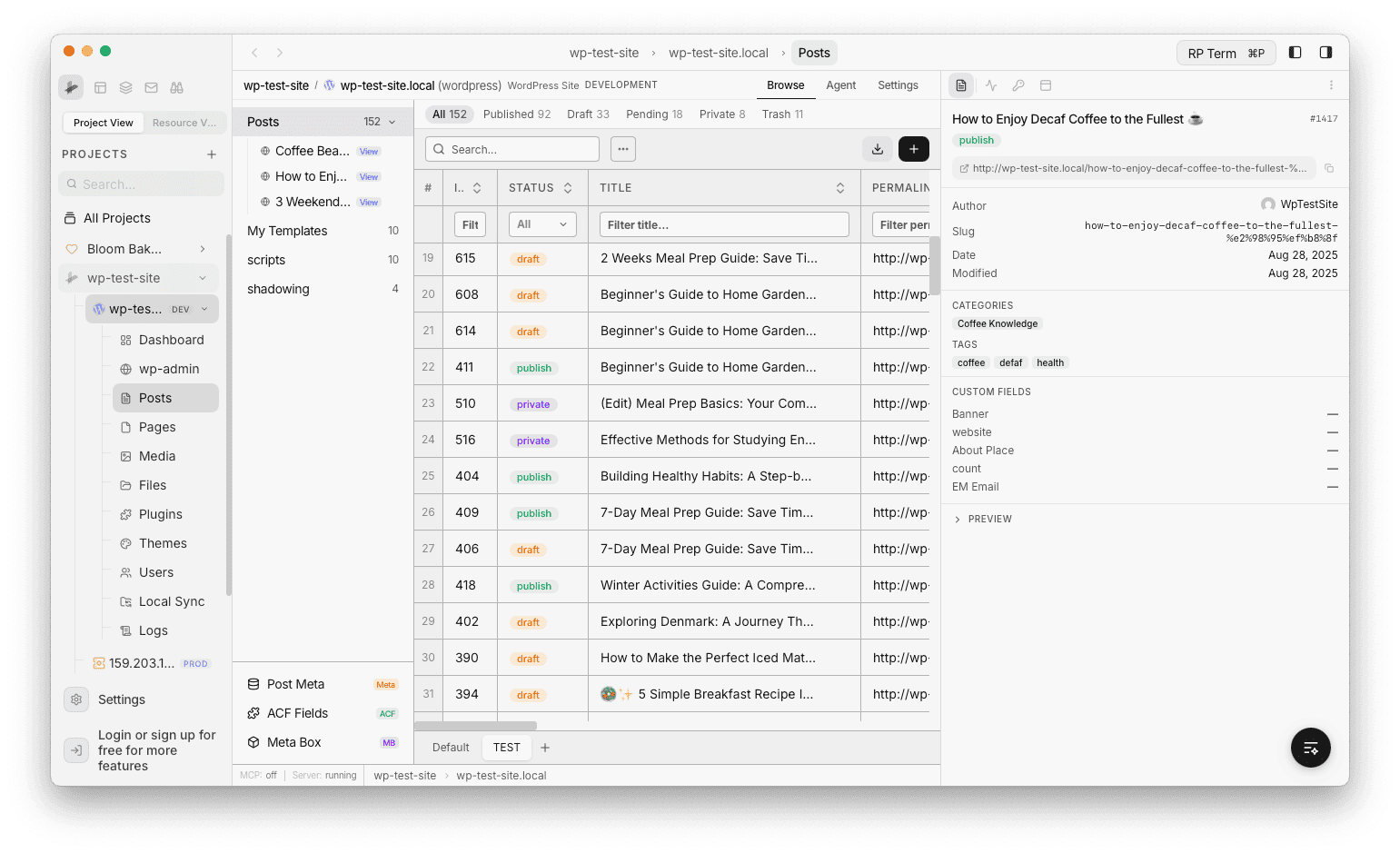
Clicking a row opens the post detail panel on the right side of the screen. The panel shows:
- Post title and ID
- Status badge
- Permalink (clickable, with copy button)
- Author, slug, date, and modified date
- Taxonomies (categories and tags as chips)
- All custom field values
- Live preview (expandable)
Bulk Actions
Select multiple rows with checkboxes to reveal the bulk action bar:
In normal mode:
- Duplicate - clone selected posts
- Set Category - assign a category to all selected posts via a searchable picker
- Delete - move to trash
In trash mode:
- Restore - recover selected posts from trash
- Delete Permanently - permanently remove selected posts
Context Menu
Right-click a row for quick actions:
- Open in Browser - view the public post
- Edit in Browser - open the WordPress editor
- Copy Posts - copy selected posts to clipboard
- Paste Posts - import posts from clipboard
Widget
Appears when a Posts or Pages table tab is active. Shows detail information for the selected row.
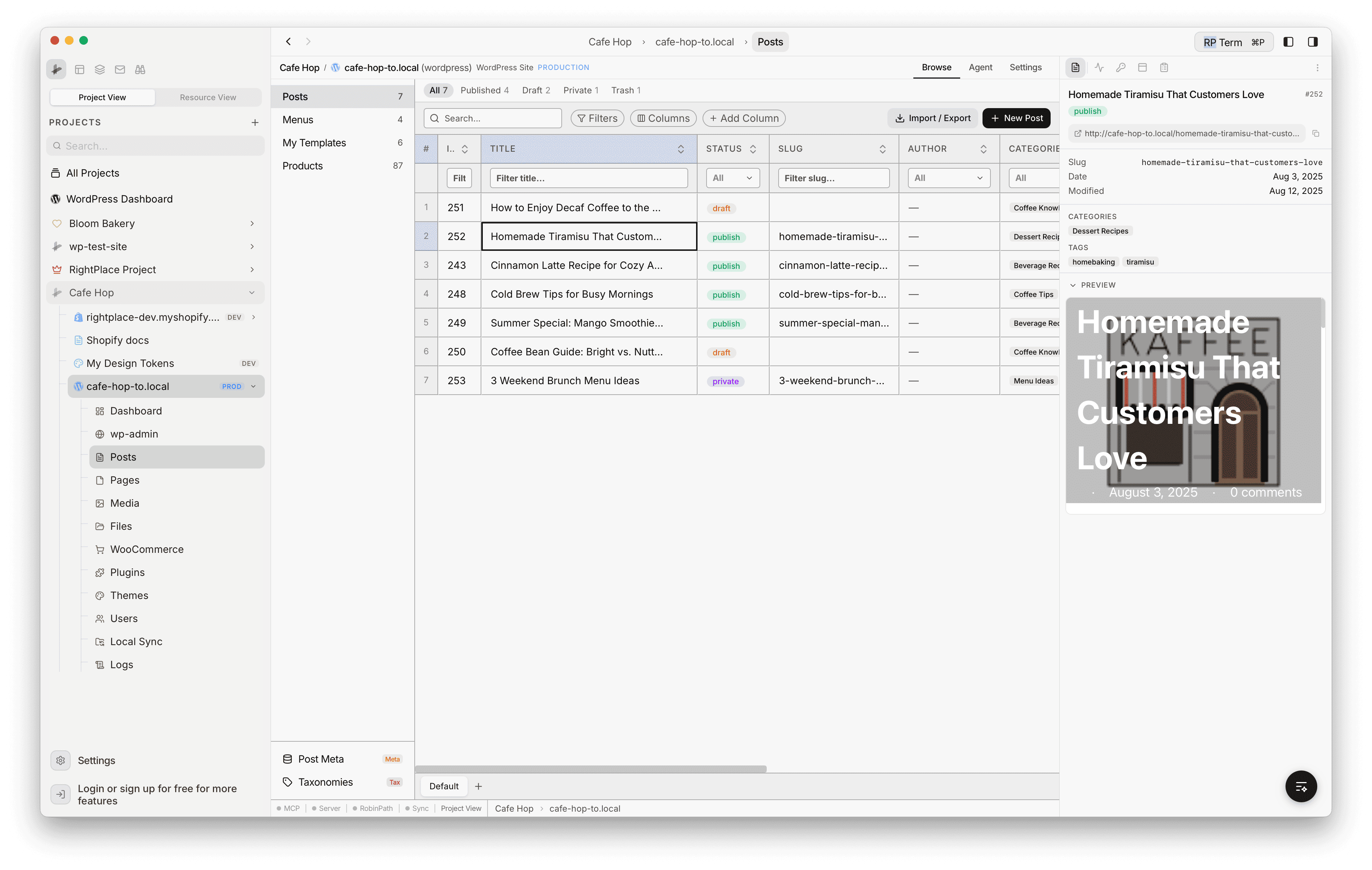
How it works: click any cell in the Posts table to load that post’s details into the widget panel.
Detail fields:
- Title: post title with a fallback label for untitled posts
- Status badge: publish, draft, pending, private, or trash
- Post ID and slug
- Permalink: with copy button and external link to open in browser
- Author: display name and avatar
- Published date and modified date
- Categories and tags
- Custom taxonomy columns: any additional taxonomies registered by the site
- Custom fields: extra meta fields defined by the site
Empty state: “Click a table cell to see post details”, shown when no row is selected.
Next steps
Tutorials:
- Display Custom Fields: Add ACF, Meta Box, and Post Meta fields as table columns
- Create Filtered Views: Save column and filter configurations as reusable views
- Create posts from the panel: Add posts from the New side panel without wp-admin
- Bulk actions on posts: Duplicate, set category, trash, restore, and delete permanently
- Import Posts from CSV: Import posts with custom field mapping