WordPress Site
Full WordPress management from the desktop. Manage content, media, files, plugins, themes, and users.
Themes
Theme management: activate, update, delete, and view details
On this page
The Themes view provides a dedicated interface for managing WordPress themes. See all installed themes, check for updates, and switch your active theme without leaving the app.
Features
- Two view modes: grid with preview thumbnails and table
- Status filters: All, Active, Inactive, and Updates
- Search themes by name
- Activate, update, and delete themes with one click
- View theme details including version, author, and parent theme
Grid View
The grid view shows each theme as a card with a preview thumbnail, name, version, and author. The currently active theme is marked with a green Active badge. Themes with available updates show an orange Update available label.
Each card has action icons at the bottom:
- Activate (checkmark) - set the theme as active
- Details (info) - view theme information
- Delete (trash) - remove the theme
The active theme only shows the details icon since it cannot be activated again or deleted while in use.
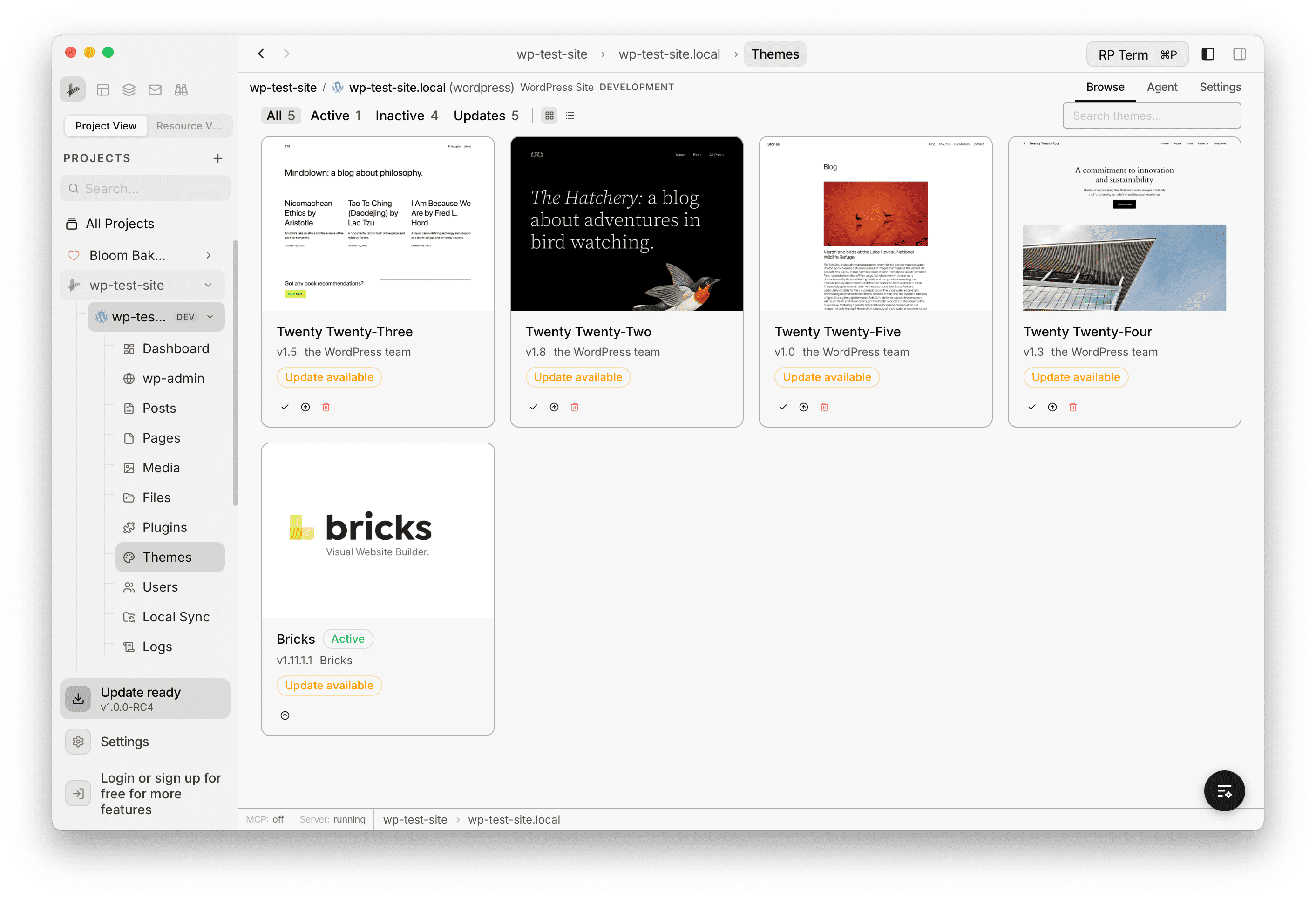
Table View
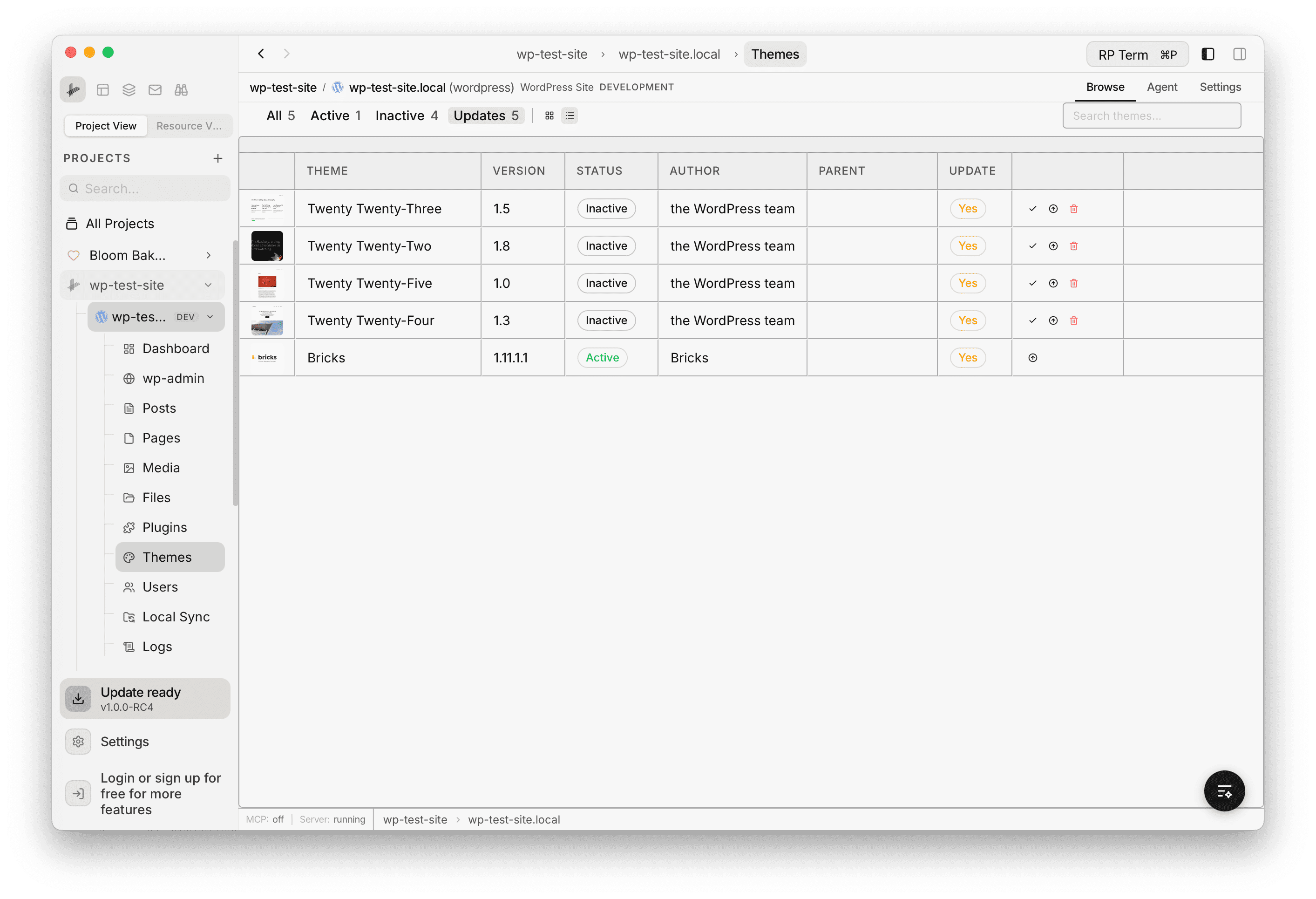
The table view displays themes in a row-based layout with columns for Theme (with thumbnail), Version, Status, Author, Parent, and Update. Each row has the same action icons: activate, details, and delete.