WordPress Site
Full WordPress management from the desktop. Manage content, media, files, plugins, themes, and users.
Pages
WordPress pages management with list and card views
The Pages view works like Posts, giving you a table-based view for managing WordPress pages with an additional card view for visual browsing.
Features
- Two view modes: List (table) and Card (grid with content previews)
- Sortable, filterable columns including page-specific fields like Parent and Order
- Inline editing for quick updates
- Per-column filters for title, status, slug, permalink, and more
- Search across page titles
List View
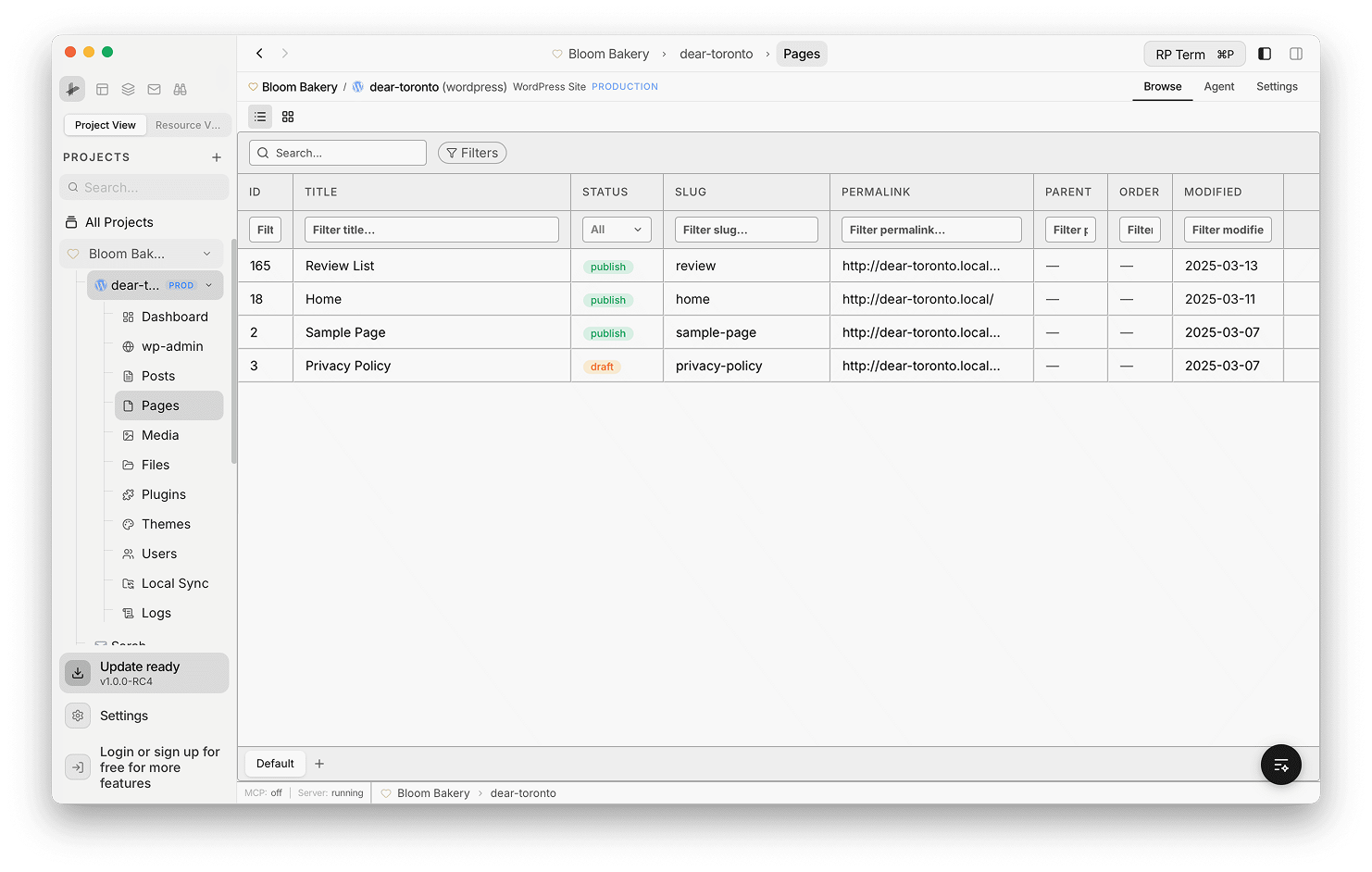
The default list view displays pages in a data table with columns for ID, Title, Status, Slug, Permalink, Parent, Order, and Modified. Each column has an inline filter input below the header for quick filtering.
- Status cells show color-coded badges (publish, draft)
- Parent and Order columns let you manage page hierarchy directly in the table
- Use the search bar and Filters button in the toolbar to narrow results
Inline Editing
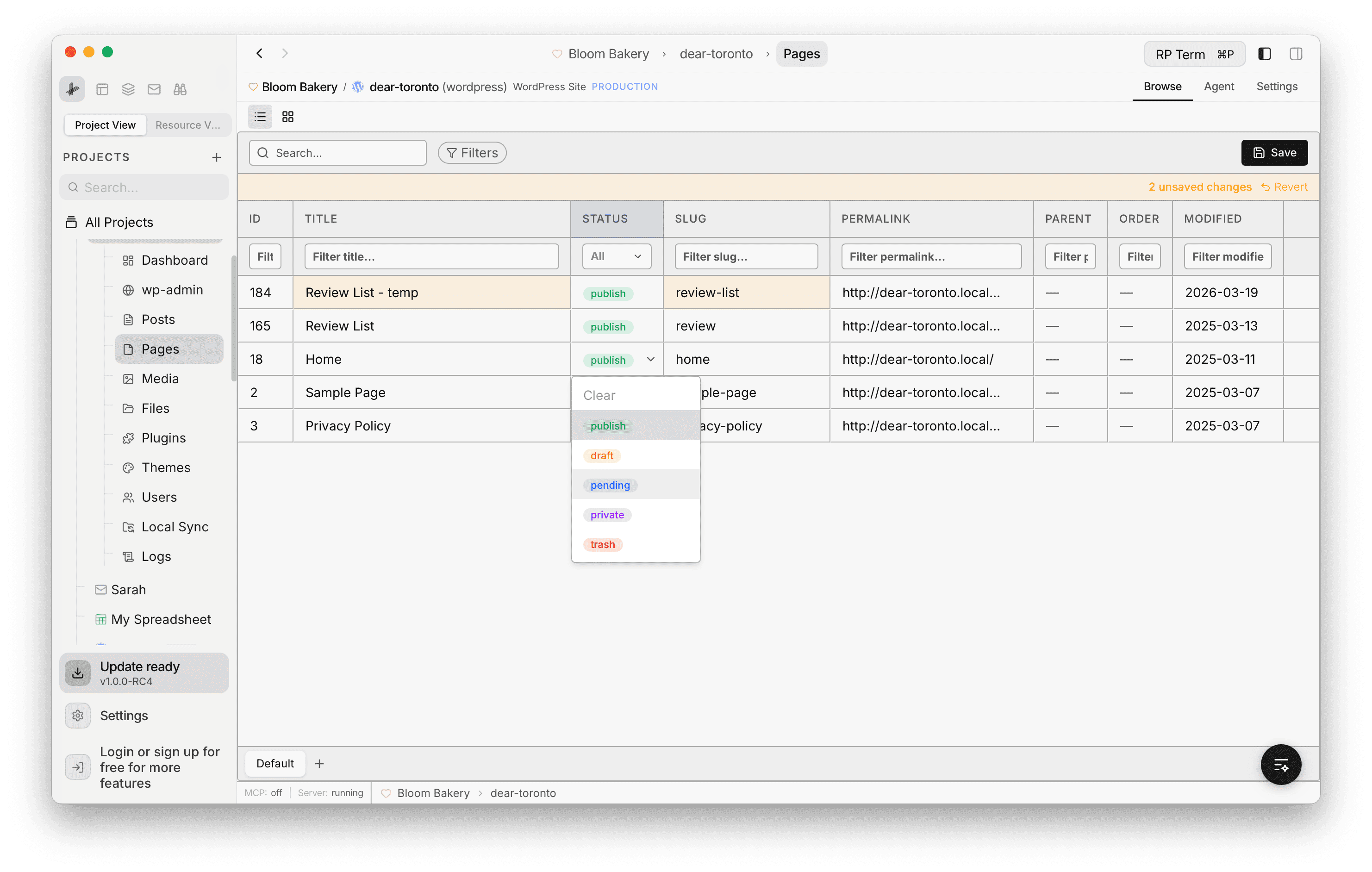
Click any editable cell to modify it directly in the table. For example, clicking a Status cell opens a dropdown with options like publish, draft, pending, private, and trash. Edited rows are highlighted and a Save button appears in the toolbar along with the number of unsaved changes. Click Revert to undo changes before saving.
Card View
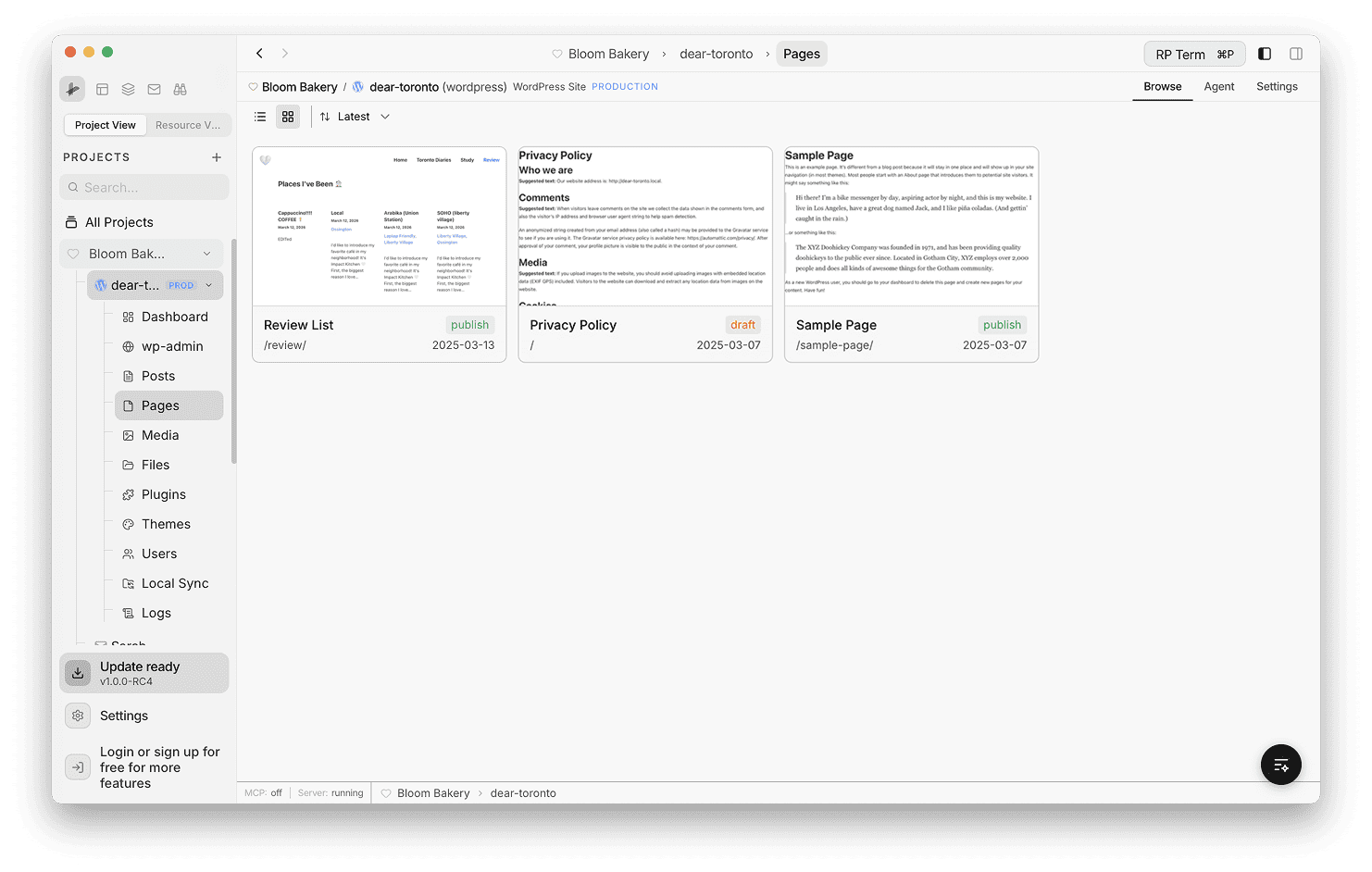
Switch to card view using the grid icon in the toolbar. Each card shows a live content preview of the page along with its title, slug, status badge, and date. This view is useful for visually scanning page content at a glance.
Use the sort dropdown (e.g. Latest) to reorder cards.