Installation
Download and install the RightPlace desktop app and WordPress plugin
To get started with RightPlace, you need to download the desktop application and the WordPress plugin from your account dashboard.
Sign in to your account
Go to your Dashboard to access the downloads page.
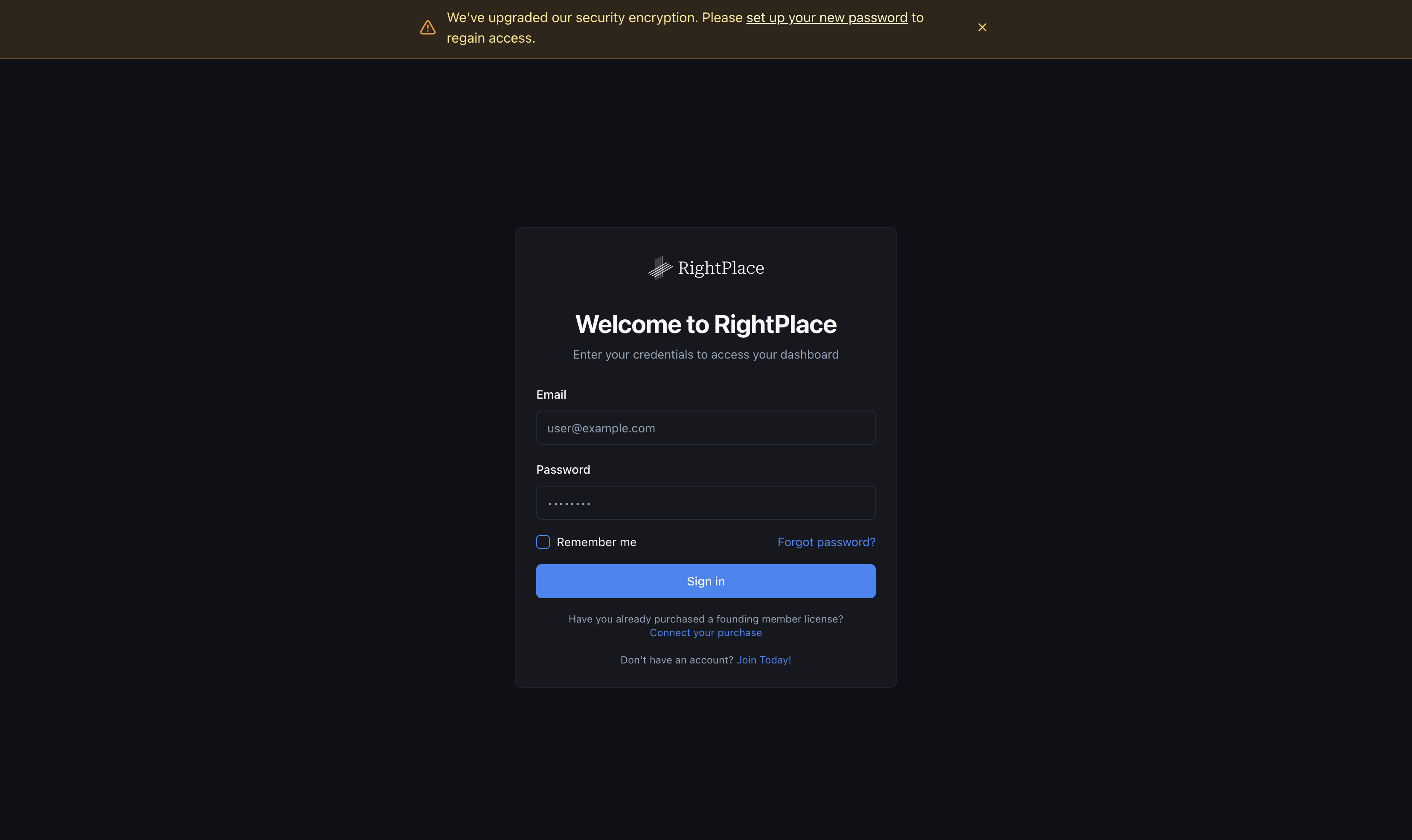
Note: If you used a previous version of RightPlace, you can sign in with the same account. You will need to reset your password before logging in.
Download the Desktop Application
Once signed in, you’ll see the downloads page with both the Desktop Application and the WordPress Plugin available.
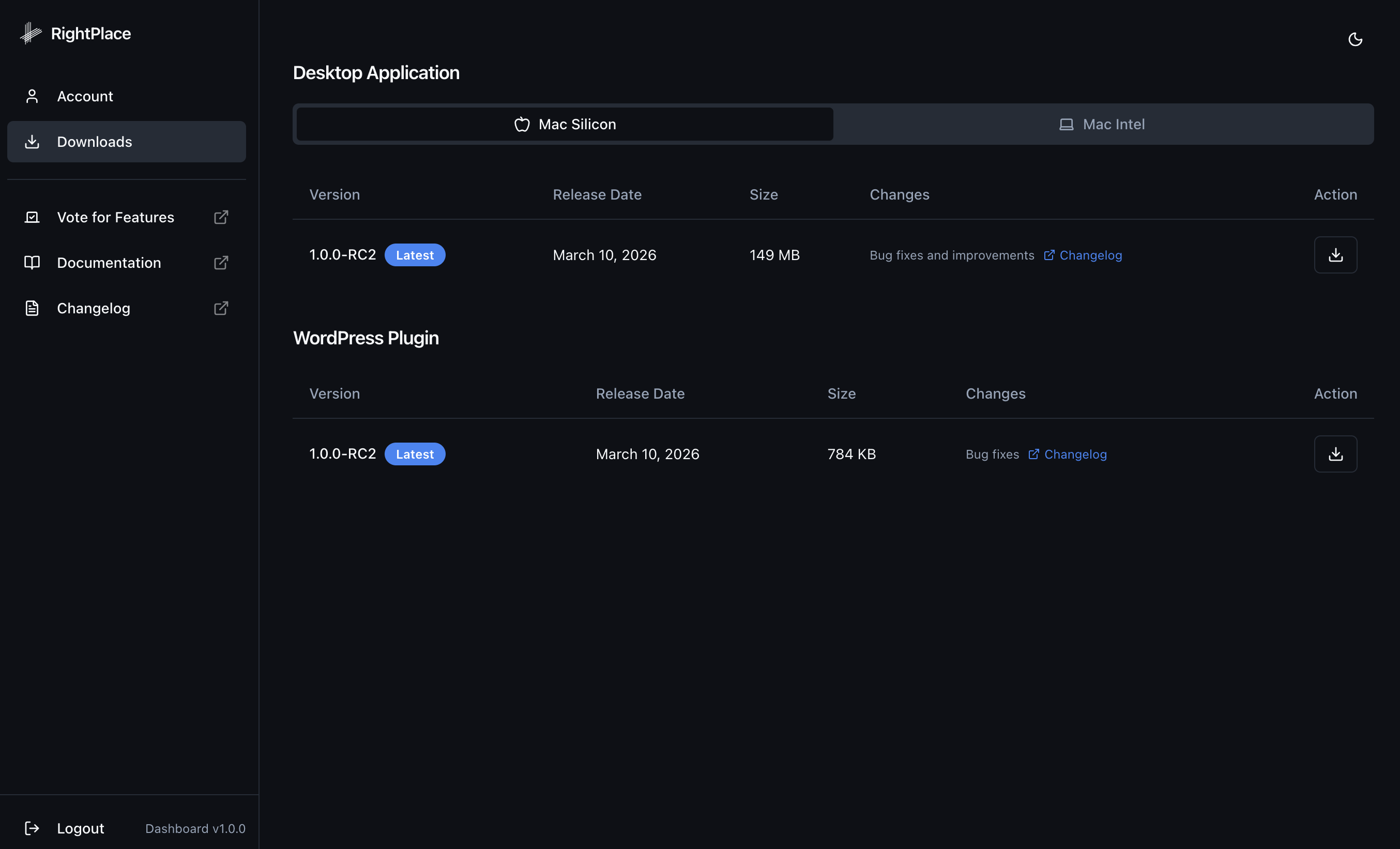
Download the Desktop Application
- Select your chip architecture: Mac Silicon or Mac Intel.
- Click the download button next to the latest version.
The app is downloaded as a .dmg file. Open it and drag RightPlace into your Applications folder.
Download the WordPress Plugin
- Click the download button next to the latest version.
- The plugin is downloaded as a
.zipfile.
For steps on installing the plugin on your WordPress site, see Connecting a WordPress Site.
Next steps
- Creating a Project: Set up your first project
- Connecting a WordPress Site: Link your WordPress site to the desktop app