RSS Feeds
Subscribe to RSS and Atom feeds. Browse articles with full content preview and search.
Features
- Multi-feed subscription manager
- Article list with content preview
- Search and filter articles
The RSS Feeds applet brings your reading list directly into your project. Instead of bouncing between browser tabs, feed readers, and your actual work, you can follow industry blogs, competitor updates, changelogs, and documentation feeds right next to the code and content you are building. Every article you read, star, or search lives inside the same workspace, so the context you gather feeds straight into the decisions you make.
Your reading list, inside the project
Most developers and teams follow dozens of sources: framework release notes, design blogs, security advisories, competitor product pages, internal team blogs. Those sources live in a browser tab you never get back to, or in a separate app you forget to check.
With the RSS Feeds applet, your reading list is part of the project. When you are working on a migration, the framework changelog is one click away. When you are researching a feature, the articles you starred last week are still there in context. You can search across every feed at once, filter down to unread items, and keep a curated collection of references without leaving your workspace.
- Research stays with the project. Star articles, search across all feeds, and come back to them later without hunting through bookmarks.
- Automatic updates. Feeds sync every 30 minutes in the background, so new posts are waiting for you when you switch to the tab.
- One reading experience. Read full article content inline, or switch to the live web view. No need to open a browser.
- Organized by category. Group feeds by topic (Frontend, Backend, Design, Security, Competitors) and collapse the ones you do not need right now.
- Zero noise. Mute feeds temporarily, mark everything as read, or filter to just starred articles.
Adding RSS Feeds
Open Add Applet and choose RSS Feeds in Content.
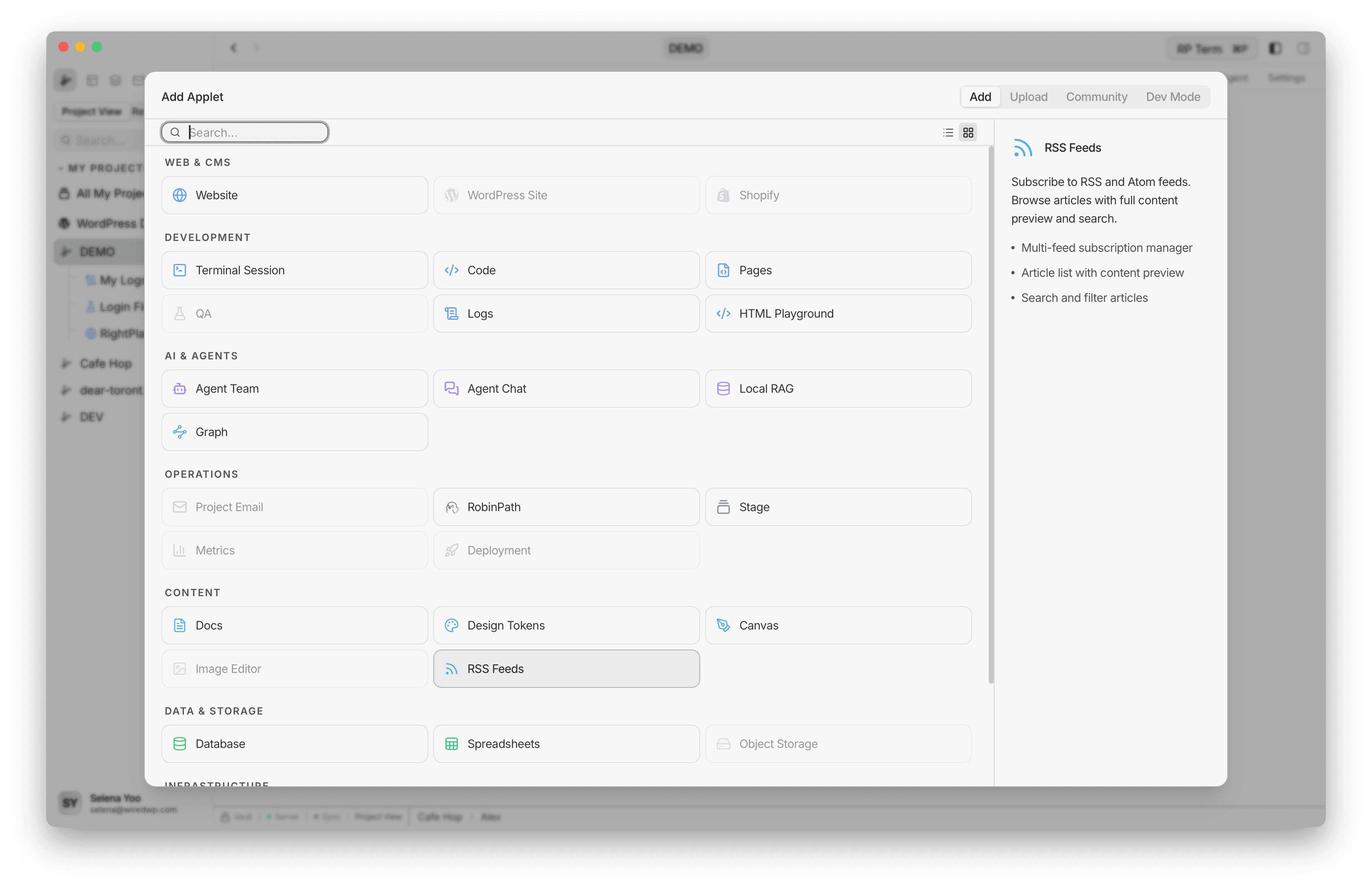
The creation form lets you configure:
- Name: a label for this feed collection (e.g. “Frontend News”, “Security Advisories”)
- Environment: optional tag for Production, Staging, or Development
Click Add RSS Feeds to create the applet. The feed browser opens immediately, ready for you to subscribe to your first feed.
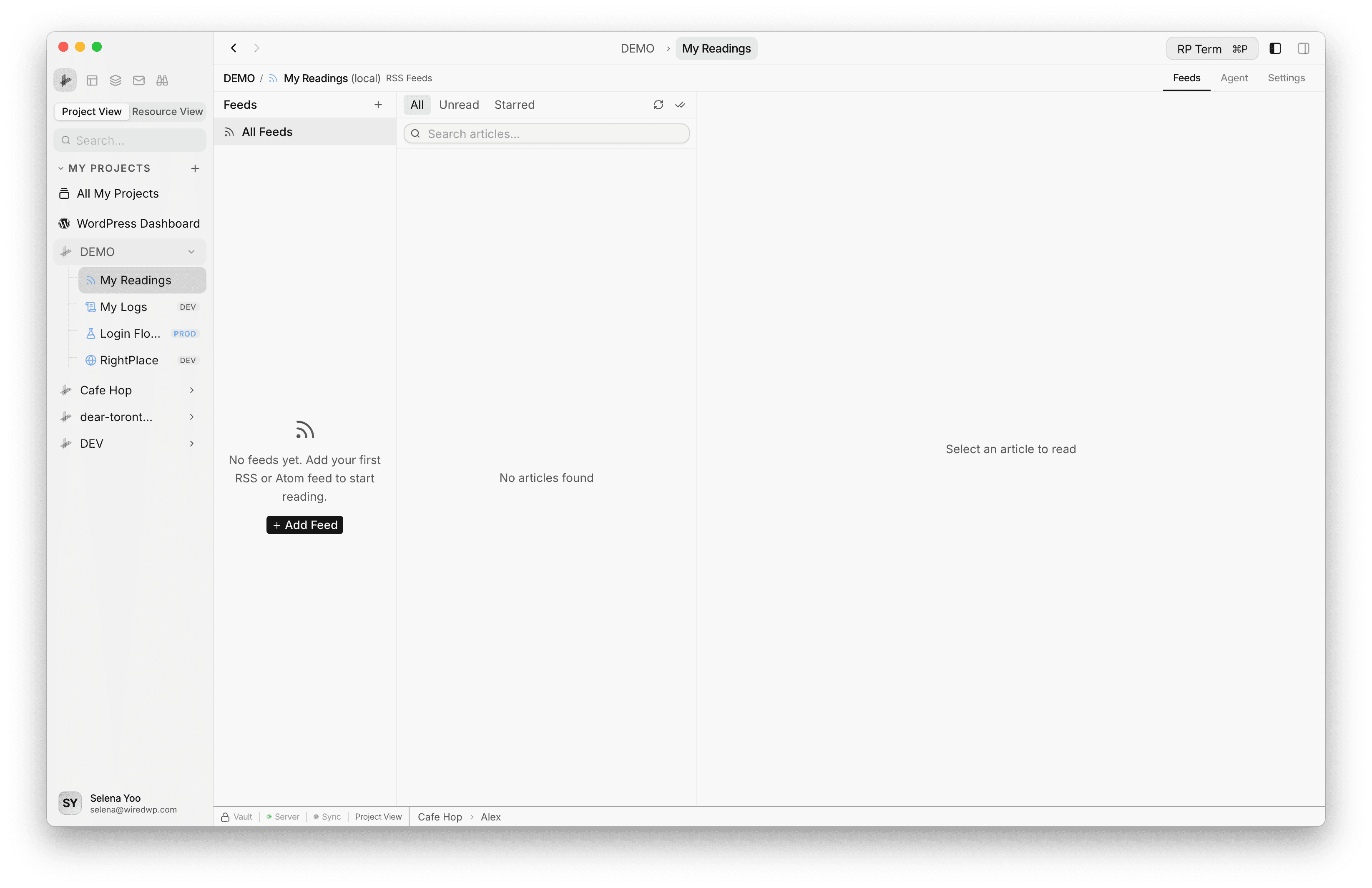
Adding a Feed
Once the applet is open, click the Add Feed button to subscribe to a new source.
- Feed URL: paste any RSS or Atom feed URL. RightPlace fetches the feed metadata, title, and initial batch of articles automatically.
- Category: assign the feed to an existing category, or leave it uncategorized.
The app pulls the site favicon automatically and displays it next to the feed name for quick visual scanning.
Interface Layout
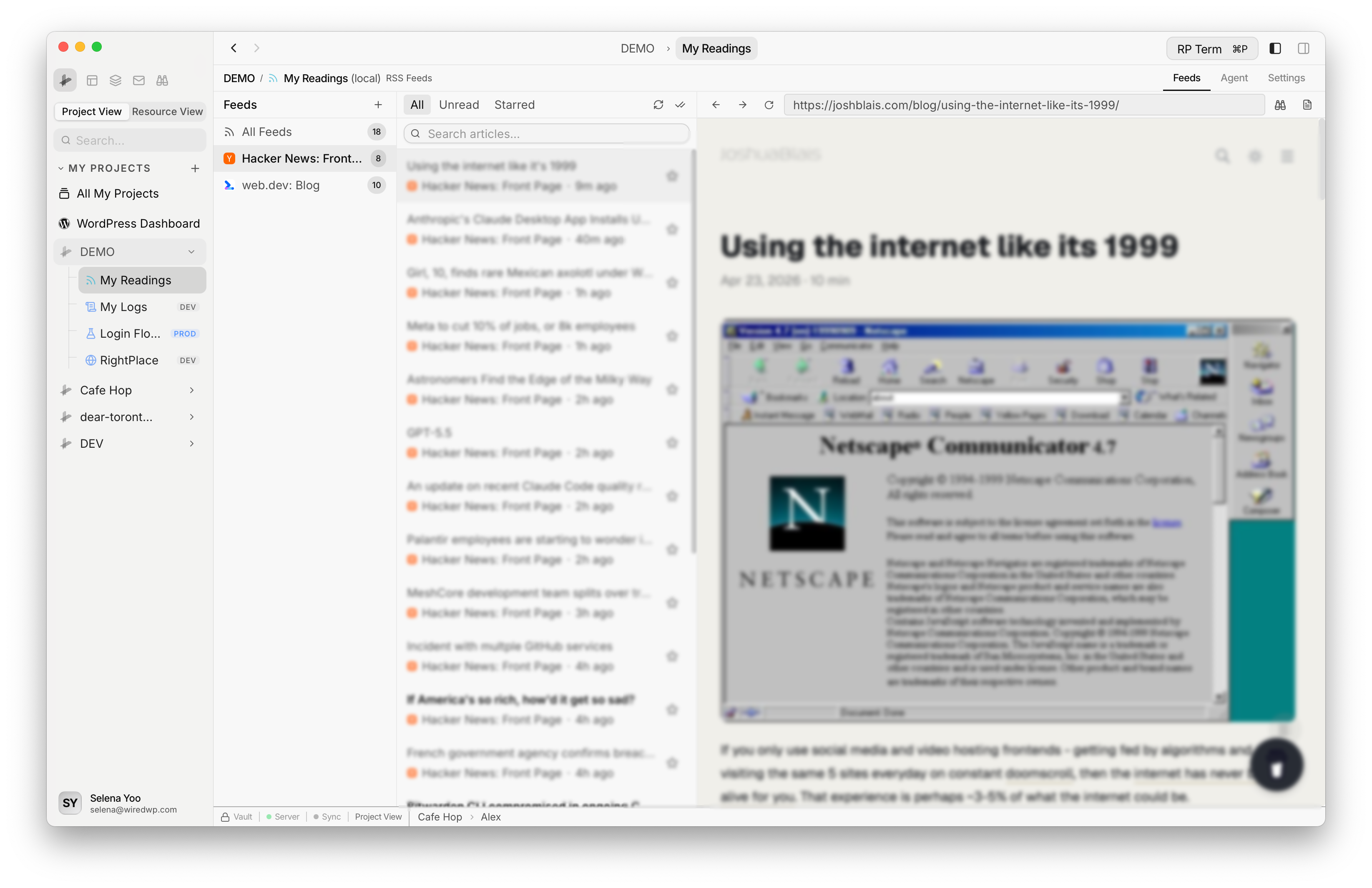
The feed browser uses a three-column layout:
- Left panel (Feed sidebar): lists all your subscribed feeds, grouped by category. Each feed shows its name, favicon, and unread count. Click a feed to filter the article list. Click “All Feeds” to see everything.
- Center panel (Article list): shows articles for the selected feed or all feeds. Each row displays the article title, feed name, author, and publication date.
- Right panel (Reading pane): displays the full content of the selected article.
All three panels are resizable. Drag the dividers to adjust the layout. Panel widths are remembered across sessions.
On narrower screens, the layout collapses to a single column with a dropdown feed picker at the top.
Reading Articles
Click any article in the list to load it in the reading pane. The reading pane supports two modes:
- Article mode: a clean, formatted view of the article text. Good for long reads and distraction-free content.
- Web mode: loads the live article page. Useful when the feed only includes a summary and you want the full post.
Articles are automatically marked as read when you select them. Links in the article text open in your default browser.
Filtering and Search
The toolbar above the article list includes filter buttons and a search field:
- All: show every article
- Unread: show only articles you have not read yet
- Starred: show only articles you bookmarked
The search field filters articles by title, description, and content across all feeds. Results update as you type.
Each filter shows a badge count so you can see at a glance how many unread or starred articles you have.
Starring Articles
Click the star icon on any article to bookmark it. Starred articles are saved across sessions and can be filtered using the Starred tab. Use this to build a reference collection of posts you want to come back to.
Managing Feeds
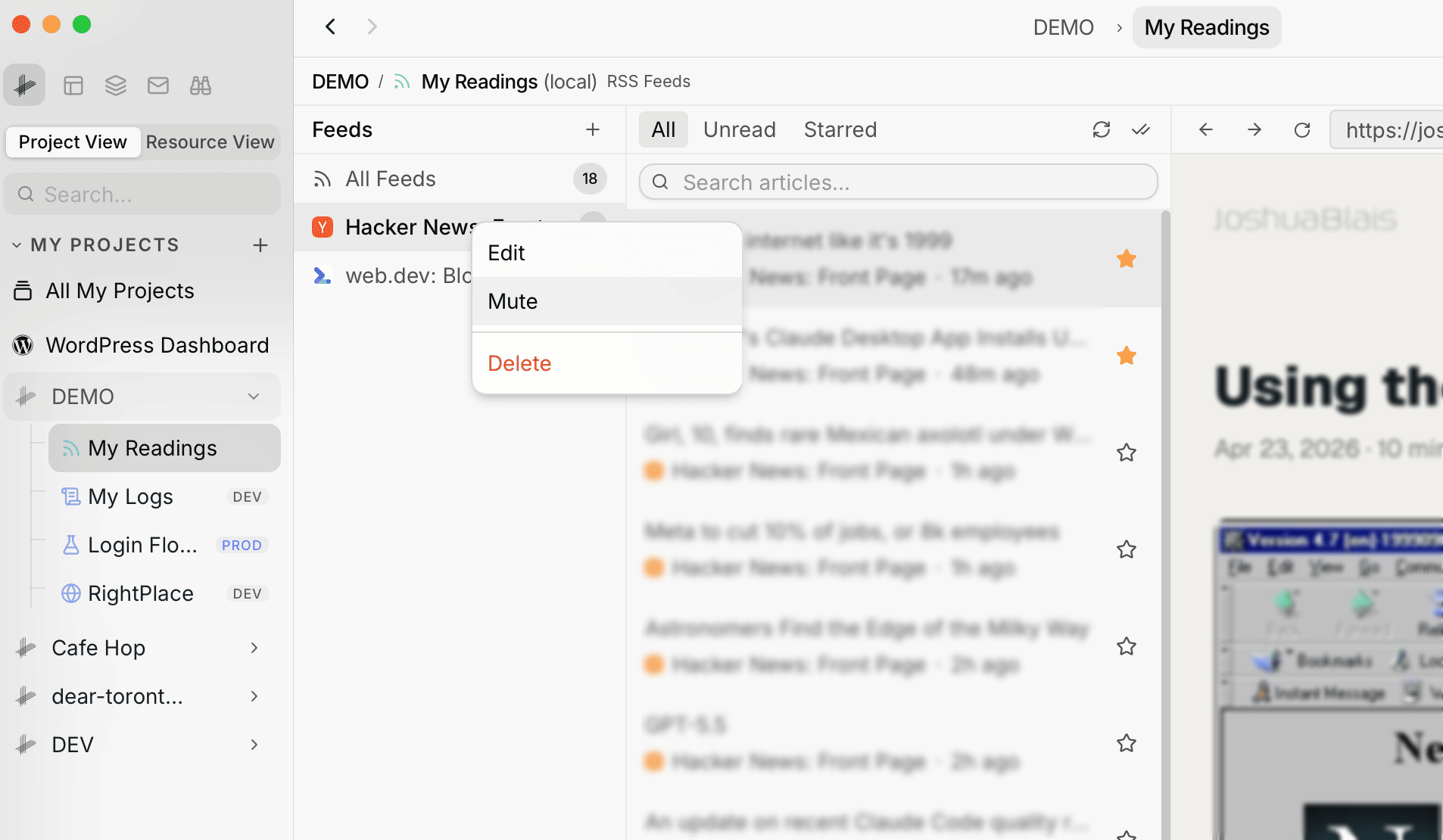
Right-click any feed in the sidebar to open the context menu with Edit, Mute, and Delete options.
Editing Feeds
Click the edit button on any feed to change its title or reassign it to a different category.
Muting Feeds
Toggle the mute button on a feed to suppress it from the article list without removing it. Muted feeds still sync in the background, so you can unmute them later and catch up.
Removing Feeds
Delete a feed to remove it and all its downloaded articles. A confirmation dialog prevents accidental deletion.
Refreshing Feeds
Click the refresh button on an individual feed to fetch new articles immediately, or use the global refresh to update all feeds at once.
Categories
Organize your feeds into custom categories. Categories appear as collapsible groups in the feed sidebar.
- Create a category: use the category management panel to add a new group
- Assign feeds: when adding or editing a feed, select a category from the dropdown
- Reorder categories: drag categories to change their sort order
- Delete a category: remove a group. Feeds in that category become uncategorized.
Auto-Sync
Feeds are refreshed automatically every 30 minutes in the background. New articles appear the next time you open the feed browser. Each feed tracks its last fetched timestamp and displays any errors if a fetch fails.
Next steps
- Docs: Write and organize project documentation
- Browser: Open any web page inside RightPlace
- Design Tokens: Manage design variables across your project