Project Email
Integrated email client for project communication. Send, receive, and organize with thread view.
Features
- Project-scoped mailbox and filter configuration
- Thread list plus message viewer layout
- Live preview while editing email filters
- One-click compose from project email view
Project Email is a filtered inbox applet tied to a project. You choose mailboxes and rules, then RightPlace shows matching threads in a dedicated project view.
Every thread that matters, zero inbox noise
Your inbox has thousands of threads. Only a handful are about the project you are working on right now. Digging through labels, searching by sender, switching between your mail app and your workspace - that friction adds up every single day.
The Project Email applet gives you a project-scoped mailbox. You pick the accounts, set the filters, and only the threads that match show up. The rest of your inbox stays out of the way.
- Context without switching. Read and reply to project emails in the same workspace as your docs, tasks, and deployments. No tab-hopping.
- Filters you set once. Define mailboxes, senders, keywords, and date ranges. The applet keeps showing the right threads without you searching again.
- Live preview while you tune. See matching threads update as you adjust filters, so you know exactly what will show up before you save.
- Compose in place. Hit the compose button and write from your project email view. The reply goes out from the right account automatically.
- Thread view built in. Full conversation threading with a two-column layout - list on the left, messages on the right.
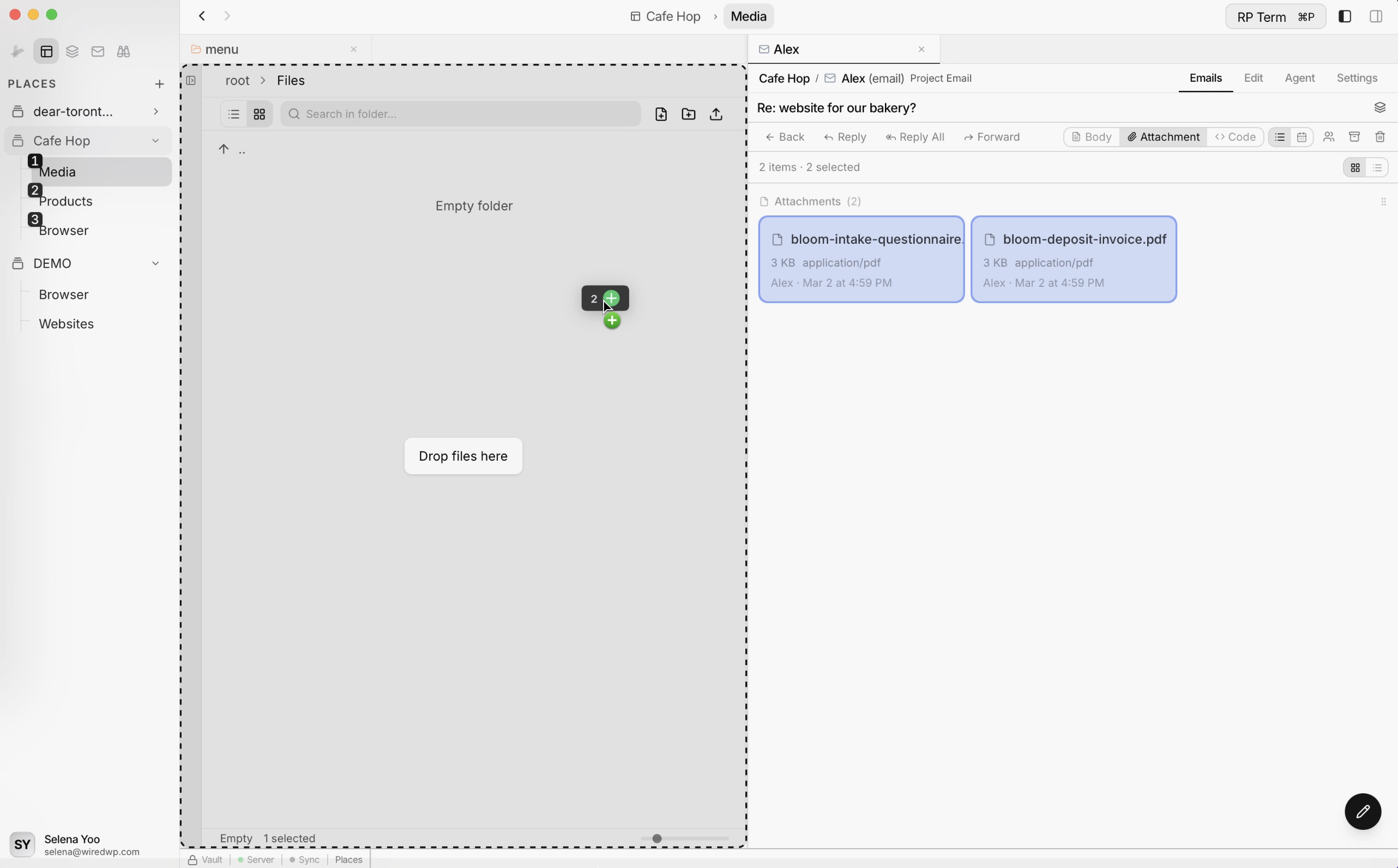
- Attachments to files in one drag. Drag attachments from an email straight into your project’s file manager. No download-then-upload dance.
Before creating Project Email
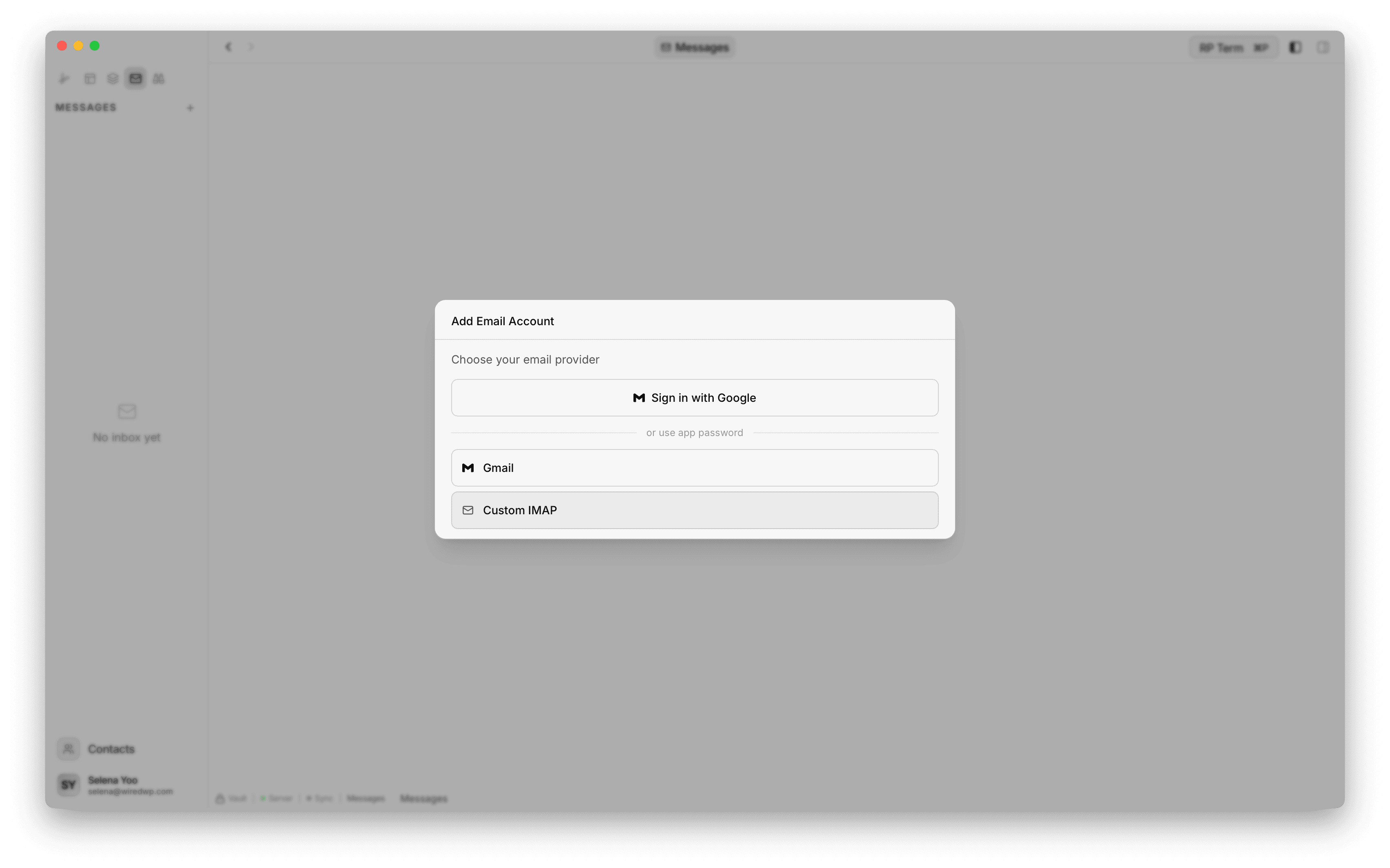
Project Email requires at least one connected email account.
If no account exists, the add form shows a prompt to open Settings > Messages and create one first. You can also add an account directly from the Messages page by clicking the + button.
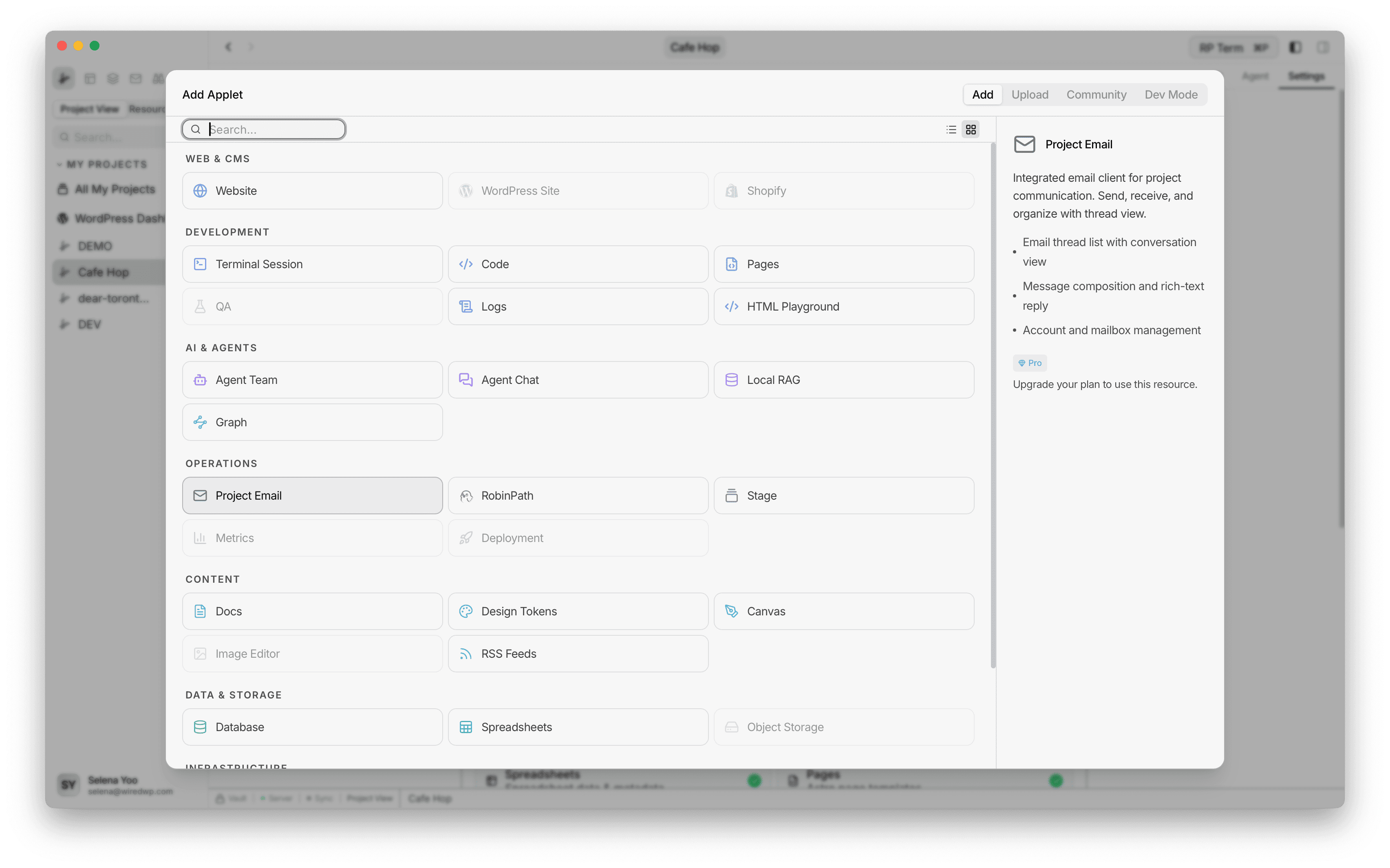
Adding Project Email
Open Add Applet and choose Project Email in Operations.
The creation flow opens the Project Email editor directly with a live preview of matching threads.
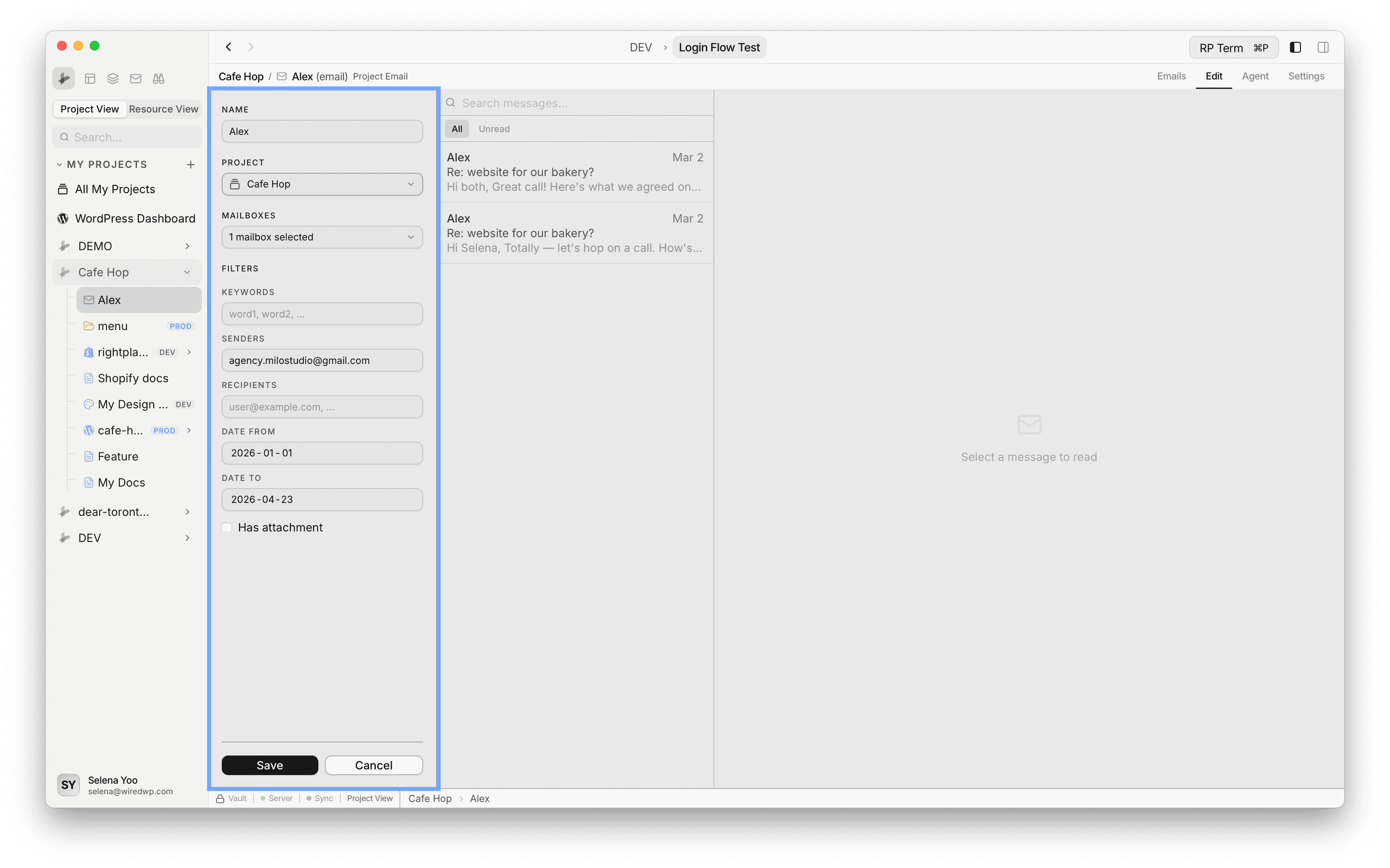
Editor configuration
The editor saves a project-specific email filter configuration:
- Name
- Project
- Mailboxes (multi-select, grouped by account)
- Keywords
- Senders
- Recipients
- Date from / Date to
- Has attachment
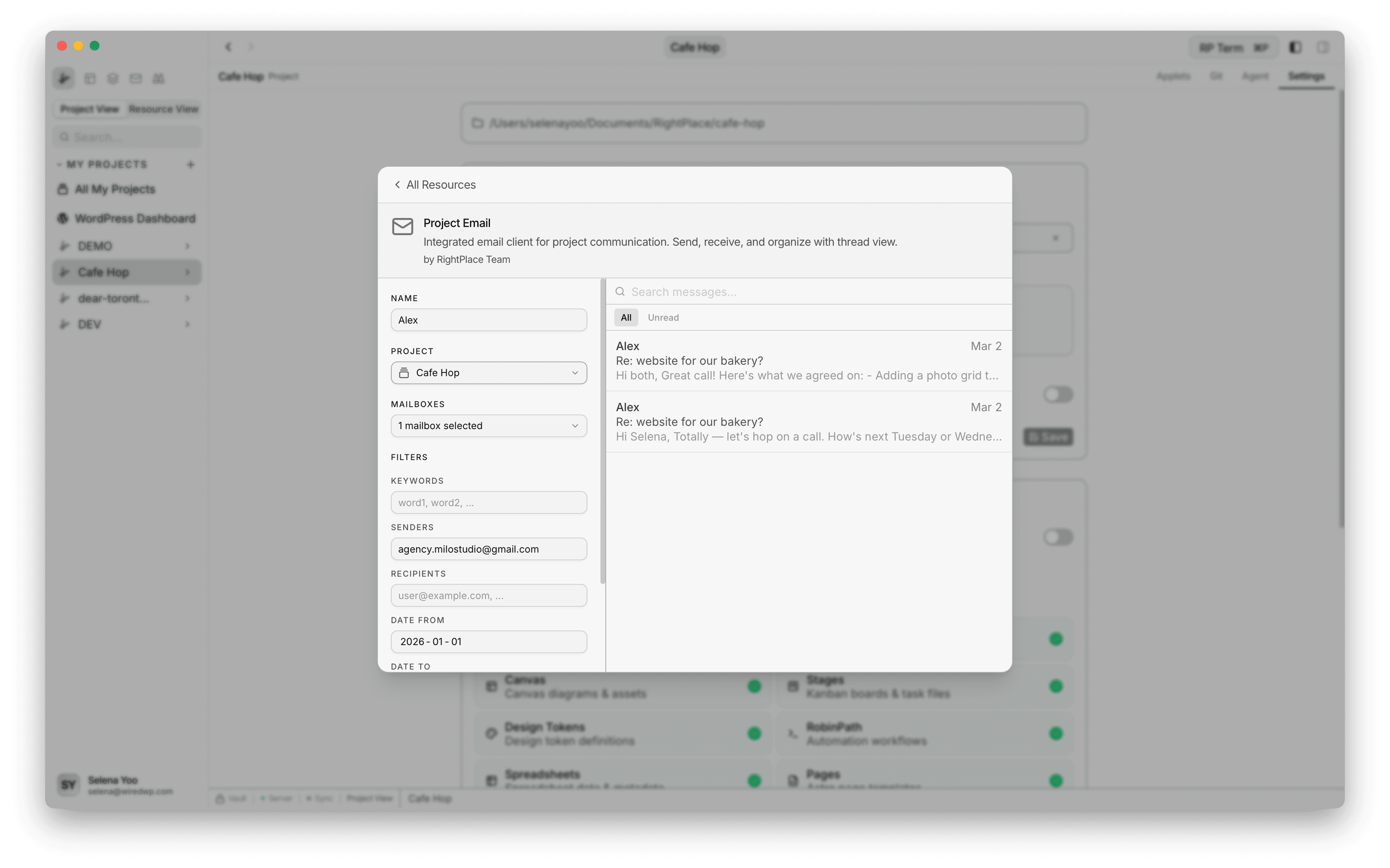
Live preview while editing
As you change mailboxes and filters, the preview thread list updates automatically with a short debounce. This lets you verify results before saving.
When opened from Add Resource modal, the editor can run in preview-first mode without the full message viewer.
Project Email resource view
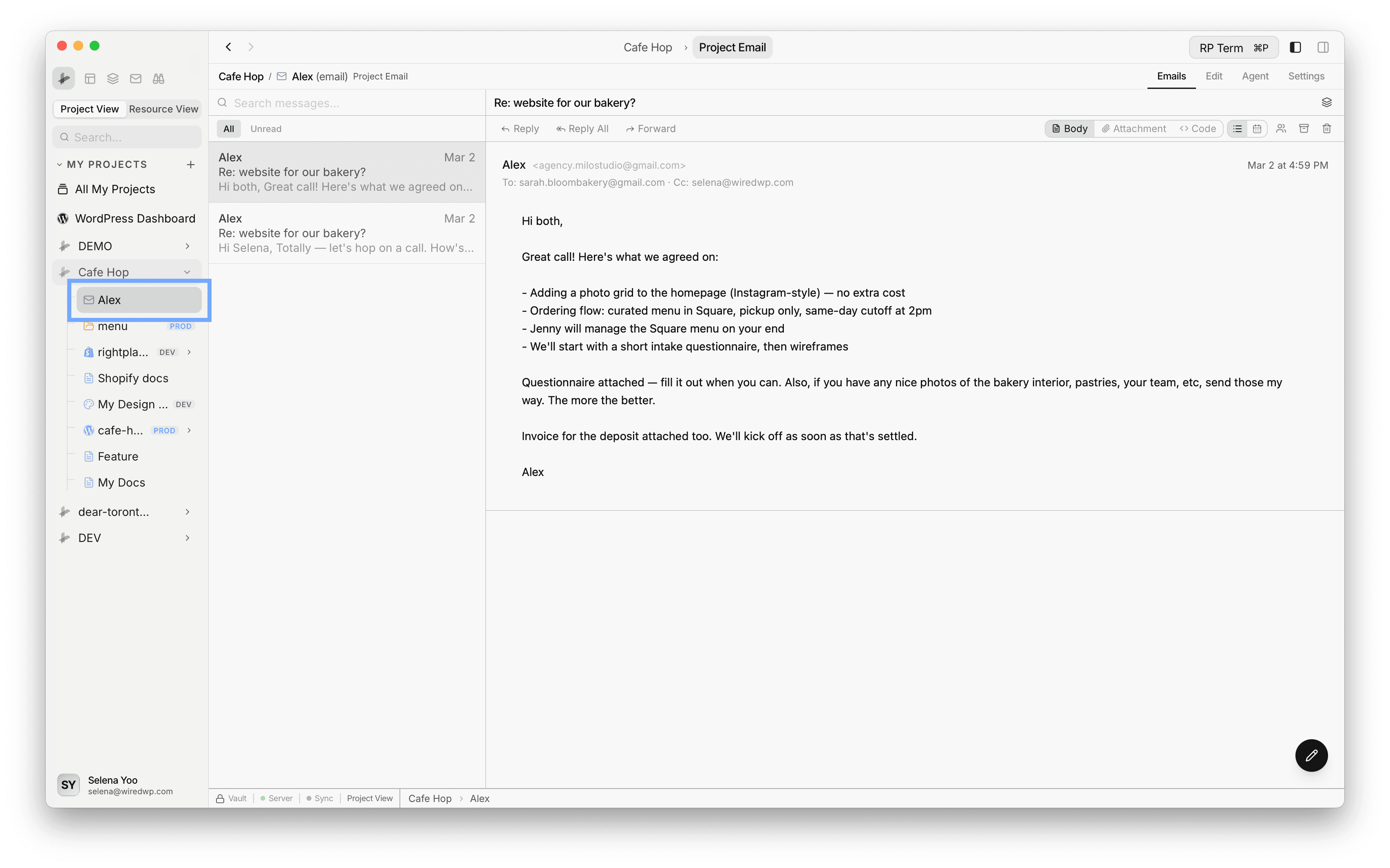
After saving, the applet opens a two-column layout:
- Left: email thread list
- Right: message viewer
The list width is resizable, and the header includes an Edit action to return to filter settings.
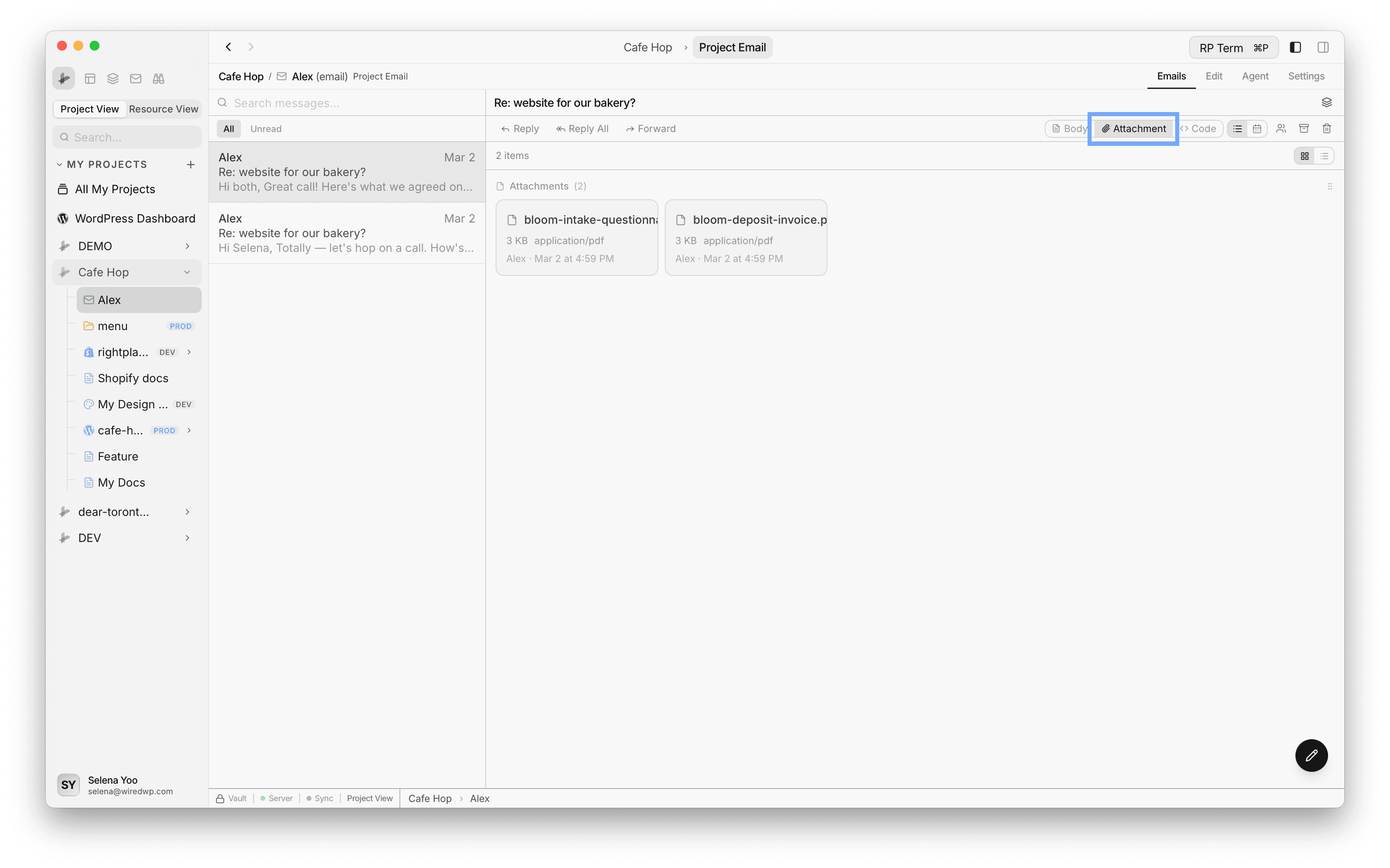
Attachments
The message viewer includes an Attachment tab that lists all files attached to the selected thread. Each attachment shows the filename, file type, sender, and date.
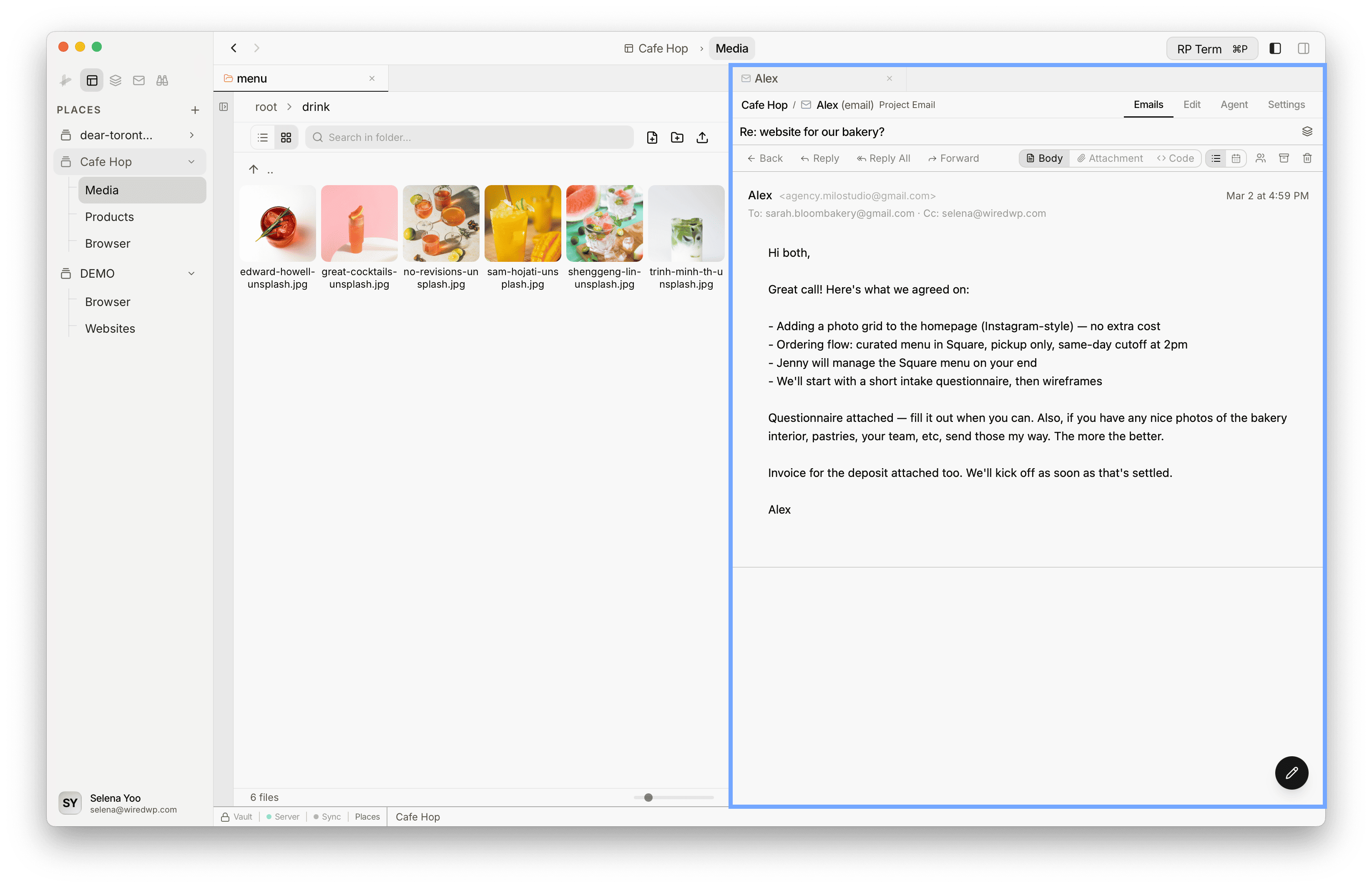
You can drag attachments directly from the email into your project’s file manager. Open a Files tab side by side with the email, then drag the attachment over - it drops into the folder without downloading and re-uploading.
Compose behavior
Project Email includes a floating compose button. It opens the compose window for the currently selected account (or the first available account).
Mobile-width behavior
On narrow widths, Project Email switches to compact mode:
- Thread list and message detail are shown one at a time
- A back action returns from message detail to the list
Widget
Appears when the Messages page is active.
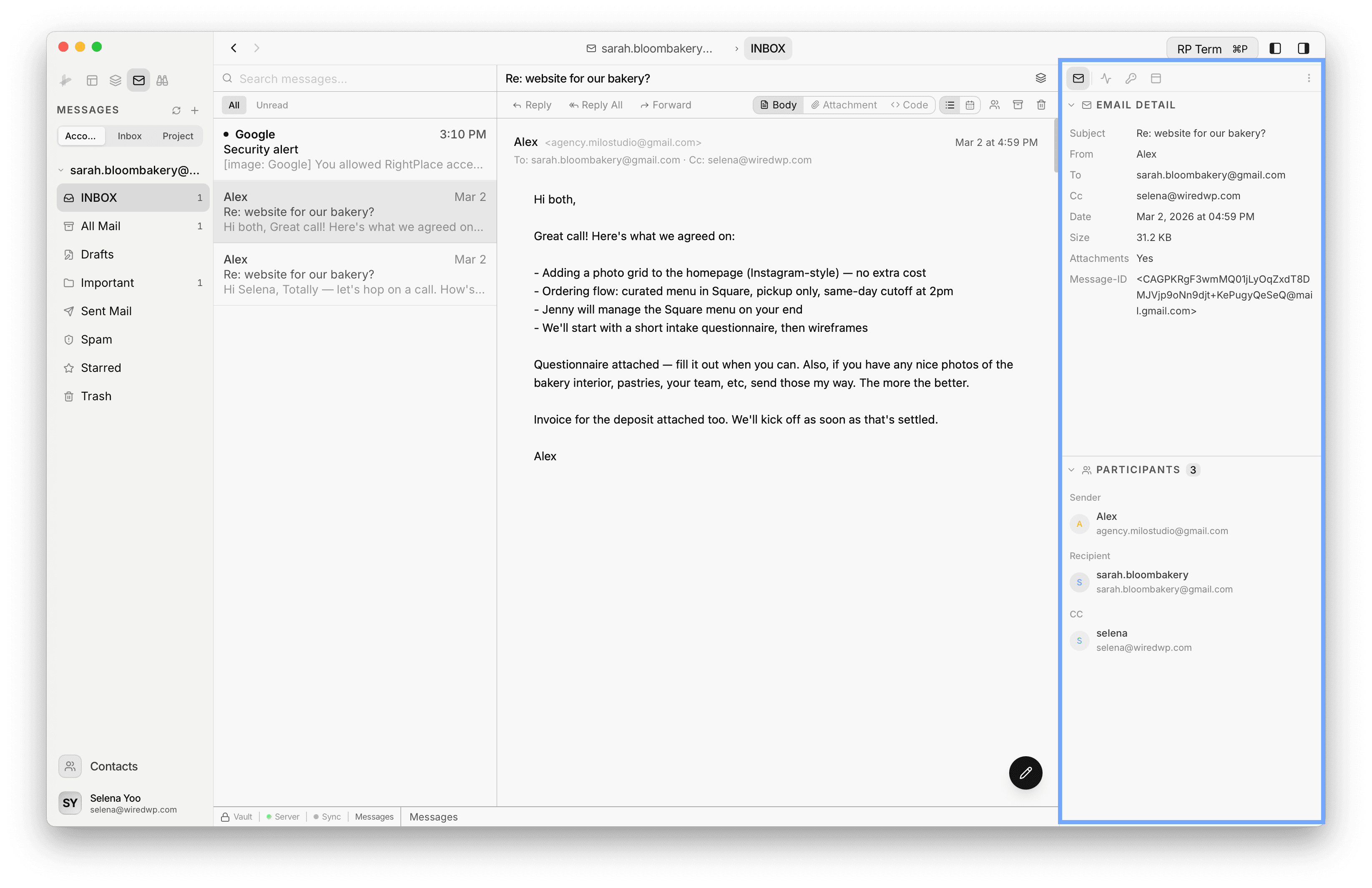
Two collapsible sections:
Email Detail:
- Message subject, from address, and to addresses
- CC and BCC recipients
- Date and message size
- Body preview
- Copy buttons for addresses
Participants:
- Sender info with avatar
- Recipients grouped by to, CC, and BCC
- Quick email action buttons
Next steps
- Stage: turn email decisions into actionable tasks
- Terminal Session: run commands tied to support and ops workflows
- Logs: investigate runtime issues mentioned in email threads