Local Folder
Link a local directory to your project. Browse and manage files natively.
Features
- Native macOS filesystem browser
- Drag-drop file operations
- Favorites for quick access
- Table and grid view modes
- Inline preview for images, videos, and PDFs
- Built-in code and image editor
- Full-text content search
The Local Folder applet links a directory on your machine to your project. You can browse, create, rename, move, and delete files and folders without leaving RightPlace.
Your files, inside the workspace
You already have folders full of files on your machine. The problem is getting to them while you are working. You end up bouncing between Finder, your project, and whatever app opens that file type.
The Local Folder applet brings any directory into your workspace as a tab. Browse, preview, and open files without leaving the project.
- One tab, not three apps. See your files right next to your tasks, docs, and everything else. No Finder window hunting.
- Preview without opening. Images, videos, and PDFs display inline. No need to launch a separate viewer.
- Edit in place. Open code files in the built-in editor or images in the image editor, all without leaving the workspace.
- Search inside files. Full-text search across everything in the folder. Find that one line buried in a thousand files.
- Drag files anywhere. Move files between folders, drop them in from Finder, or drag them out to other apps.
Adding a Local Folder
Open Add Applet and choose Local Folder in Infrastructure.
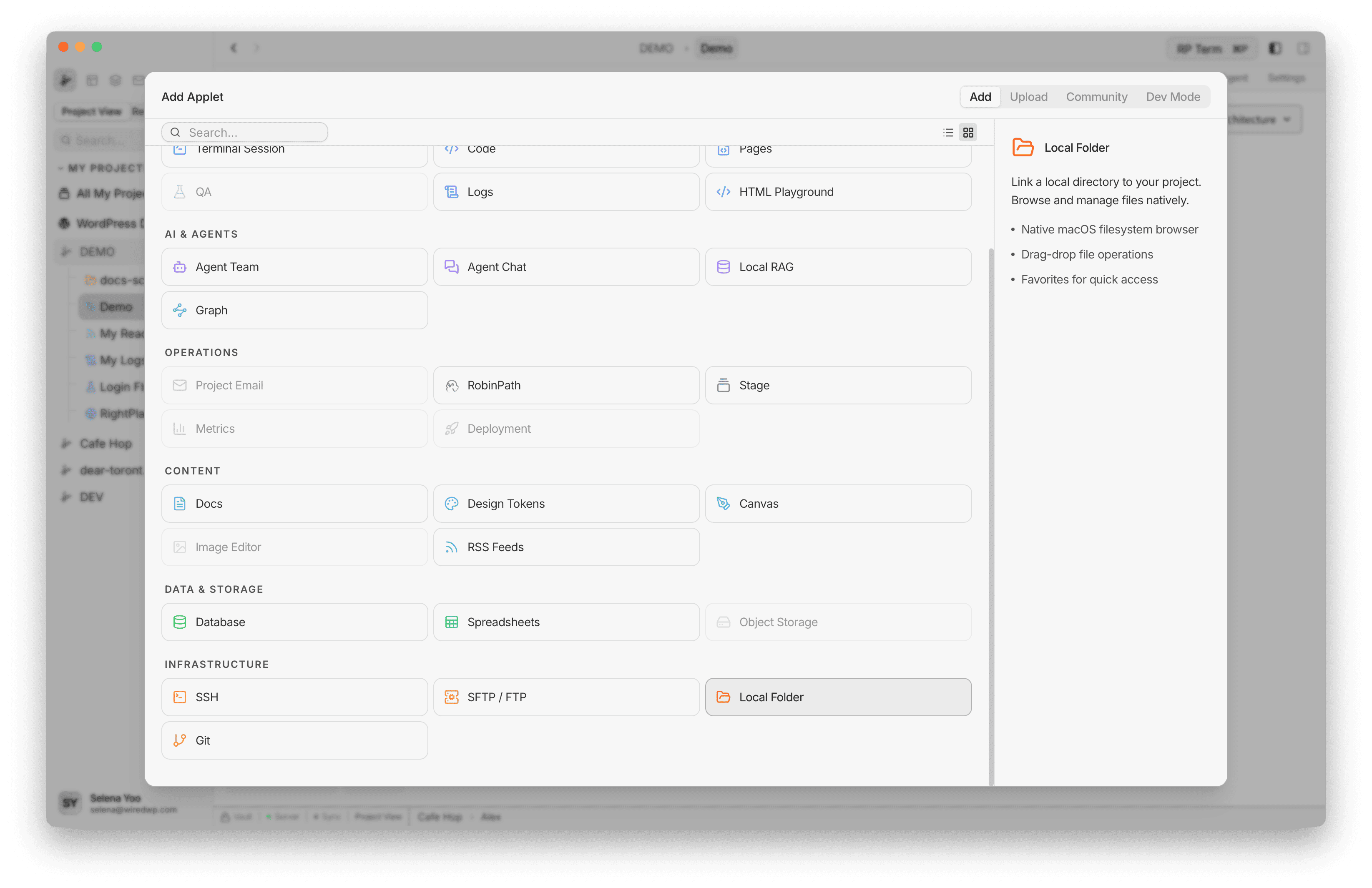
The creation form has three fields:
- Folder Path: click Browse to pick a directory from your filesystem
- Name: display name for the applet, auto-populated from the folder name
- Environment: optional tag (Development, Staging, Production)
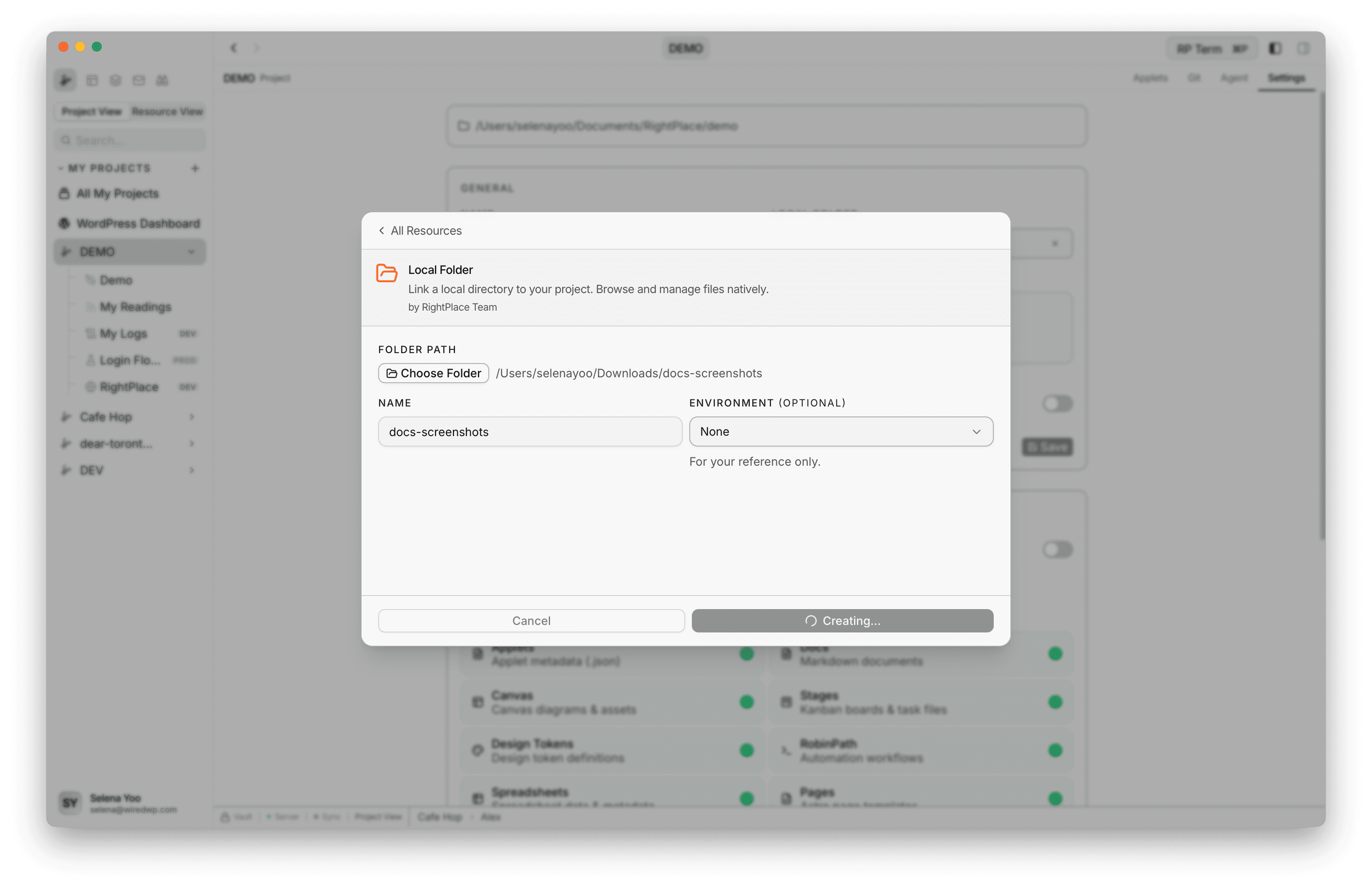
When you create the applet, the selected directory becomes the root of the file browser.
File Navigator
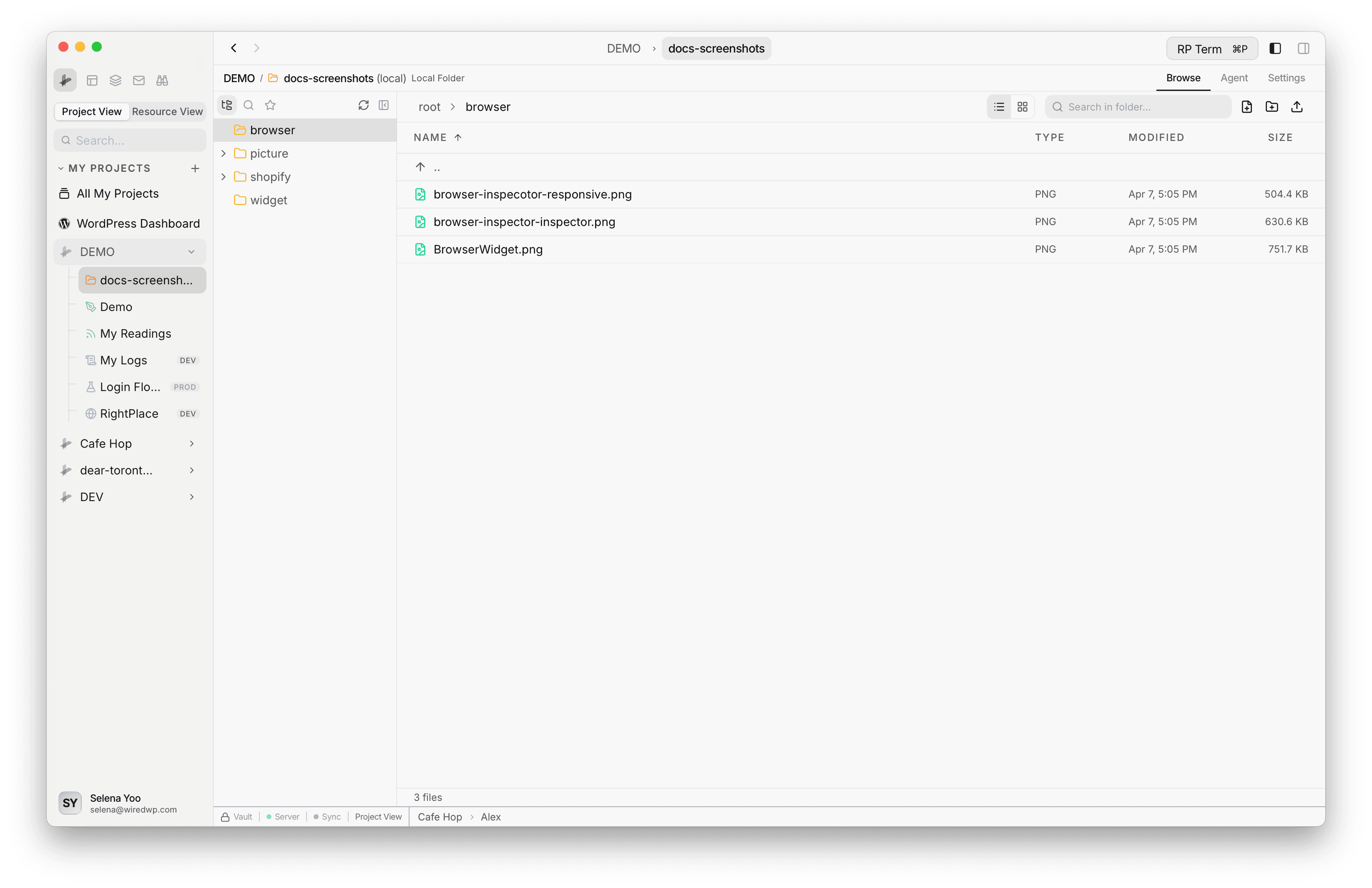
The left sidebar shows a tree view of your folder. Folders load their contents on demand when you expand them. Hidden directories like node_modules, .git, and __pycache__ are automatically skipped.
You can:
- Expand and collapse folders (state is remembered across sessions)
- Click a folder to set it as the active view in the file table
- Resize the sidebar by dragging the divider
- Collapse the sidebar entirely
File Table
The main area displays the contents of the selected folder. Each entry shows the file name, size, and last modified date. Click a file to select it and see its details in the widget panel. Sort by any column header.
Opening Files
Double-click a file to open it. The action depends on the file type:
- Code and text files (
.js,.ts,.py,.md,.json,.rs,.go,.html,.css,.yaml,.sql,.php,.rb,.sh,.txt,.log, and more): opens in the built-in code editor with syntax highlighting. You can also right-click and choose Open in External Editor to open the file in your preferred code editor (VS Code, Sublime Text, etc.) instead. - Images (
.png,.jpg,.gif,.webp,.bmp,.avif,.svg): opens in the built-in image editor. Right-click for the Open in Image Editor option. - PDFs (
.pdf): opens an inline PDF viewer with page navigation and a toolbar. Right-click and select View PDF for the same viewer, or Open in Default App to open the PDF in your system’s default PDF reader (e.g. Preview). - Other files: opens in the default macOS app for that file type.
View Modes
Switch between two view modes:
- Table: detailed list with columns for name, size, and modified date
- Grid: thumbnail icons with adjustable size
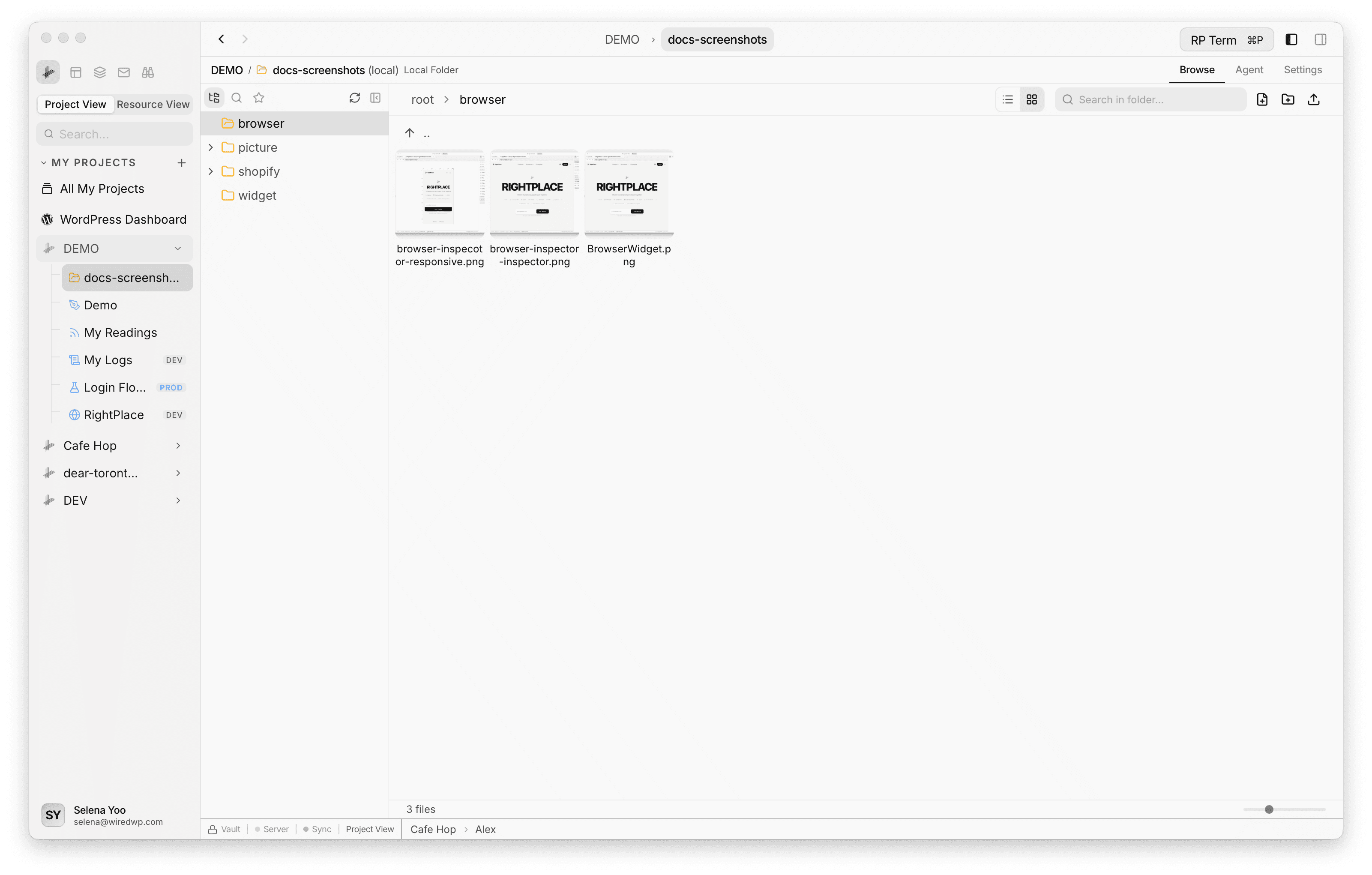
The selected mode and grid size are saved per applet.
File Operations
Create
- New File: creates an empty file in the current folder
- New Folder: creates a new subfolder
Rename
Right-click a file or folder and select Rename, or use the context menu.
Delete
Delete files or folders with a confirmation dialog. Folder deletion is recursive.
Copy and Move
- Copy or cut files using the context menu or keyboard shortcuts
- Paste into a different folder
- Drag files between folders to move them
- When a name collision occurs, the applet auto-generates a unique name (e.g.
file (1).txt)
Upload
Click the Upload button in the toolbar or use the context menu to upload files from disk into the current folder.
Drag and Drop
The folder browser supports drag-and-drop in multiple directions:
- Internal: drag files between folders to move them
- From Finder: drop files from macOS Finder to copy them into the folder
- To Finder: drag files out of the browser to copy them to your desktop or another app
Drop targets highlight as you drag over them.
Favorites
Mark frequently used files or folders as favorites for quick access.
- Right-click any item and select Add to Favorites (or use the star icon)
- Favorites appear at the top of the sidebar
- Click a favorite to jump to its location and expand the tree
- Missing favorites (deleted or moved files) are detected automatically
- Favorites are stored in the applet’s config and persist across sessions
Search
Search across all file contents in your folder using the search bar.
- Supports case-sensitive and whole-word matching
- Filter by file extension
- Results show the file path, line number, and matching content
- Click a result to navigate to the file
- Respects
.gitignorerules (ignored files are excluded)
Inline Viewers
The folder browser includes built-in viewers for common file types:
- Images (PNG, JPG, GIF, WebP, BMP, AVIF, SVG): inline preview in the file table and widget panel
- Videos (MP4, MOV, WebM): inline video player
- PDFs: paged viewer with a toolbar for navigation and an option to open in an external app
- Code and text files (30+ extensions): open in the built-in code editor with syntax highlighting
Settings
The Settings tab lets you update the root folder path. Click Browse to select a new directory. The applet name and environment can also be changed from this view.
Widget
Appears when a file is selected in the folder browser.
Detail fields:
- File name and parent directory
- Copy path button
- File type (extension), size, and modified date
For image and video files, a thumbnail preview appears at the top of the widget.
Actions:
- Edit in Image Editor: opens the image in the built-in editor (images only)
- Open in External Editor: opens the file in your preferred code editor (code/text files)
- Open in Editor: opens the file in the built-in editor
- Reveal in Files: navigates to the file in the project file browser
Next steps
- SFTP / FTP: Transfer files to remote servers
- Docs: Create markdown documentation