Canvas
Freeform visual whiteboard powered by Excalidraw. Draw diagrams, wireframes, and sketches.
Features
- Freeform drawing canvas
- Multi-page document support
- SVG and image export
The Canvas applet is a freeform visual whiteboard embedded directly inside your project. Instead of switching to a separate drawing app to sketch an idea, you can open a canvas tab right next to your docs, terminal, and everything else. Diagrams, wireframes, flowcharts, notes, and quick sketches live in the same workspace as the thing you are building.
Draw it out, right where you work
Ideas do not always start as code. Sometimes you need to draw a system diagram before you write the first line. Sometimes a UI wireframe saves an hour of back-and-forth. Sometimes you just need a blank surface to think on.
The Canvas applet puts that surface inside your project instead of in a separate tool.
- Sketches live next to the work. Your diagram is one tab away from the docs it describes. No switching apps, no separate logins.
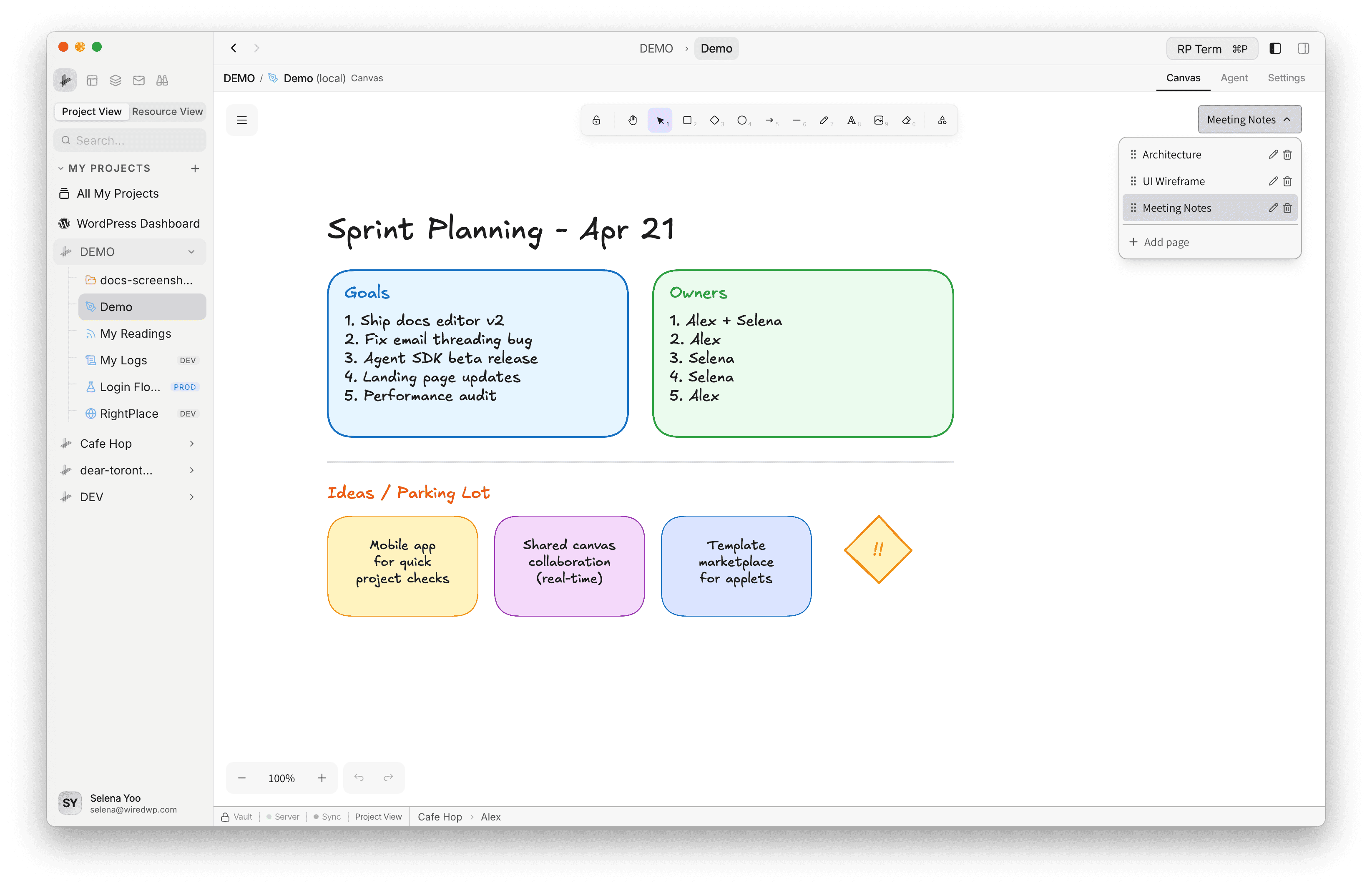
- Multi-page documents. Organize related drawings into pages within a single canvas. One canvas can hold your database schema on page one, your API flow on page two, and your UI wireframes on page three.
- No account required. Canvas runs entirely locally. Nothing is uploaded anywhere. Your drawings are stored as files inside the project folder.
- Drag images in from anywhere. Drop screenshots, mockups, or reference images directly onto the canvas from Finder, your browser, or other applets like FTP and Object Storage.
- Export when you need to share. Save any page as PNG or SVG for documentation, pull requests, or presentations.
- Light and dark mode. The canvas follows your app theme automatically.
Adding a Canvas
Open Add Applet and choose Canvas in Content.
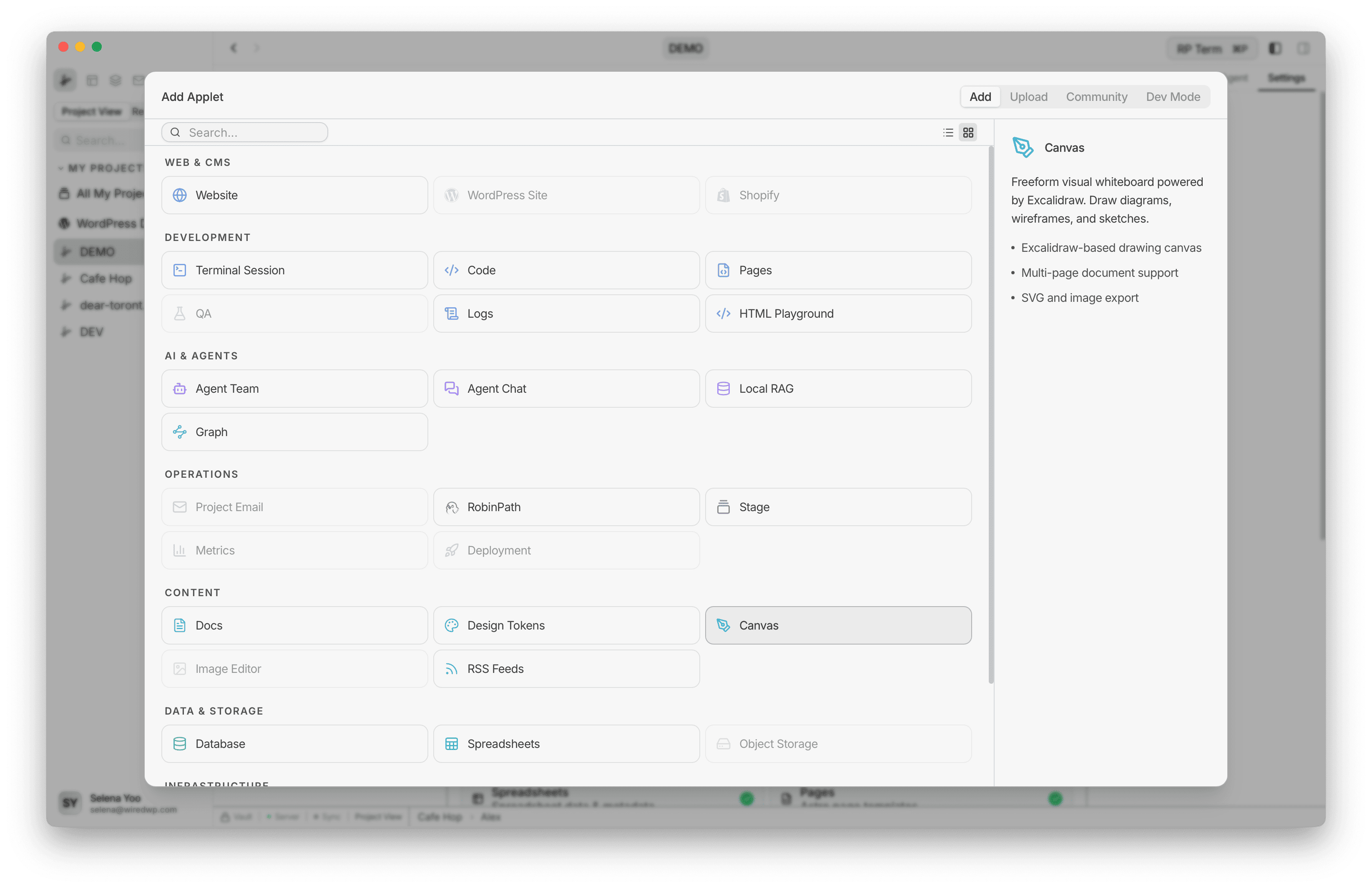
The creation form lets you configure:
- Name: a label for this canvas (e.g. “Architecture Diagrams”, “Sprint 4 Wireframes”)
- Environment: optional tag for Production, Staging, or Development
Click Add Canvas to create the applet. The whiteboard opens immediately with a blank page.
Drawing Tools
Canvas includes a full drawing toolbar:
| Tool | Shortcut | Description |
|---|---|---|
| Selection | V | Select and move elements |
| Hand | H | Pan the canvas without selecting anything |
| Rectangle | R | Draw rectangles and squares |
| Diamond | D | Draw diamond shapes |
| Ellipse | O | Draw circles and ellipses |
| Arrow | A | Draw arrows and connectors |
| Line | L | Draw straight lines |
| Pencil | P | Freehand drawing |
| Text | T | Add text labels |
| Eraser | E | Remove elements |
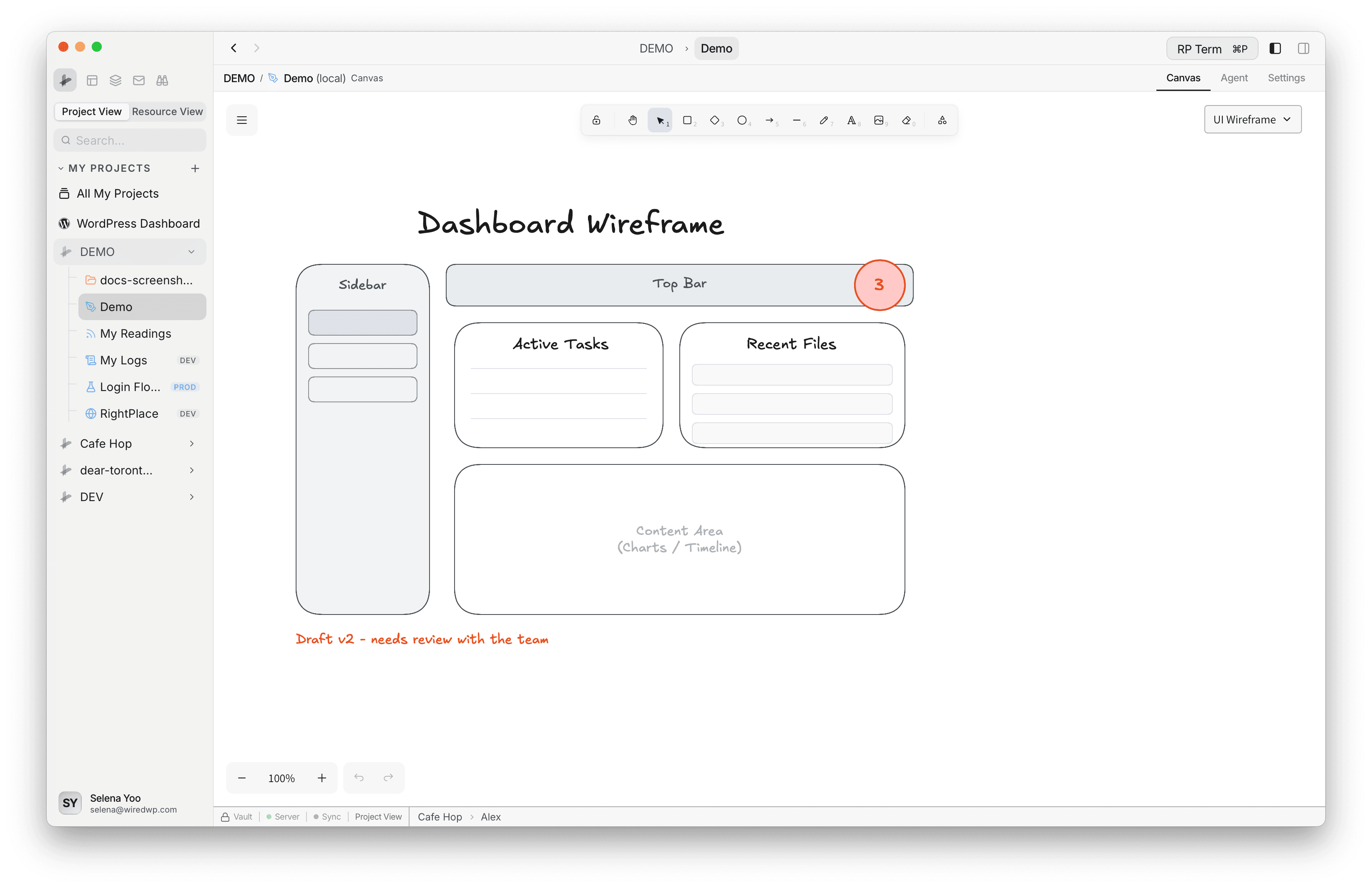
Each shape supports customization: fill color, stroke color, stroke width, line style (solid, dashed, dotted), corner rounding, and opacity.
Multi-Page Documents
A single canvas can contain multiple pages. Use this to organize related drawings without creating separate applets.
- Add page: click the page dropdown and select “Add Page” to create a new blank page
- Switch pages: use the dropdown to jump between pages
- Rename pages: click the page name to edit it inline
- Reorder pages: drag pages in the dropdown to rearrange them
- Delete pages: remove a page you no longer need (at least one page is always kept)
Each page maintains its own viewport position and zoom level, so switching between pages picks up right where you left off.
Working with Images
Drag image files directly onto the canvas to embed them. Supported formats: PNG, JPG, JPEG, GIF, WebP, BMP, AVIF, SVG.
Images larger than 600px wide are automatically scaled down to fit. You can drop up to 20 images at once.
You can also drag images from:
- Finder: drop local files onto the canvas
- Browser applet: drag images from web pages directly into the drawing
- Other applets: drag from FTP, Object Storage, or WordPress file browsers
Image assets are stored in the canvas folder alongside the drawing data. Unused images are cleaned up automatically.
Keyboard Shortcuts
| Shortcut | Action |
|---|---|
| Cmd+C | Copy selected elements |
| Cmd+V | Paste |
| Cmd+X | Cut |
| Cmd+Z | Undo |
| Cmd+Shift+Z | Redo |
| Cmd+A | Select all |
| Cmd+D | Duplicate selection |
| Cmd+G | Group elements |
| Cmd+Shift+G | Ungroup elements |
| Cmd+] | Bring forward |
| Cmd+[ | Send backward |
| Cmd+L | Lock / unlock element |
| Cmd+Plus | Zoom in |
| Cmd+Minus | Zoom out |
| Cmd+0 | Reset zoom |
| Cmd+Shift+F | Zoom to fit all elements |
| Cmd+‘ | Toggle grid |
| Alt+Z | Zen mode (hide UI) |
| Del | Delete selected elements |
Export
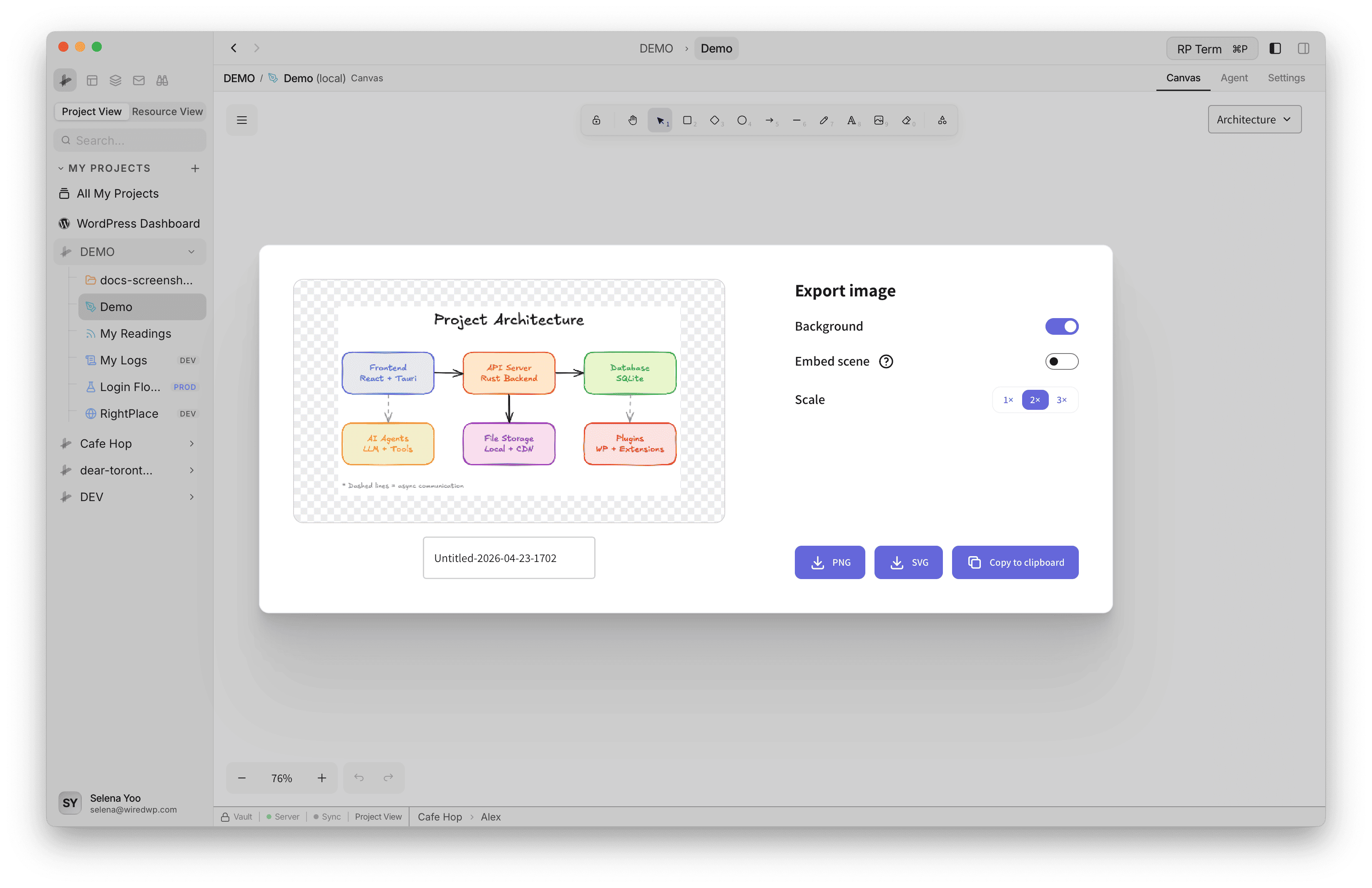
Save any page as an image for sharing or documentation:
- PNG export: raster image suitable for documentation, READMEs, and presentations
- SVG export: vector image that scales cleanly at any size, good for embedding in web pages or design tools
Sync Across Windows
If you have the same canvas open in multiple tabs, changes sync automatically through the filesystem. Edits from one window appear in the other within a couple of seconds. The sync is smart enough to avoid overwriting in-progress drawing, and each window preserves its own viewport position.
Data Storage
Canvas data is stored as files inside your project folder:
canvas-name/
  canvas.json    (drawing data for all pages)
  assets/        (embedded images)
Everything is local. The drawing format is portable JSON, so you can version-control it with Git, back it up, or inspect it manually.
Widget
Appears when a Canvas tab is active. Reserved for future canvas-specific tools and information.
Next steps
- Docs: Write long-form project documentation
- Image Editor: Edit screenshots and images with crop, rotate, and color tools
- Design Tokens: Manage colors, spacing, and typography variables